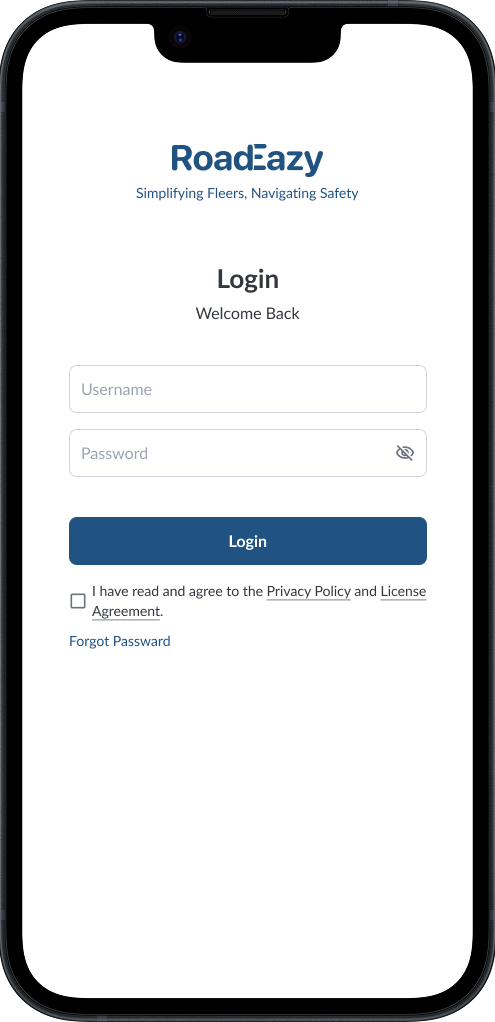
When you open the Driver App for the first time, you’ll be asked to log in. This step connects you to your fleet and ensures that all your activity, like vehicle check-ins, DVIR inspections, and coaching, is tied to your driver profile. Without logging in, the app won’t be able to record your work or share updates with your fleet manager.
What you need
- The Driver App installed on your phone.
- Internet connection.
- Login details from your fleet manager.
Steps to Log In
- Launch the app from your home screen.
- On the login screen, type in your username and password.
- Tap Log In.
- The app may ask for permissions like location access or notifications, allow these so vehicle check-ins and alerts work correctly.
Troubleshooting
- Forgot password? Tap Forgot Password on the login screen to reset.
- Login not working? Double-check your details or ask your fleet manager to confirm your account.
- Switched phones? Just download the app again and log in with the same details, your driver data stays linked to your account.
Note
Login details are issued by your fleet manager. If you don’t have them
yet, reach out before trying to log in.