The main menu is your gateway to all the essential features and tools of the application. Understanding its layout and functionality enables you to navigate the system with ease and efficiency.
After logging in, navigate to the main menu located on the left side of the screen. The menu is divided into sections, providing easy access to the core functionalities of the platform.
Click on any section in the menu to explore its features and familiarize yourself with the tools available in that area.
 | Dashboard | Your fleet overview, showing key metrics, alerts, and overall performance at a glance |
 | Map | View real-time and historical vehicle locations to monitor fleet activity and movement |
 | Assets | Add, manage, and track vehicles and equipment, including status and key details |
 | Trips | Review trip routes, durations, mileage, stops, and trip history within a selected timeframe |
 | Geofences | Create and manage geographic zones to track vehicle entry, exit, and location-based events |
 | Drivers | Manage driver profiles, assignments, and driver-specific data |
 | Driver Check Ins | Review all driver check-ins, including when and how drivers checked in |
 | Maintenance | Track maintenance schedules, service history and vehicle diagnostics |
| Fault Codes | View active vehicle fault codes and diagnostic information |
 | DVIR | Collect and review driver vehicle inspection reports and defect statuses |
 | DVIR Templates | Create and manage inspection templates to standardize DVIR workflows |
 | Safety | Monitor fleet safety metrics, incidents, and risk trends |
 | Driver Performance | Analyzes driver-specific performance data, including safety scores and risk factors |
| Vehicle Performance | Analyzes vehicle-specific performance data, including safety scores and risk factors |
 | Safety Center | Centralized view of safety events |
 | Coaching | Provides tools to review and coach driver behavior |
 | Alerts | Provides tools for setting up alert rules, thresholds, and notifications across your fleet |
 | Recordings | Provides access to vehicle camera recordings |
 | Health | Monitors the health of your devices, helping identify and address potential issues proactively |
| IFTA | Track mileage by jurisdiction to support IFTA reporting and compliance |
 | Reports | Generate and export detailed fleet, driver, trip, and safety reports |
 | Settings | Manage users, roles, alerts, notifications, and fleet-wide preferences |
To personalize your viewing experience, click on your username in the top-right corner of the Fleet Portal and select Preferences.
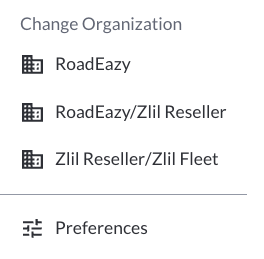
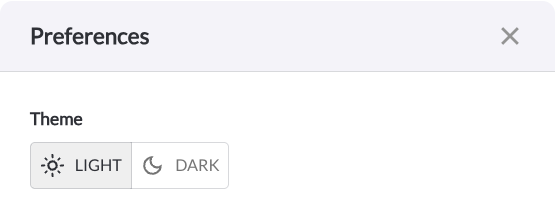
In the Preferences panel you can configure the following:
- Theme - Choose between Light and Dark mode to match your viewing environment:
- Use the dark mode
 toggle to switch to a darker theme, reducing eye strain in low-light environments.
 - Use the light mode
 toggle to switch to the standard theme for better visibility in brighter settings.
Tip
To collapse the side menu, click the

icon at the top of the menu.