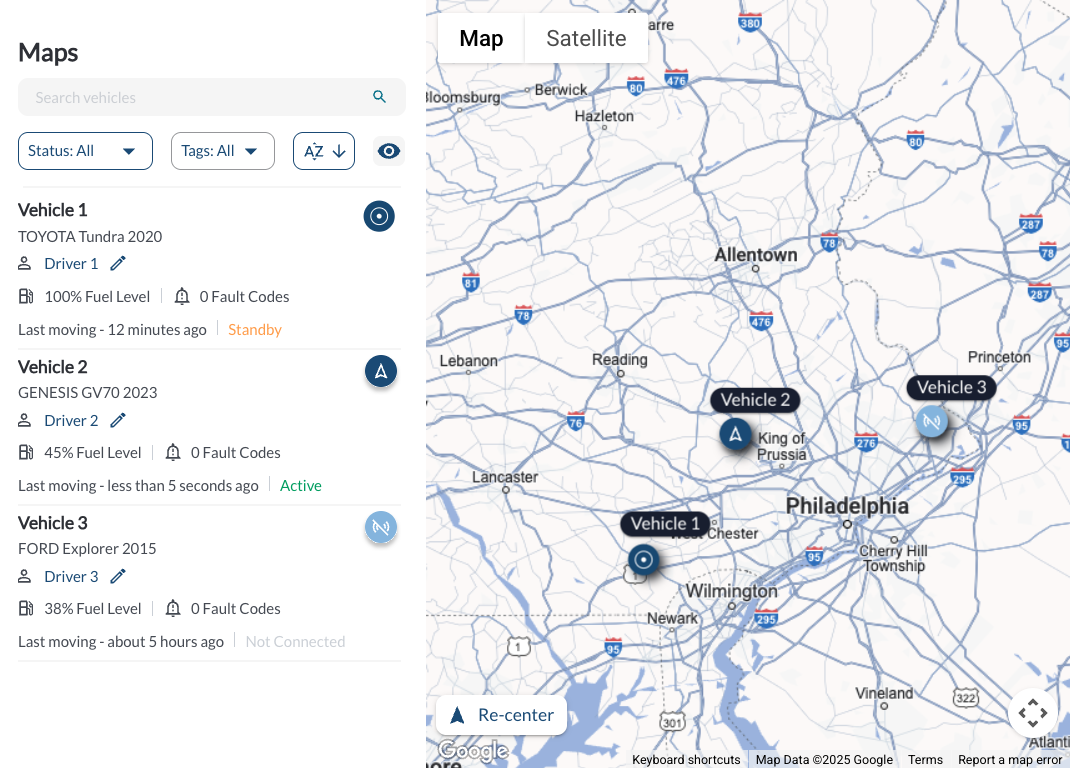
The Map View provides a clear and interactive way to monitor your fleet in real-time*. The screen is divided into two sections: the Map on the right, which displays the locations, statuses, and movement of vehicles, and the Vehicles List Panel on the left, where you can search, filter, sort, and customize vehicle information.
Map
Tracking Vehicles Locations
The Map displays the real-time* locations of all fleet vehicles. Each vehicle is represented by its name and an icon that reflects the status of its associated device.
Map Operations
- Geofences Toggle - This button lets you show or hide geofences directly on the map.

Map/Satellite Toggle - This button lets you switch between the standard Map view and the Satellite view
Navigation and Zoom Controls - The  button opens additional controls for navigating the map. When clicked, it displays directional arrows for panning in all directions and zoom buttons (+ and –) to move closer or farther from the map’s center. Click again to hide the controls when you’re done.
Recenter Button - Tap the Recenter button to quickly return the map to its default position of the vehicles location. This is useful if you’ve moved the map far from the original view and want to reset it instantly.
Vehicle Hover Details – Hover over a vehicle icon on the map to view quick details, including the vehicle’s current address, without opening the vehicle panel.
Click for Address - Click anywhere on the map to view the address at that location.
Proximity Search – Use the Proximity Search tool to find vehicles within a defined radius of a specific address. Choose Live to see all vehicles currently within the area and their distance from the address, or select Historical to search by date, time, and duration to see all vehicles that visited the area during that period. To learn more, see How to Use the Proximity Search.
Vehicles List Panel
The Vehicles List Panel displays a comprehensive overview of all fleet vehicles, allowing you to click on any record to view detailed information.
Search Vehicles
Quickly locate specific vehicles using the Search bar at the top of the Vehicles List Panel. Enter a vehicle name, and the list will update dynamically to display matching results

Filter Vehicles
Use the Filter option at the top of the Vehicles List Panel to adjust the displayed vehicles and focus on specific groups.
-
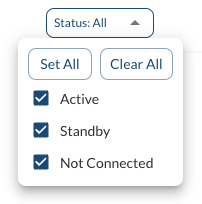
Filter by Status: Narrow down the Vehicles List Panel based on the status of devices (e.g., active, standby, or not connected). For more details, refer to the article Understanding Device Status.
-
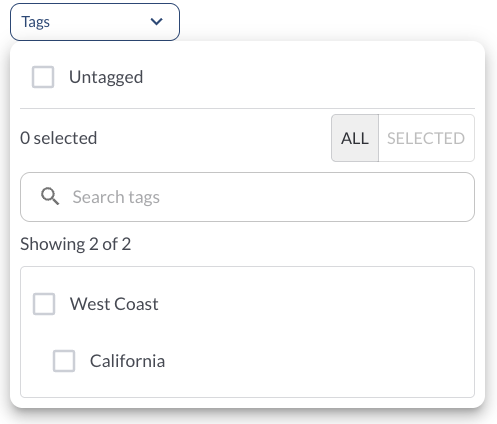
Filter by Tag: Display vehicles associated with specific tags for easier management. To learn more about setting up and using tags, see the article Tags Settings.
-
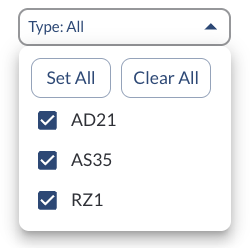
Filter by Type: Narrow down the Vehicles List Panel to vehicles using specific hardware, such as the Gateway or asset trackers.
Sort Vehicles
Locate the Sort button above the Vehicles List Panel and click it to toggle between alphabetical (A-Z) and reverse alphabetical (Z-A) sorting options, with the list updating dynamically to reflect your selection.


Resize the Panel
Drag the panel edge to adjust its width and balance visibility between the map and the vehicle list content. Resizing the panel gives you more control over your workspace - expand it to see more vehicle details, or reduce it to get a broader view of the map.
Tip
Resizing the panel is useful when reviewing video footage directly from
the map. Expanding the panel gives you a larger video view without switching
to full screen.
Customize Visible Information
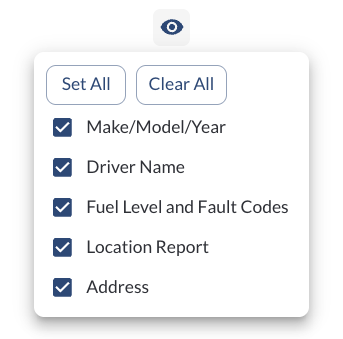
Click the Visibility button above the Vehicles List Panel to customize the fields displayed for each vehicle. By default, the following fields are visible:
-
Vehicle Name – The name assigned to the vehicle in the Fleet Portal.
-
Vehicle Make/Model/Year – The manufacturer, model, and year of the vehicle.
-
Driver – The driver currently assigned to or checked into the vehicle.
-
Fuel Level and Fault Codes– The current fuel level of the vehicle as reported by the device and the total number of active fault codes (DTCs) detected on the vehicle
-
Location Reported – How long ago the vehicle last reported its location.
-
Real-time* vehicle dynamics – Displays the current activity status of the vehicle: Moving, Stopped, or Idling.
-
Vehicle Address – The current address of the vehicle based on its GPS location.
Note
Hiding an item does not delete its data, and you can re-enable hidden
items
anytime.
* Subject to available cellular network connectivity.