The Event Details Panel provides an in-depth view of individual safety events. It helps you understand the circumstances of each event, spot patterns, and address concerns.
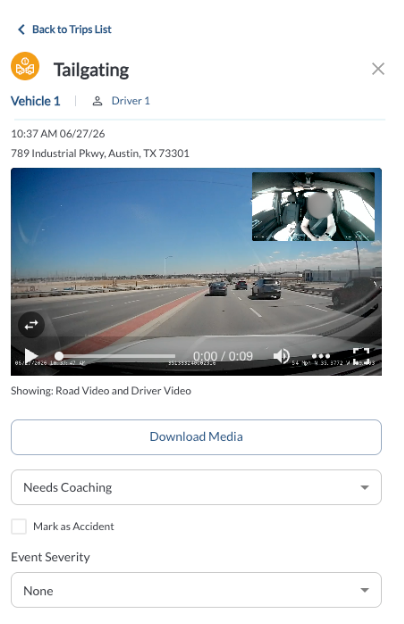
Safety Event Details
The top section of the panel provides an overview of the event, including:
- Event Name and Icon: Identifies the type of safety event, such as harsh driving, distracted driving and incident events.
- Driver Information: Displays the name of the driver associated with the event.
- Event Timestamp and Location: Indicates when and where the event occurred, down to the exact point on the map.
Event Video Recordings
The Event Video Recordings section provides recorded clips of the incident, offering valuable visual context for a more detailed review.
- Camera Views: The video recordings include perspectives from both the Road and Cabin cameras, provided both are enabled at the time of the event. When the cabin camera is disabled, only the road video will be available for review. If auxiliary cameras are connected, their footage will also be included, offering additional angles such as side or rear views. These views provide a more complete understanding of the event by capturing the driver’s actions, external surroundings, and any additional context from auxiliary viewpoints.
- Event Video Duration: Each video includes a 10-second clip—5 seconds before the event and 5 seconds after it occurred—allowing for a thorough analysis of the moments leading up to and following the event.
Recording Overlay Details
Recorded video displays a bottom overlay with key information such as the current GMT time, device IMEI, speed, and GPS coordinates. This gives you the full context for every recorded event.
Downloading Event Videos
To download event videos, you can either select a single clip or grab them all at once. For one video, open the 3-dots menu next to the clip and choose Download. To get a ZIP file containing all available videos for the event, click the Download All Videos button.
Event Management Options
The lower section of the panel provides tools to effectively manage the event:
- Event Status: Update the event's status to indicate its current stage in your workflow:
- New - This status is automatically assigned to all incoming events. These events will appear in the All Events tab of the Safety Center.
- Needs Review - Flag the event with the “Needs Review” status for further follow-up. It will now appear in the Review Feed tab of the Safety Center.
- Reviewed - Use this status once an event has been assessed and no immediate action is needed. This helps keep your Review Feed clear and organized.
- Needs Coaching - Mark the event as "Needs Coaching" if follow-up with the driver is necessary. It will now appear on the Coaching page.
- Coached - Apply this status once the driver has been coached regarding the event.
- Dismissed - Use “Dismissed” for events that do not require further review or action, such as false positives or non-critical incidents.
- Mark as Accident: Flag the event as an accident if applicable.
- Severity Level: Assign a severity rating to the event: None, Minor, or Major.
- Add Notes: Document observations, actions taken, or any additional details related to the event.