The SD card is an optional add-on for the RZ1 system that extends local video storage capacity. It is required for recording footage from auxiliary cameras and helps increase the amount of event-based video that can be stored from the main RZ1 camera.
This article explains what the SD card is used for, how to install it, when it’s needed, how to enable it in the Fleet App, and how to format it if necessary.
What is the SD Card Used For?
The SD card is used to extend the RZ1’s memory capacity and increase the amount of video footage that can be recorded and stored locally. While the SD card is optional for the base RZ1 device, it is required for the operation of auxiliary cameras.
How to Add the SD Card Extension
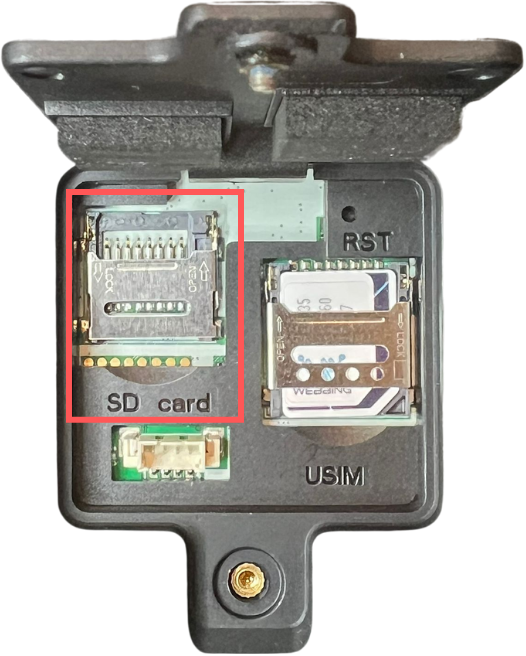
- Locate the cover at the bottom of the RZ1 Hub
- Remove the screw and open the cover
- Insert the SD card into the internal slot until it clicks
- Close the tamper cover
- Re-secure it with the screw

Note
Once inserted, enable SD card recording in the Fleet App to begin saving
footage.
How to Enable SD Card Recording in the Fleet App
Once the SD card is installed:
- Log in to the Fleet App
- Find the Vehicle
- Go to the Vehicles page, or
- Click a vehicle from the Map and select Edit Vehicle
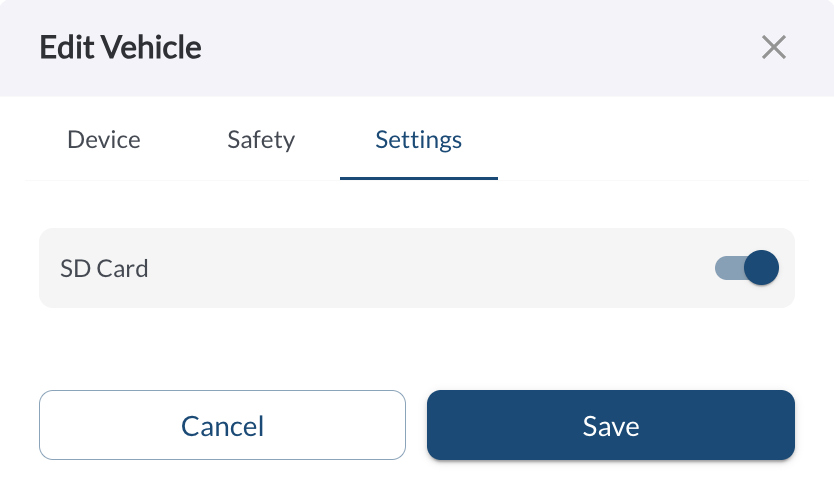
- Open the Settings Tab
Inside the vehicle’s profile, click on the Settings tab. - Toggle Enable SD Card Recording
- Click Save
How to Format the SD Card
If you’re reusing an SD card or experiencing recording issues, you can format it directly from the Fleet App.
- Go to the Vehicles page
- Click the Quick Actions menu (three dots) next to the vehicle Select
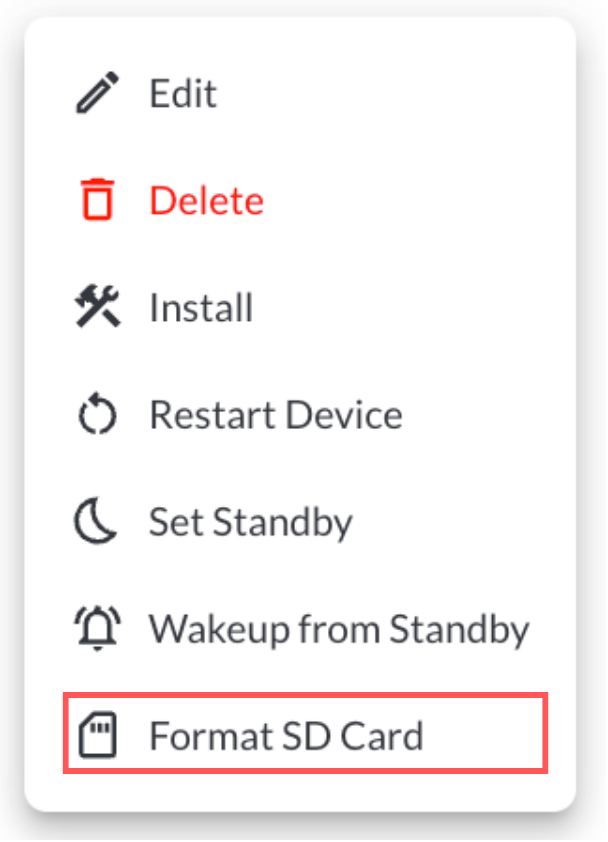
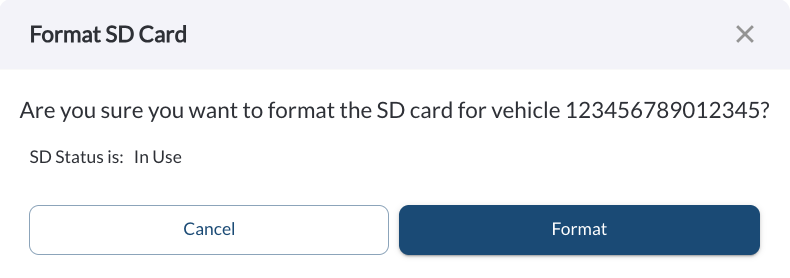
- Format SD Card
Note
The Format SD Card option is only available if SD card recording is already
enabled for the vehicle.

Warning
Formatting the SD card cannot be undone, and all stored footage will
be permanently lost and cannot be recovered.