Drivers can check in to their vehicle directly through the Driver App. This process links you to a specific vehicle before driving, ensuring all driving activity, inspections, and coaching are recorded under the correct assignment. Using the app, you simply search for your vehicle, select it from the list, and confirm the check-in, all within a few taps.
Steps to Check In
- Open the Driver App.
-
On the Home Page, tap Check In.
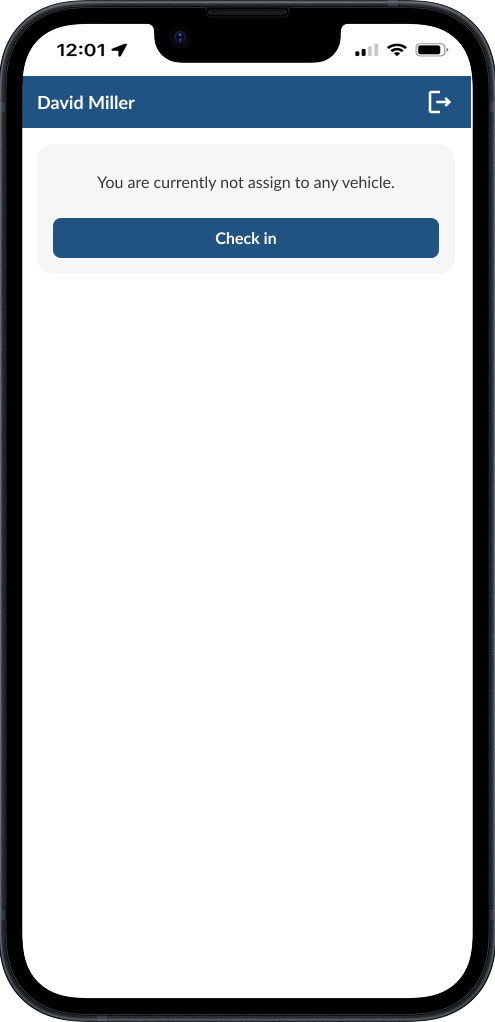
-
Use the Search Asset screen to find your vehicle.
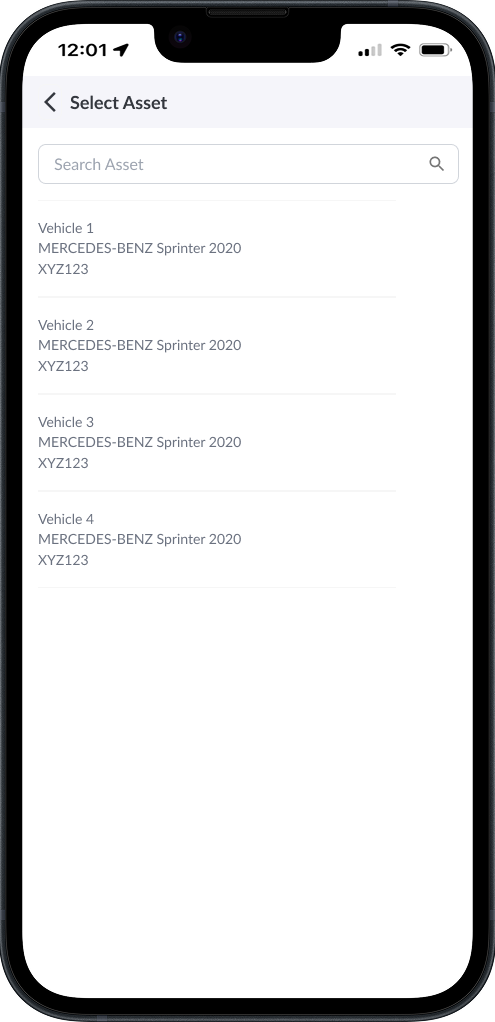
- Tap the correct vehicle from the list.
-
The Home Page will update to show your active vehicle assignment. You are now checked in.
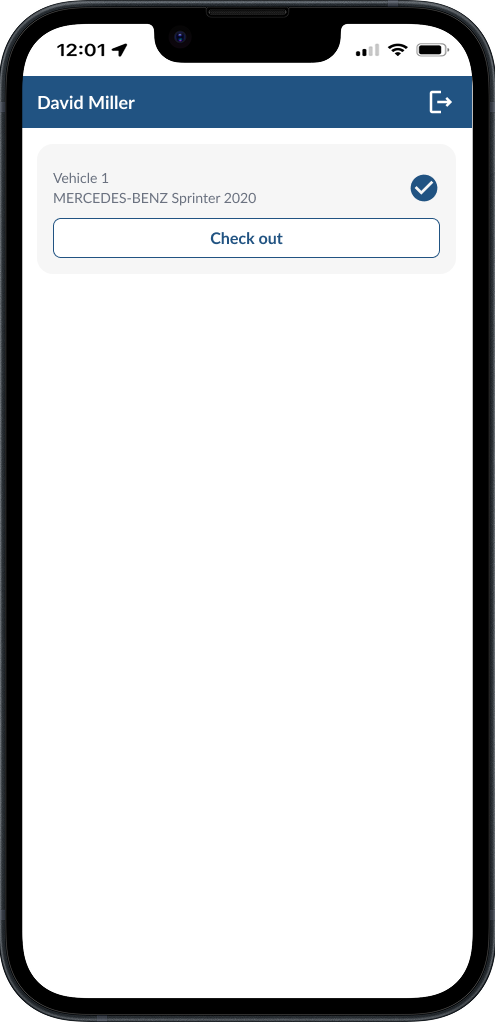
How to Check Out
-
From the Home Page, tap Check Out.
-
Tap Check Out again to confirm.
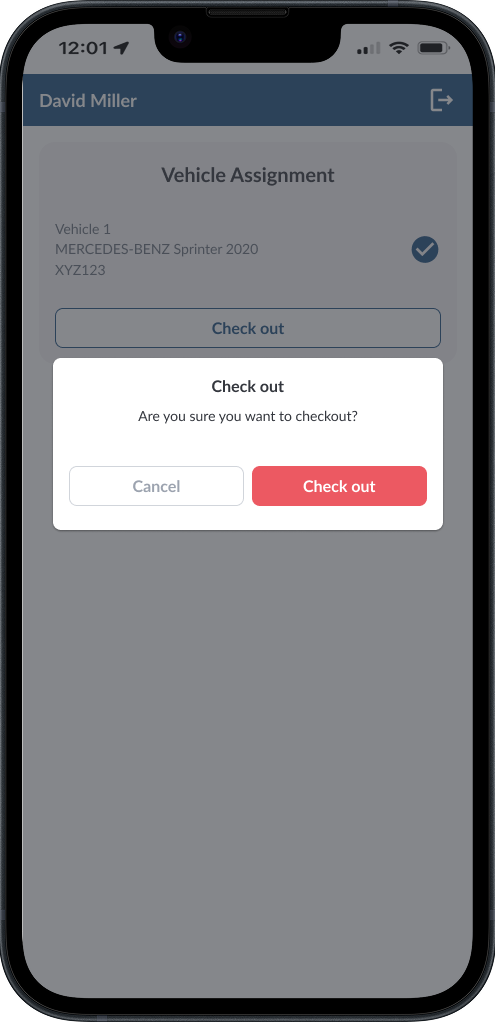
-
The Home Page will display “You are not assigned to any vehicle.”
Note
Always check out at the end of your shift so the next driver can check
in.