A driver’s password can be reset at any time from the Quick Action Menu. This option allows an administrator to create a new password directly for the driver, which they can then use to log in immediately.
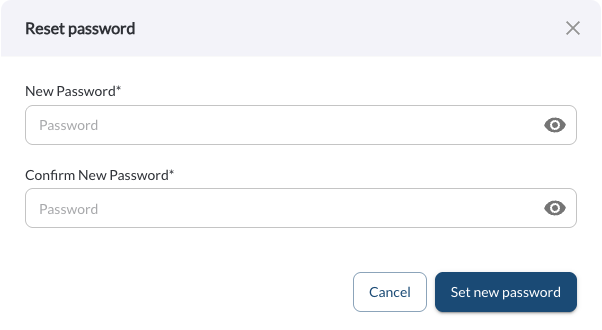
Steps to Reset a Driver’s Password
- Go to the Drivers page.
- Locate the driver whose password you want to reset.
- Click the (⋯) menu next to the driver's name.
- Select Reset Password.
- In the reset password screen, enter the new password for the driver.
- Confirm and save the new password.
The driver can now log in using the updated password.
Tip
Make sure to communicate the new password securely to the driver.
Note
Resetting the password does not affect any of the driver’s trip history,
safety scores, or account data.