Managing your drivers efficiently is essential for maintaining an organized fleet. This guide explains how to add a new driver and edit an existing driver's details in your system.
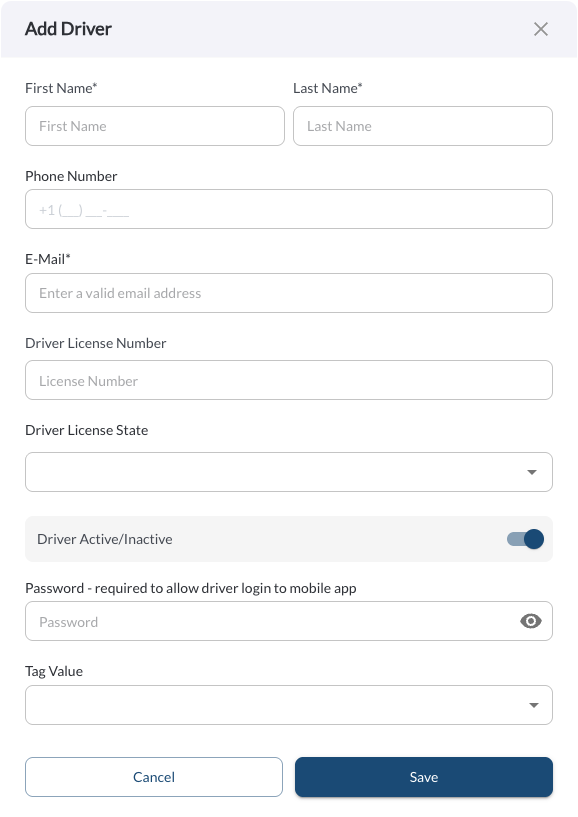
Add or Edit a Driver
Adding or editing a driver uses the same form interface, accessible through two different actions:
-
Add Driver Button: Used for creating a new driver in the system.

-
Edit Driver Option: Allows you to update the details of an existing driver

The form interface is designed for simplicity and includes the following fields:
| First Name |
The driver’s first name |
| Last Name |
The driver’s last name |
| Phone Number |
The driver’s contact number |
| Email |
The driver’s email address |
| Driver License Number |
The unique number assigned to the driver’s license |
| Driver License State |
The state where the driver’s license was issued |
| Driver Active/Inactive Toggle |
Indicates whether the driver is currently active (Active) or not (Inactive) |
| Password |
The login password for the Driver App |
| Tags |
Custom tags that help categorize and group drivers. Tags can be added and managed in the Settings Page. For more details on how to create and assign new tags, refer to the article Tags Settings. |
Note
The driver's first and last name cannot contain special characters such
as
', @, #, $, %, &, *, or !. Only alphabetic characters and standard
hyphenation
or spaces are allowed.
Adding Drivers in Bulk
The bulk upload feature allows you to add multiple drivers to the Fleet Portal at once using a CSV template. This eliminates the need to create drivers one by one and saves time when onboarding large numbers of drivers.
How to Upload Drivers in Bulk
- Navigate to the Drivers page in the Fleet Portal.
- Click the Bulk Multiple Drivers button.
- Fill in the template with your driver details.
- Upload the completed file and click Submit.
Template Fields
| Field |
Description |
| email |
The driver's email address |
| firstName |
The driver's first name |
| lastName |
The driver's last name |
| phoneNumber |
The driver's phone number |
| isActive |
Indicates whether the driver account is active. Accepted values: true or false
|
Note
The driver's first and last name cannot contain special characters such
as
', @, #, $, %, &, *, or !. Only alphabetic characters and standard
hyphenation
or spaces are allowed.
Note
Always use the provided template when uploading drivers in bulk. Uploading a file with missing or incorrectly formatted columns may cause the upload to fail.