The Coaching Workflow is the single place where you decide how each driving behavior is handled. For every supported behavior you control four things:
-
Routing – which queue the event lands in, or whether it is recognized or dismissed.
-
Score – how much the behavior affects the driver's Safety Score.
-
Event generation – how many detections create an event, over what period, and how long before another can be created.
-
Escalation – when repeated occurrences move from self-coaching to a face-to-face session.
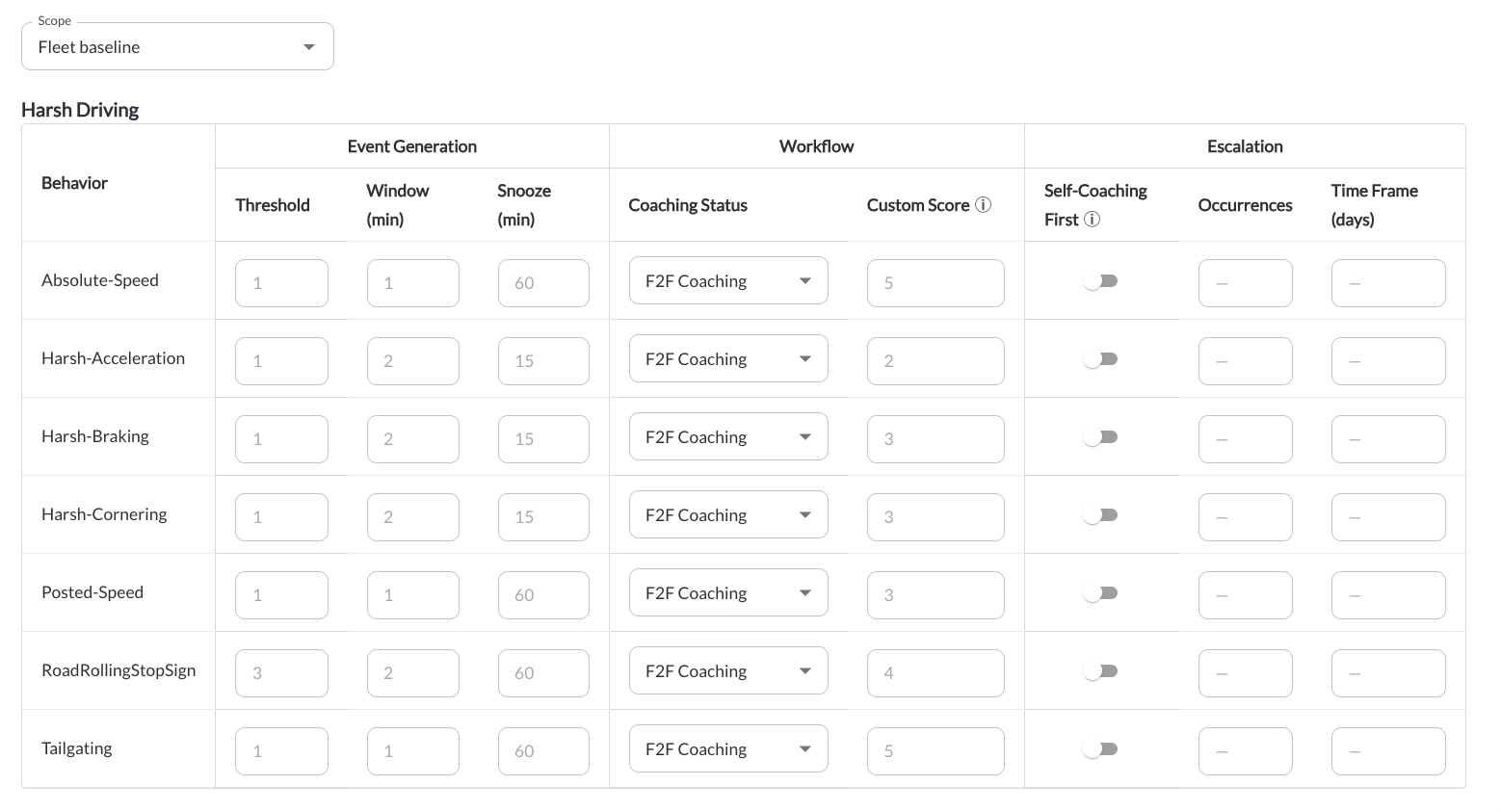
The Workflow Table
The table shows one row per supported behavior. You cannot add or remove rows – the list comes from the behaviors your devices support, limited to the four coachable categories: Harsh Driving, Distracted Driving, Incidents, and ADAS. Read the article Understanding Coachable Behaviors.
| Behavior |
The behavior name. Read-only. |
| Coaching Status |
The routing decision. One of seven values – see below. |
| Custom Behavior Score |
The score applied to this behavior. Leave it empty to use the platform default. |
Use Save to apply your changes, or Cancel to discard them.
Note
An account that never opens this tab still routes and scores events, using the platform defaults for every behavior. You only need to change the rows you want to handle differently.
Coaching Status
| Collision |
Routed to the Collisions queue. |
| F2F Coaching |
Routed to Due for Coaching for an in-person session, using your coach assignments. |
| Self Coaching |
Sent to the driver in the Driver App for independent review. |
| Remote Coaching |
Routed to Due for Coaching for a remote session with the driver. |
| FYI Notify |
Routed to the FYI Notify queue. Informational, with no coaching session. |
| Positive Recognition |
No task is created. A recognition is added for the driver and the behavior score is applied as a credit, which raises the Safety Score. |
| Dismissed |
No task is created and the event is set to Dismissed. It does not affect the Safety Score. |
Custom Behavior Score
Enter a positive number. The Coaching Status decides whether it is applied as a deduction or a credit, so you never enter a negative value.
The scale is 1 point = a 1% reduction per 100 km driven. As a guide, 1 point is minor, 5 points is significant, and 20 points is severe. Read the article Understanding the Driver Safety Score.
| Left empty |
The platform default for that behavior is used, and continues to apply if the default changes. |
| Set to a number |
Your value is used for this account only, and is not affected by later changes to the platform default. |
| Set to 0 |
The behavior still appears in the queues and reports but does not affect the Safety Score. |
| Coaching Status is Dismissed |
The field is disabled, because a dismissed event always contributes zero. |
Event Generation
These three settings decide when detections become an event:
| Detection Threshold |
How many detections create one event. Options: 2, 3, 4, or Custom. |
| Detection Window |
The rolling period in which those detections must occur. Options: 2, 3, or 5 minutes, or Custom. |
| Event Snooze Duration |
How long before the same behavior can create another event for the same driver. Options: 60, 180, or 360 minutes, or Custom. |
Video is requested only when an event is created.* For the defaults per behavior and a worked example, read the article Understanding Detections and Coachable Events.
Note
Raising the threshold or lengthening the snooze period reduces the number of events your coaches see. It also reduces the number of events contributing to the Safety Score, so scores can rise after a change of this kind.
Escalation
Escalation rules are set per behavior and move a repeated behavior from self-coaching to a face-to-face session with a manager:
| Self-Coaching First |
Yes or No. Whether the driver must complete self-coaching before a coach is involved. |
| Occurrence Count |
How many times the behavior must occur to trigger escalation. |
| Time Frame |
The rolling period in which those occurrences are counted – for example 30, 60, or 90 days. |
| Self-Coaching Deadline |
How many days the driver has to complete self-coaching before it escalates automatically. |
How escalation behaves:
- If the behavior recurs beyond the occurrence count within the time frame, the task escalates to a face-to-face session.
- If self-coaching is not completed within its deadline, the task escalates to a face-to-face session.
- If the face-to-face session is then not completed within its deadline, a follow-up notification is sent to the coach.
Group Overrides
Alongside the fleet-wide configuration, you can define overrides per group. An override contains only the behaviors you want handled differently for that group; everything else falls back to the fleet configuration.
When an event is created, the platform resolves the configuration in this order:
- A group override for one of the driver's groups. When a driver carries more than one group with an override, the most recently created group is used.
- The fleet-wide configuration.
- The platform default.
Read the article How to Set Up a Coaching Workflow.
What Changes Apply To
| Routing |
Applies to new events only. Existing tasks stay in the queue they were routed to. |
| Score |
Applies to past periods as well. Safety Scores are recalculated each time a page is opened, so a score change is visible for historical ranges too. |
| Event generation and escalation |
Apply to new detections and new tasks. |
Warning
Changing a behavior score changes the Safety Scores shown for past periods as well as current ones. Agree the values with your safety team before saving, so that reports remain comparable over time.
*Subject to available cellular network connectivity.