Action plans are the follow-up options a coach selects when completing a coaching session. Your account starts with four standard plans, and you can add as many of your own as you need. This article covers adding, editing, and deleting them.
For what action plans are and where they appear, read the article Action Plan Settings.
How to Add an Action Plan
- Go to Driver Safety > Settings > Action Plan.
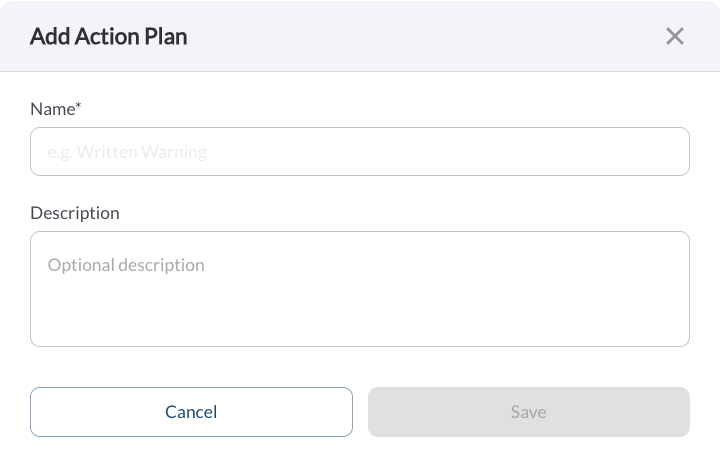
- Click Add Action Plan.
- Enter a Name. This is the label coaches see in the list, so keep it short and use the wording your own policies use.
- Enter a Description. Coaches see this beneath the name, so describe when the plan applies rather than restating the name.
- Click Save.
The action plan is available to coaches immediately, in every new coaching session.
Note
If you do not see Add Action Plan, your role may not include permission to
change program settings. Read the article
Roles & Permissions Settings.
How to Edit an Action Plan
- Go to Driver Safety > Settings > Action Plan.
- Click the pencil icon on the row you want to change.
- Update the Name or Description.
- Click Save.
Note
The four standard action plans cannot be edited or deleted. Only the plans your organization has added can be changed.
How to Delete an Action Plan
- Go to Driver Safety > Settings > Action Plan.
- Click the trash icon on the row you want to remove.
- Confirm.
Warning
Deleting an action plan removes it from the list coaches can select. Sessions already completed keep the action plan recorded at the time, so past records, the driver profile, and Library Coaching History are not affected.
If a plan is no longer appropriate but you want the wording to change on future sessions only, edit it rather than deleting it and adding a replacement. That keeps one entry in your list instead of two.
How to Check Your Changes
- Open any coaching task from Due for Coaching.
- Scroll to the Action Plan list at the foot of the session.
- Confirm your plan appears, and that its description reads clearly next to the standard options.
You do not need to complete the session to check this. Use the back arrow to leave without recording anything.