Coach assignments decide which coach receives coaching tasks for which group of drivers. This article describes how to create, import, edit, and delete them.
How to Add an Assignment
- Go to Driver Safety > Settings > Coach Assignment.
- Click Add Assignment.
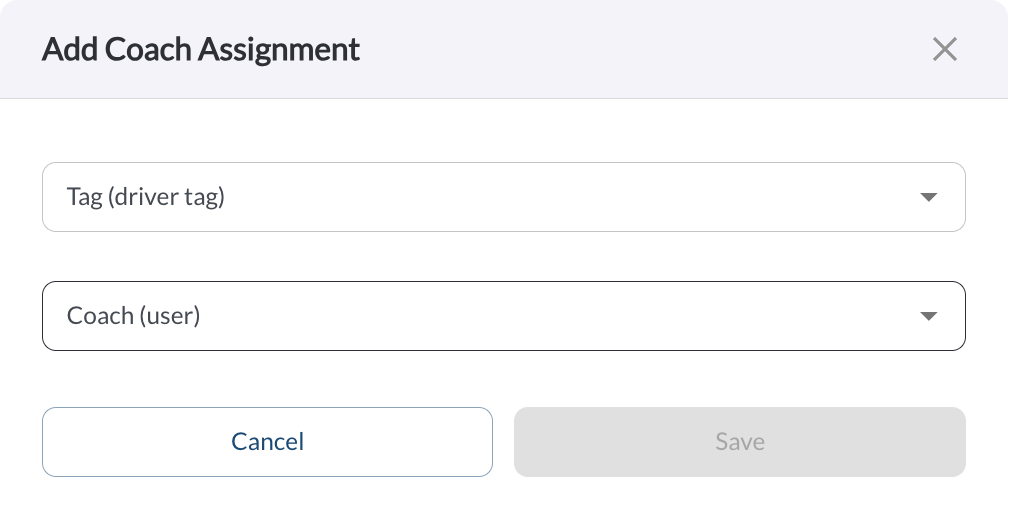
- Select the Tag – the driver group this assignment will cover.
- Select the Coach – the user who will receive tasks for drivers in that group.
- Review any warnings shown in the dialog. See Warnings you may see below.
- Click Save.
How to Import Assignments From a CSV File
Use Add Multiple Assignments to create several assignments at once. The file needs two columns:
| tagValue | The driver group name. Required, and must already exist in your fleet. |
| coachEmail | The email address of the user to assign as coach. Required, and must be a user in your fleet with access to the module. |
- Go to Driver Safety > Settings > Coach Assignment.
- Click Add Multiple Assignments and select your file.
- Review the import summary before closing the dialog.
How to Edit or Delete an Assignment
- Go to Driver Safety > Settings > Coach Assignment.
- Find the row you want to change. Use the Tag or Assigned Coach column filters to narrow the list.
- Click the 3 dots menu icon to edit the assignment, or to delete it.
Warning
Deleting an assignment is permanent. New coaching tasks for drivers in that group are created as Unassigned until another assignment covers them.