The Fleet Dashboard offers comprehensive customization capabilities, allowing users to create a layout tailored to their operational requirements. Whether adjusting the visibility, size, or arrangement of widgets, the dashboard can be personalized to display the most relevant data efficiently.
Customizing Widgets
1. Add or Remove Widgets
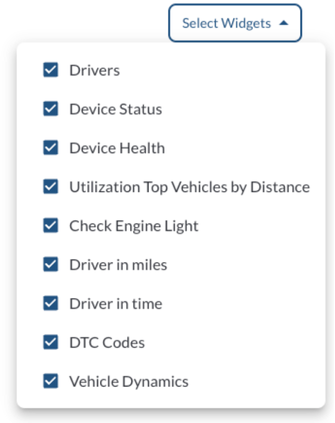
Access the customization menu by clicking the "Select Widgets" button. Use the checklist to toggle widget visibility based on their relevance to your operations.
Note
Hiding a widget does not remove its data. You can re-enable hidden widgets
at any time.
2. Resize Widgets
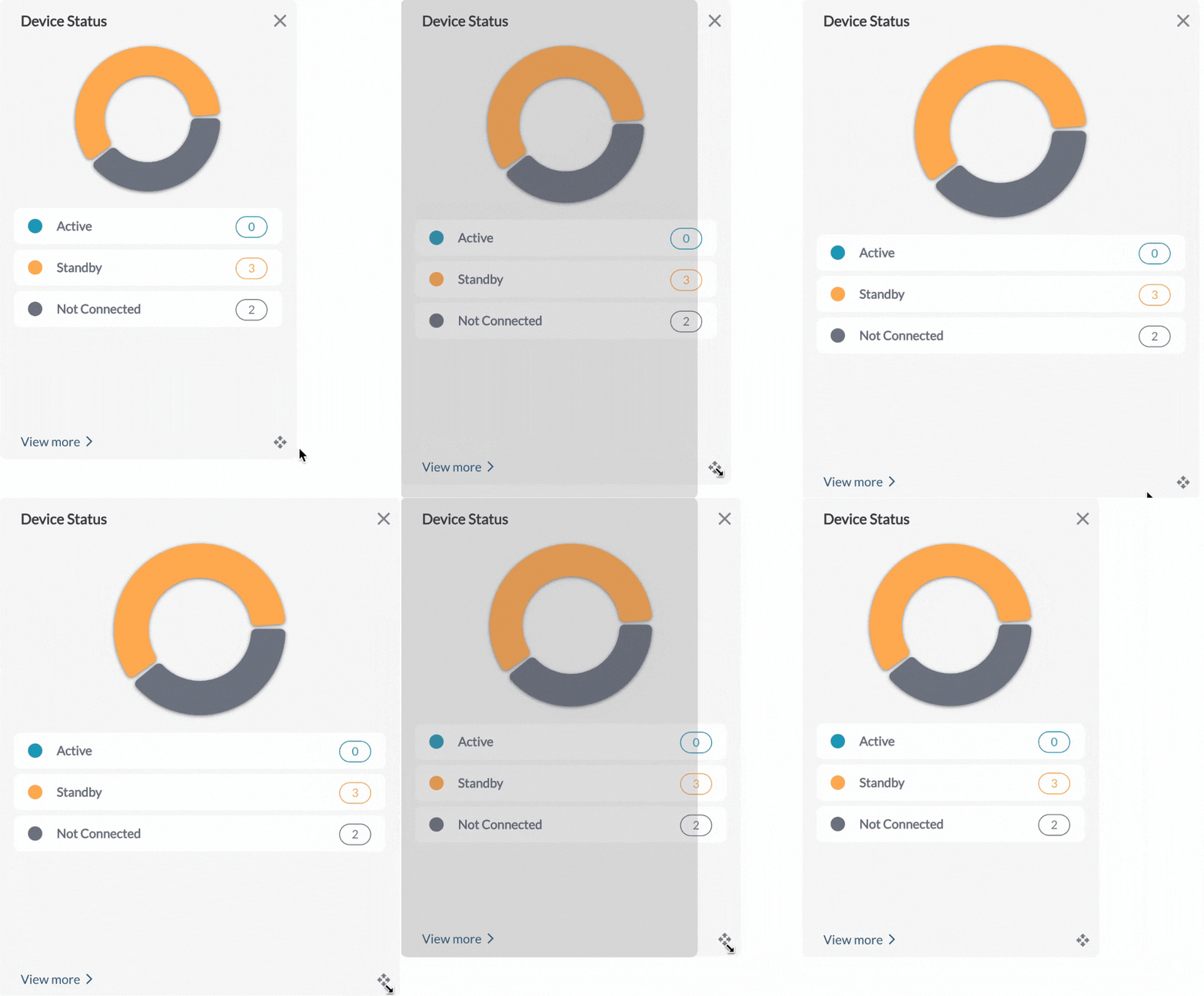
Hover over a widget's edge or corner to activate the resize cursor. Drag to adjust its size, allocating more screen space to critical widgets while minimizing less important ones.
3. Rearrange Widgets
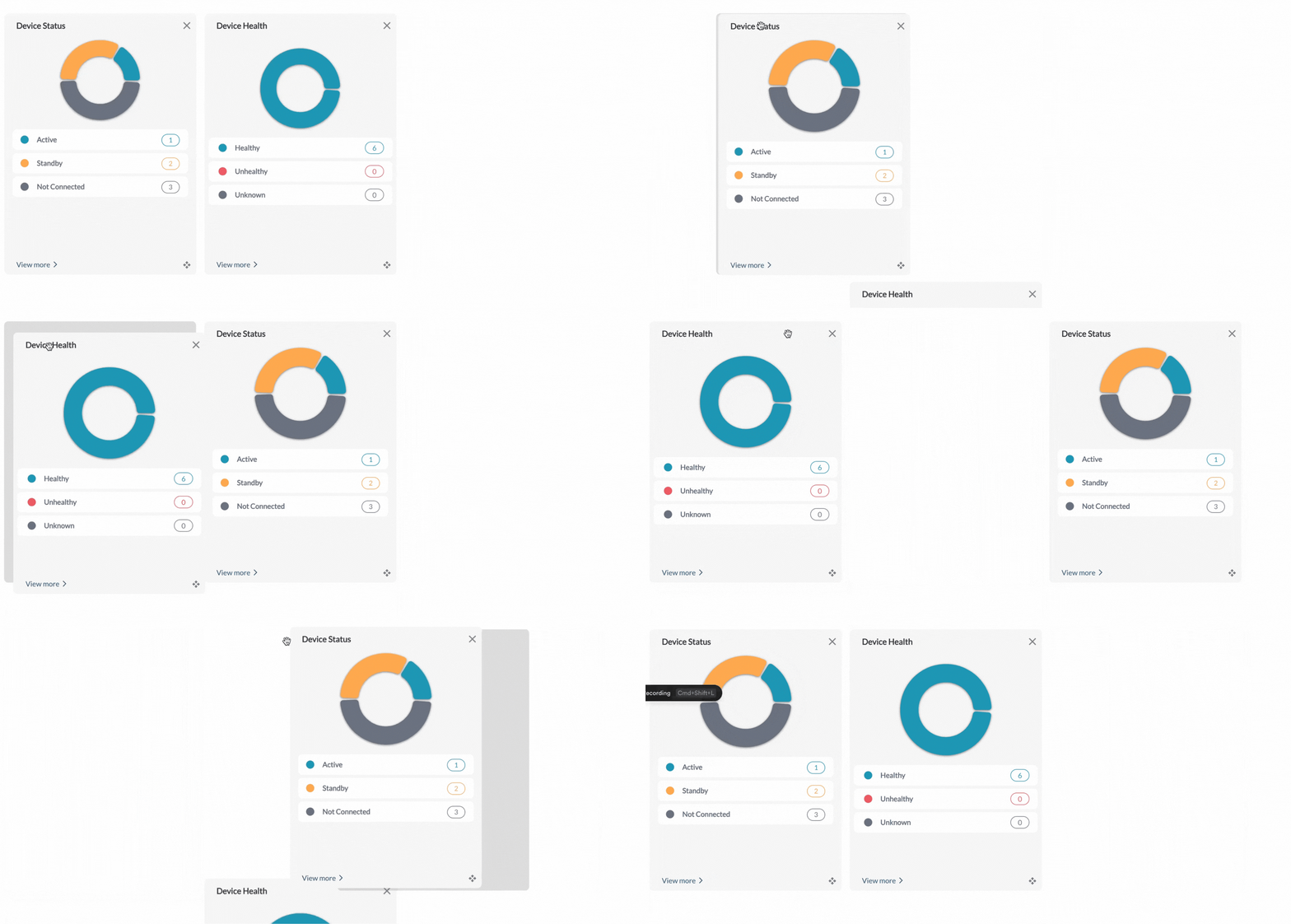
Click and hold the title bar of a widget, then drag it to the desired position. Release the widget to secure it in place, ensuring the layout aligns with your workflow priorities.
4. Refresh Widgets
Keep your data up to date by using the Refresher Widget. It allows you to reload table data, ensuring you’re viewing the latest information. For more details, refer to the article How to Use the Refresher Widget.
Enhancing Dashboard Efficiency
By leveraging these customization options, the Fleet Dashboard becomes a powerful tool tailored to your specific needs, optimizing efficiency and improving decision-making processes.
-
Prioritize Key Metrics: Allocate more space to widgets displaying critical data, ensuring important information is accessible at a glance.
-
Eliminate Clutter: Hide widgets that are not relevant to your current focus, maintaining a clean and streamlined interface.
-
Ensure Real-Time Updates: Set automatic refresh intervals for widgets to ensure displayed data remains current without manual intervention. Learn How to Use the Refresher Widget