Customize your Fleet Dashboard to show the data that matters most to your team - show or hide widgets, resize them, and rearrange the layout to fit your workflow.
Customizing Widgets
-
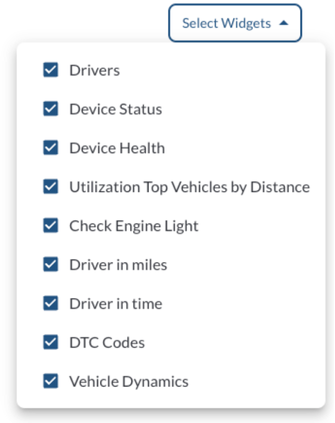
Add or Remove Widgets - click Select Widgets to open the widget checklist, then toggle any widget on or off.
Note
Hiding a widget does not remove its data. You can re-enable hidden
widgets
at any time.
-
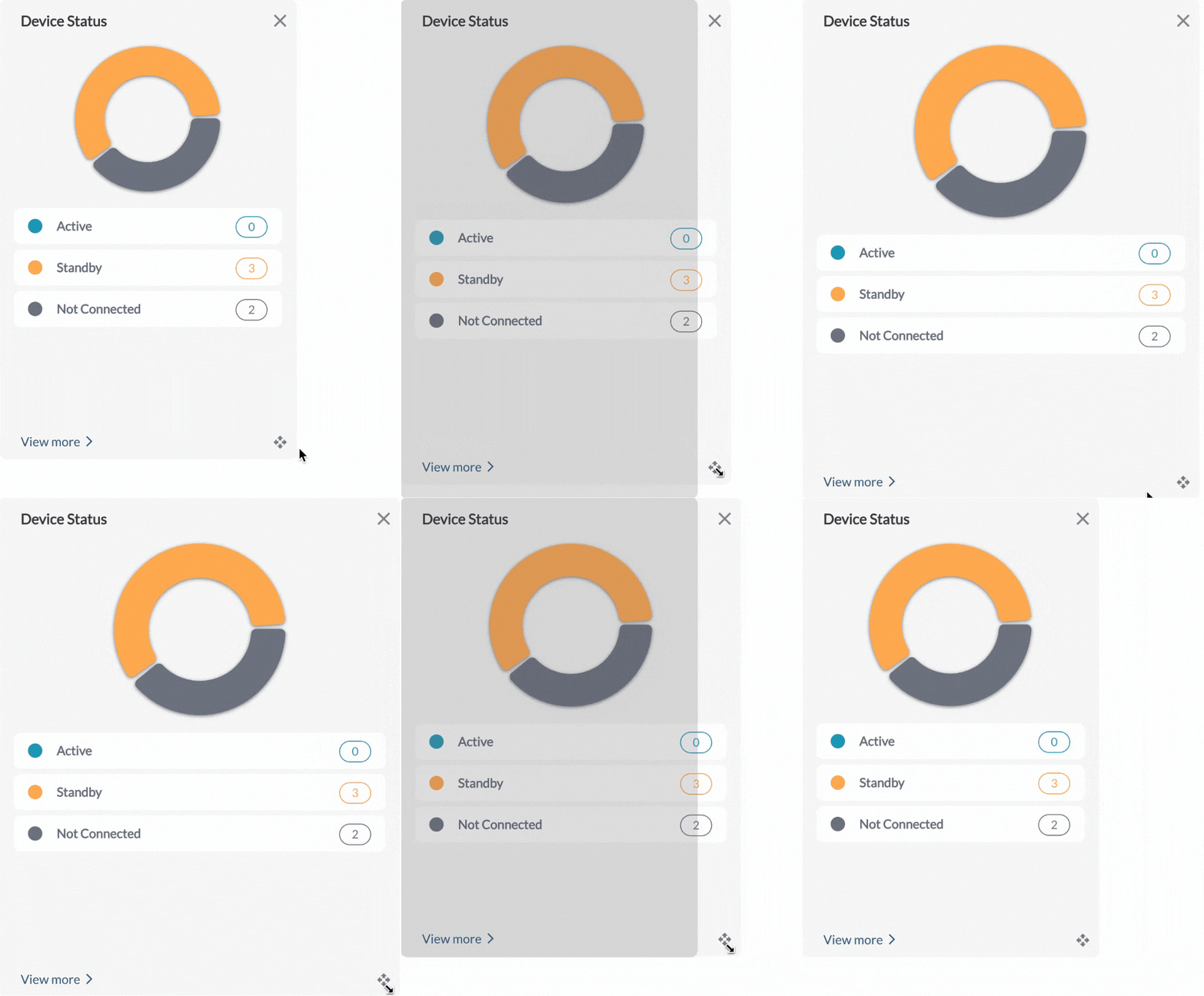
Resize Widgets - hover over a widget's edge until the resize cursor appears, then drag to adjust its size.
-
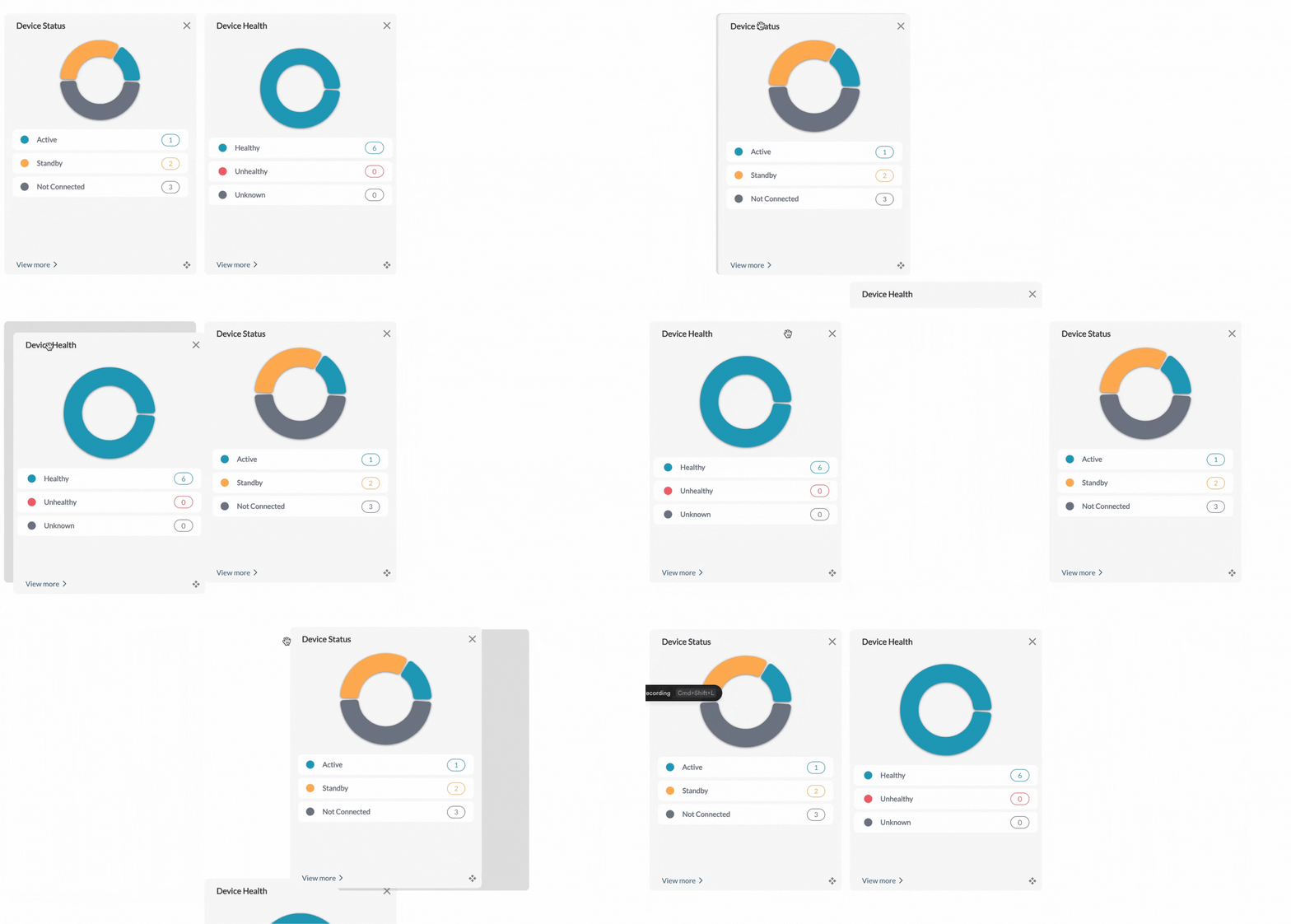
Rearrange Widgets - click and hold a widget's title bar, then drag it to a new position.
- Refresh Widgets - Use the Refresher Widget to reload your data and see the latest information. Learn more in How to Use the Refresher Widget.
Tip
Give your most-used widgets more space, and hide the ones you don't check often to keep your dashboard focused.