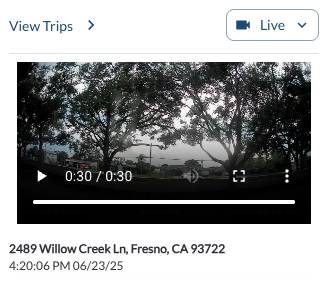
The Live View feature streams real-time video* from a vehicle's cameras, available for active devices only. You can switch between in-cabin and road-facing cameras.
Steps to Stream Live View
- Navigate to the Vehicle Details Panel by selecting a vehicle from the Vehicle List Panel.
- If the device is in Standby status, click the Wake Up button to send a wake-up command to the device.

- Locate the Live Button** in the Vehicle Details Panel.

-
Choose the desired option from the dropdown menu
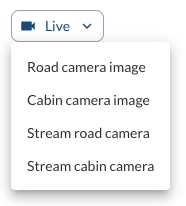
- Road Camera Image: Displays a still image from the road camera.
- Cabin Camera Image: Displays a still image from the cabin camera.
- Stream Road Camera: Starts a live video stream from the road camera.
- Stream Cabin Camera: Starts a live video stream from the cabin camera.
Once selected, the corresponding video or snapshot will appear on the screen.
Live View Streaming
Once you select either Stream Road Camera or Stream Cabin Camera from the dropdown menu, the live video stream will automatically begin.
- The video will play for 30 seconds before stopping automatically.
- To continue streaming, click the Play button again to request an additional 30 seconds of video.
For more details on controlling playback, refer to the article How to Use the Video Player.
Camera Snapshots
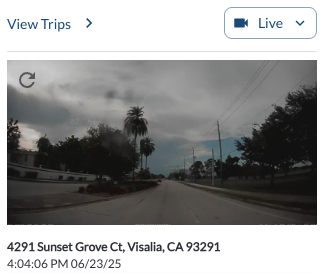
If you select Road Camera Image or Cabin Camera Image from the dropdown menu, a still image (snapshot) from the respective camera will be displayed in the Live View section.
- The snapshot represents the most recent view from the selected camera.
- A Refresh button appears in the upper-right corner of the snapshot display.
- Clicking the Refresh button fetches an updated snapshot from the camera, providing the latest view.
- Rotation: Rotate the snapshot in 90° increments to correct for the physical mounting angle of the camera.
- Flip Horizontal: Mirror the snapshot horizontally to correct for cameras mounted in reverse.
Note
Orientation adjustments made to a snapshot apply to the current viewing
session only. To set a permanent orientation for a camera, update the
configuration in the vehicle's Camera tab under Assets Configuration.
Live View Overlay Details
The live view, including both video and still images, displays a bottom overlay with key information such as the current GMT time, device IMEI, speed, and GPS coordinates. This gives you the full context for every event.
* Subject to available cellular network connectivity.
**Live stream feature may have an approximate delay of 10 seconds. Live stream should never be used to assist the driver in operating the vehicle. The driver is responsible for the safe operation of the vehicle at all times and must always take measures to avoid an accident.