The Edit Vehicle option lets you update a vehicle’s Device, Safety, and Settings directly from the Map View. This guide walks you through how to access and use this feature.
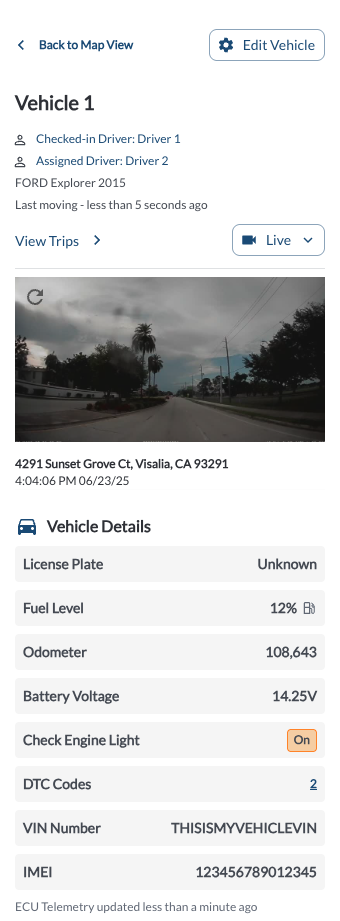
Steps to Edit a Vehicle
Open the Vehicle List Panel on the left side of the Map View.
Find the vehicle you want to edit using Search, Filters, or Sorting options. (For more details, see Map View Overview.)
Click the vehicle row to open the Vehicle Details Panel.
Click Edit Vehicle to open the configuration dialog.
-
In the popup, update the following tabs as needed:
Device – Update name, license plate, fuel tank capacity, driver assignment, tag, and notes.
Safety – Adjust safety features like alerts, event sensitivity, and notification rules.
Settings – Enable/disable hardware options like external antenna, SD card, auxiliary cameras, and override default fleet behavior (e.g., recording settings, standby time).
Click Save to apply your changes. The dialog will close and settings will be updated immediately.