The Event Details Panel lets you explore safety events from a vehicle's trip and review the data behind each one.
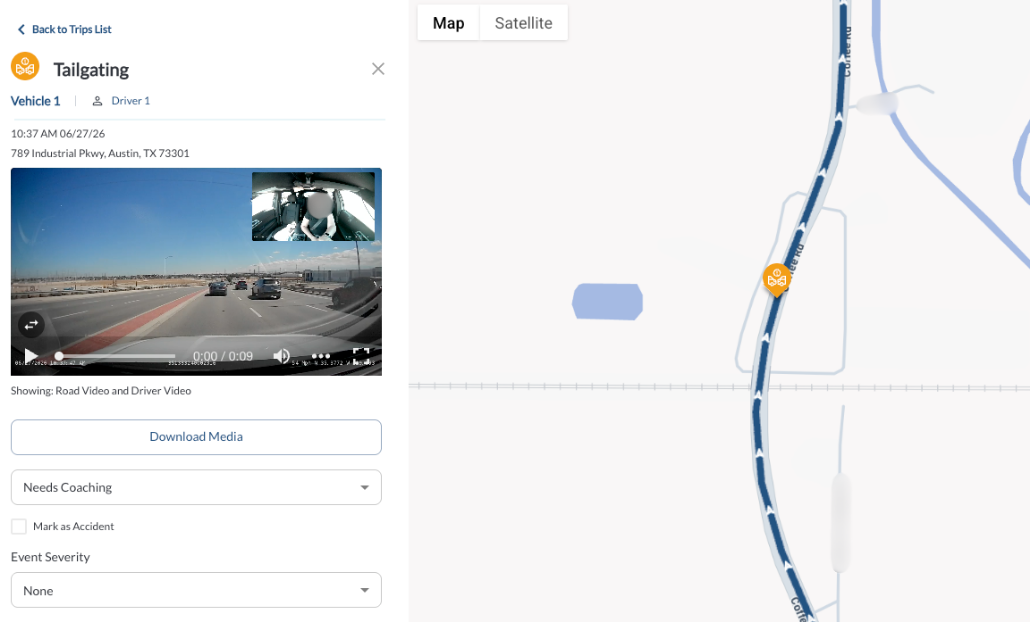
Steps to Display Event Details Panel
- Open the Vehicle Trips Panel on the left side of the Map View.
- Select a trip, and its path will be displayed on the map.
- Safety events are marked with icons along the trip path, pinpointing their exact locations. Each icon represents a specific type of safety event. For more information, refer to the article Understanding Safety Events.
- Click on an event icon to display the Event Details Panel on the left side of the screen, where you can review associated event data.
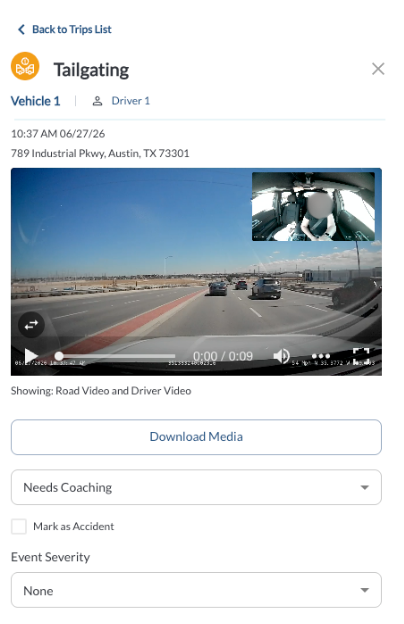
Exploring the Event Details Panel
When you click on an event icon on the map, the Event Details Panel opens on the left side, providing all relevant information and tools to analyze and manage the event.
To learn more, refer to the article Understanding the Event Details Panel.