The Drivers page is designed to help you organize, update, and monitor your fleet drivers efficiently.
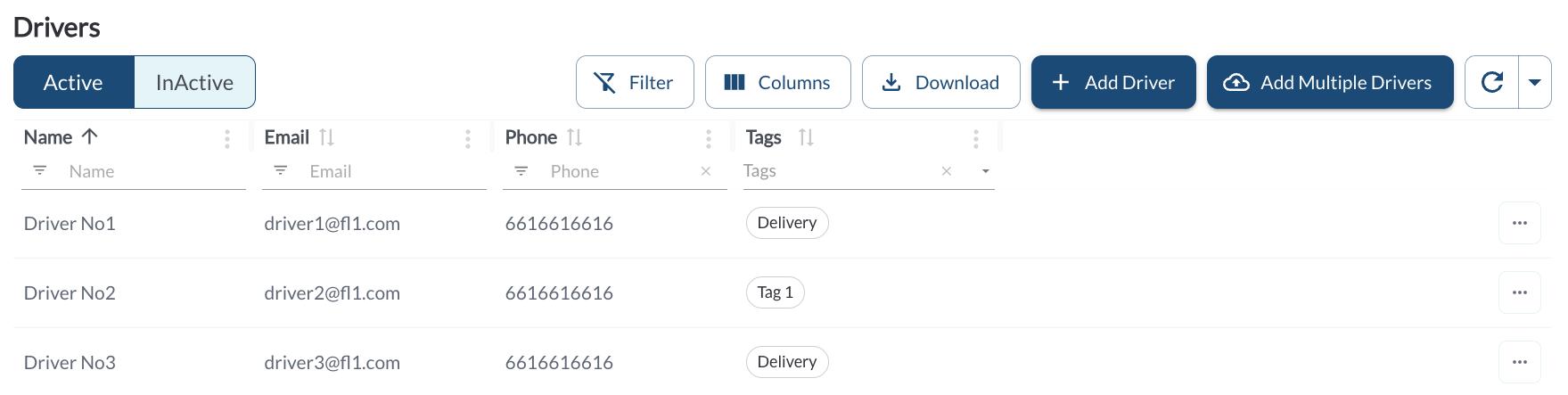
Drivers Details
The table displays all the fleet's drivers, allowing you to efficiently organize and access driver details. It supports downloading, sorting, filtering, resizing columns, and other customization options. For a complete guide, refer to the article How to Use Table Options.
The table includes the following columns, each providing specific driver information:
| Name |
The driver’s full name |
| Email |
The driver’s email address |
| Phone |
The driver’s contact number |
| License Number |
The driver's license number. Displayed in a masked format in accordance with privacy regulations. |
| License State |
The state that issued the driver's license. |
| Tags |
Custom tags that help categorize and group drivers. Tags can be added and managed in the Settings Page. For more details on how to create and assign new tags, refer to the article Tags Settings. |
Note
The driver’s license numbers are masked by default to limit access to personal data. A Show button is available to reveal the full license number,
but this option is only accessible to users with an Admin
role.
Filtering
-
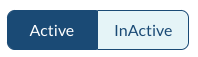
Use the Activity Filter to filter drivers by their activity status:
-
Active: Drivers marked as active by the fleet manager.
-
Inactive: Drivers marked as inactive by the fleet manager.
Refresher Widget
Keep your data up to date by using the Refresher Widget. This allows you to reload the table data and ensure you’re viewing the latest information. For more information, refer to the article How to Use the Refresher Widget.
Adding New Drivers
The Drivers Page offers an efficient way to grow your fleet by adding new drivers. For a step-by-step guide on adding and configuring drivers, refer to the article How to Add or Edit a Driver.
Quick Action Menu
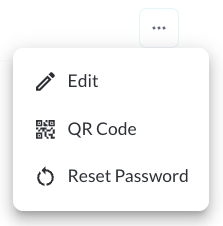
1. Edit a Driver
Opens an interface where you can configure the driver's settings initially set during their creation. For more information, refer to the article How to Add or Edit a Driver.
2. QR Code
Allow drivers to identify themselves by scanning a personal QR code. The checked-in driver is used for trip tracking and safety scoring, and appears across the platform wherever driver information is shown. For more information, refer to the article Driver QR Code Check-In: How It Works.
3. Reset Password
Opens an interface where you can configure a new password for the driver. For more information, refer to the article How to Reset a Driver’s Password.