The Health page provides a centralized view of all devices in your fleet and their current health status. This page enables fleet managers to monitor device connectivity, performance, and any issues that may require attention.
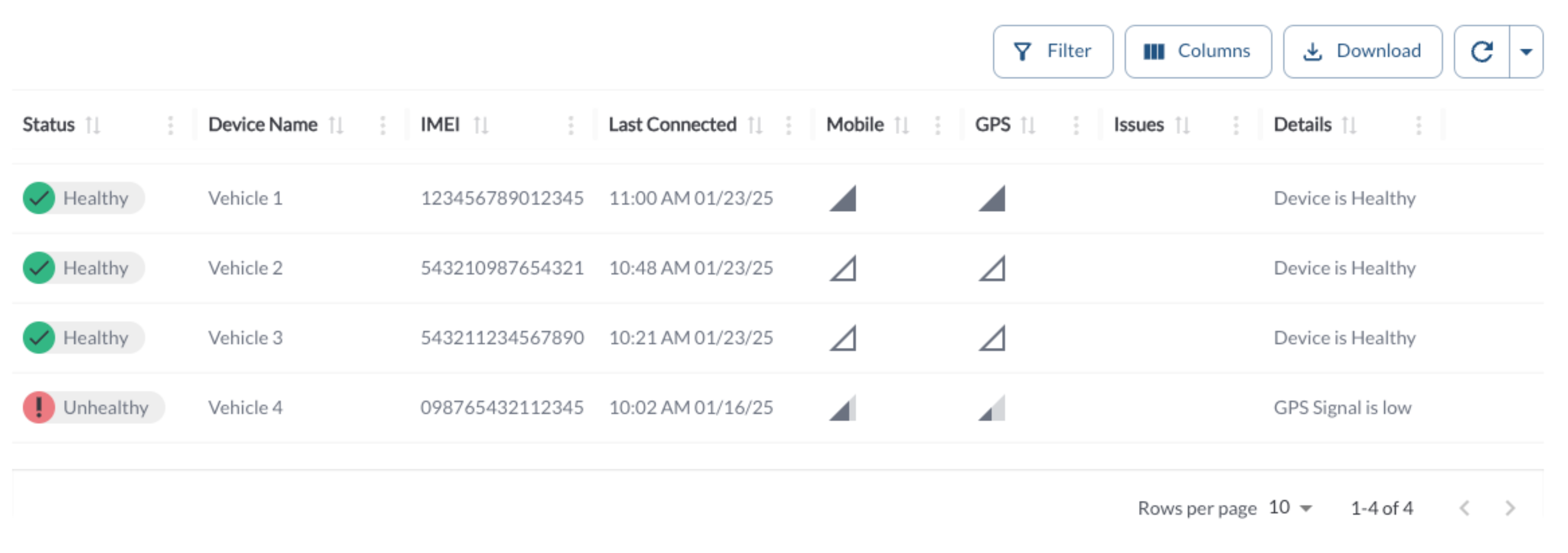
Device Health Data Table
The table displays all device health data across the fleet, allowing you to efficiently organize and access detailed information. It supports downloading, sorting, filtering, resizing columns, and other customization options. For a complete guide, refer to the article How to Use Table Options.
The table includes the following columns, each providing specific device health information:
| Status |
Indicates the health of the device |
| Device Name |
The name assigned to the device |
| IMEI |
The unique identifier for the device |
| Last Connected |
The last time the device communicated with the system |
| Mobile Status |
The status of the device's mobile connectivity |
| GPS Status |
The status of the device's GPS signal |
| Details |
A detailed information about the device health |
Device Health Status Definitions
- Healthy - All key metrics are within the normal operating range, and no issues are detected. No action is required
- Degraded - Some non‑critical issues have been detected. The device remains operational, but attention is recommended to prevent potential issues
- Unhealthy - One or more critical issues are detected and are affecting device performance. Immediate action may be required.
- Stale - No health data has been received from the device in the last 24 hours.
Conditions That Trigger an Unhealthy Status
An Unhealthy status indicates a critical issue that may impact device operation or data reliability. This status is triggered when any of the following conditions are detected:
- One or more cameras require calibration or report a critical camera state, such as obstruction or the need for remounting
- The external SD card is missing, needs formatting, or has failed, when SD card recording is enabled
- A camera reports signal loss or is not communicating properly
- The vehicle battery voltage drops below the required operating level (11.5V)
Conditions That Trigger an Degraded Status
A Degraded status indicates non‑critical issues that do not stop the device from functioning but may affect data quality or reliability. This status is triggered when any of the following conditions are detected and no Unhealthy conditions are present:
- GPS signal strength is low
- Mobile network signal strength is low
Devices in a Degraded state remain operational, but addressing these issues can help prevent further problems.
How Health Status Is Determined
The device health status is calculated using a simple priority order to ensure the most important issues are shown first.
- If no health data is available from the device, the status is set to Unknown.
- If any critical conditions are detected, the status is set to Unhealthy.
- If no critical conditions are present but one or more non‑critical issues are detected, the status is set to Degraded.
- If none of the above conditions apply, the device status is set to Healthy.
This approach ensures that critical issues always take priority over less severe condition
Refresher Widget
Keep your data up to date by using the Refresher Widget. This allows you to reload the table data and ensure you’re viewing the latest information. For more information, refer to the article How to Use the Refresher Widget.