How to Create a New Rule
To create a new rule, click the + Add Alert button at the top right of the Alerts & Rules page. You'll be guided through a simple 3-step wizard.
Step 1: Set Rule Trigger
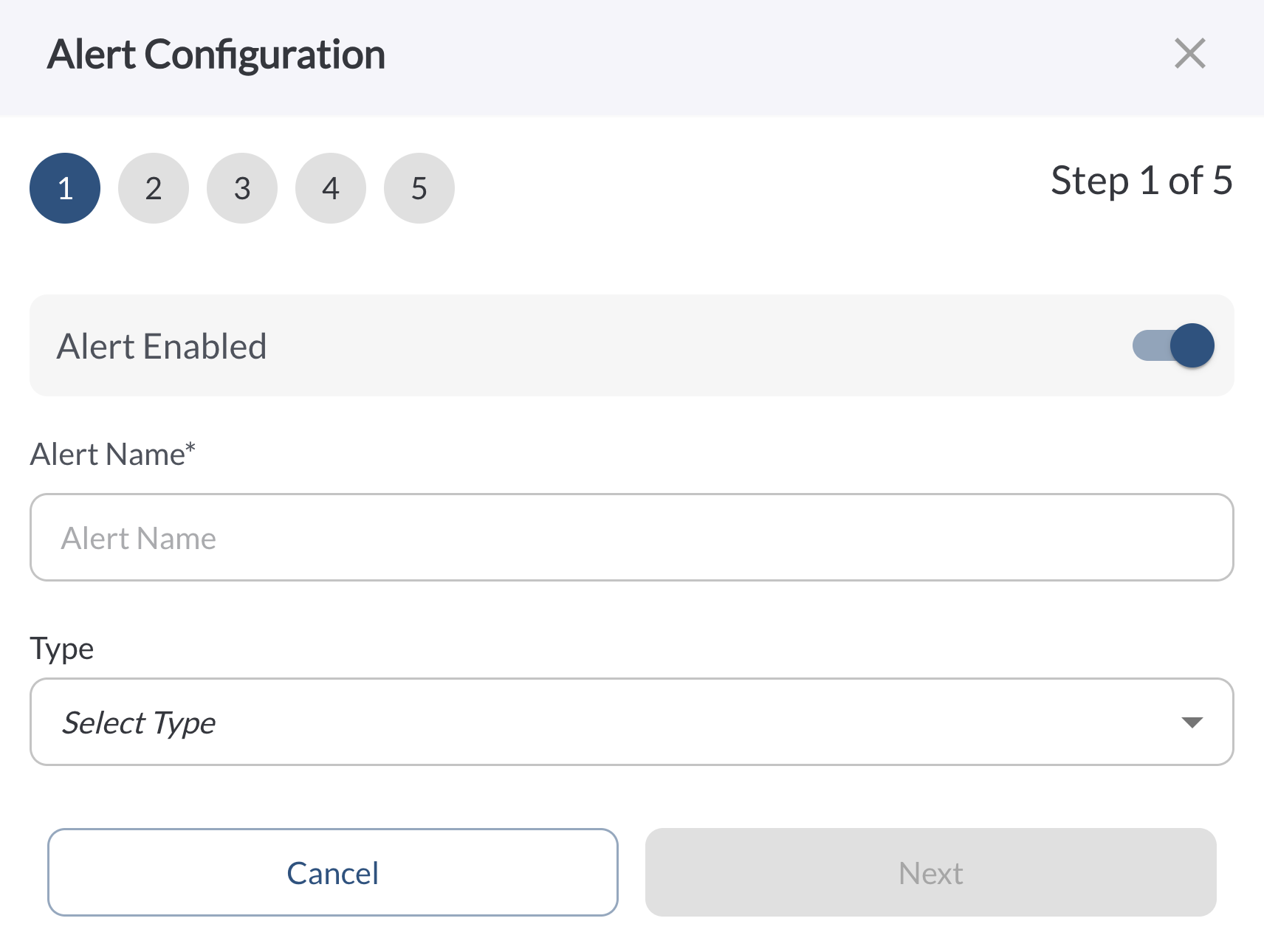
Define when the rule should activate:
Enable/Disable – Choose whether the rule is active.
Name – Add a clear name to identify the rule (e.g., "Disable cameras in geofence").
Type – Select what kind of behavior or event should trigger the rule.
Note
To learn more about each alert type and when to use them, see the article:
Alert Types.
Step 2: Confirm Your Actions
Review the action that will be applied to matched assets when the rule is active. When a rule is active on a matched asset, the device will be commanded to disable all recording and AI events on every camera. Recording is automatically restored once the rule no longer applies.
Check the confirmation box to confirm you understand and want to apply this action when the rule is active.
Warning
This action will disable all video recording and AI detection on every camera for the matched assets while the rule is active. Make sure this is intended before proceeding.
Step 3: Select Tags and/or Assets
Choose which vehicles the rule applies to. Toggle Limit to specific assets to select individual assets or tags. If no filter is applied, the rule will be assigned to all vehicles in your fleet by default.
Note
When you select a tag, any new asset added to that tag in the future will automatically be included in the rule, ensuring your configuration stays up to date without manual updates.
After completing all three steps, click Save. Your new rule will now appear in the Alerts & Rules tab.
How to Edit or Delete a Rule
- Go to the Alerts & Rules tab.
Click the (⋯) menu next to the rule you want to update.
- Select Edit to modify the rule using the same 3-step wizard.
- Select Delete to permanently remove the rule.
Warning
Deleting a rule is a permanent action and cannot be undone.