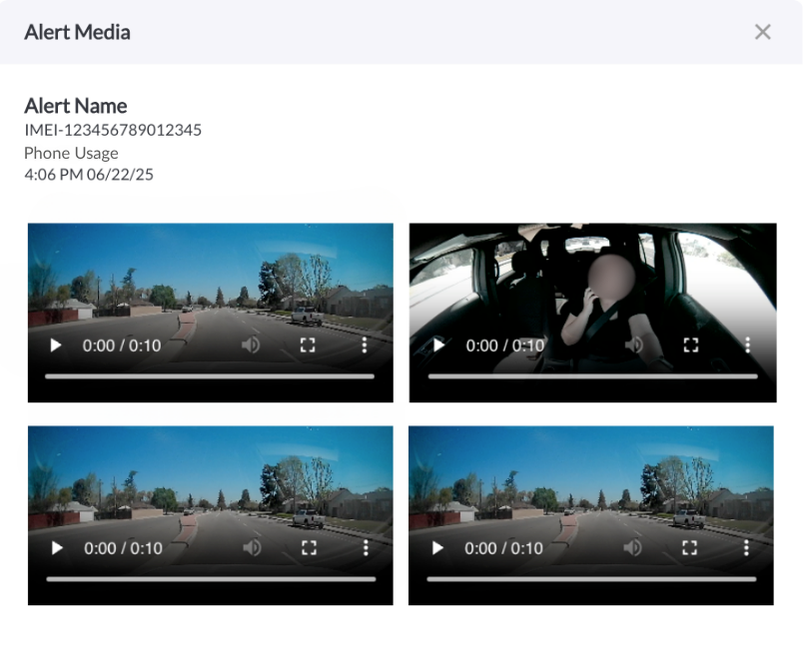
The Alerts page is your fleet’s central hub for managing real-time notifications and automated monitoring rules. It provides complete visibility into all configured alerts, their activation status, and a full history of triggered events. From this page, managers can create new alerts, define when they should trigger, including whether the event occurs inside or outside a geofence, apply them to specific assets or tags, assign recipients, and easily edit or delete existing alerts, all in one place.
Alerts Tab – Configure Your Notifications
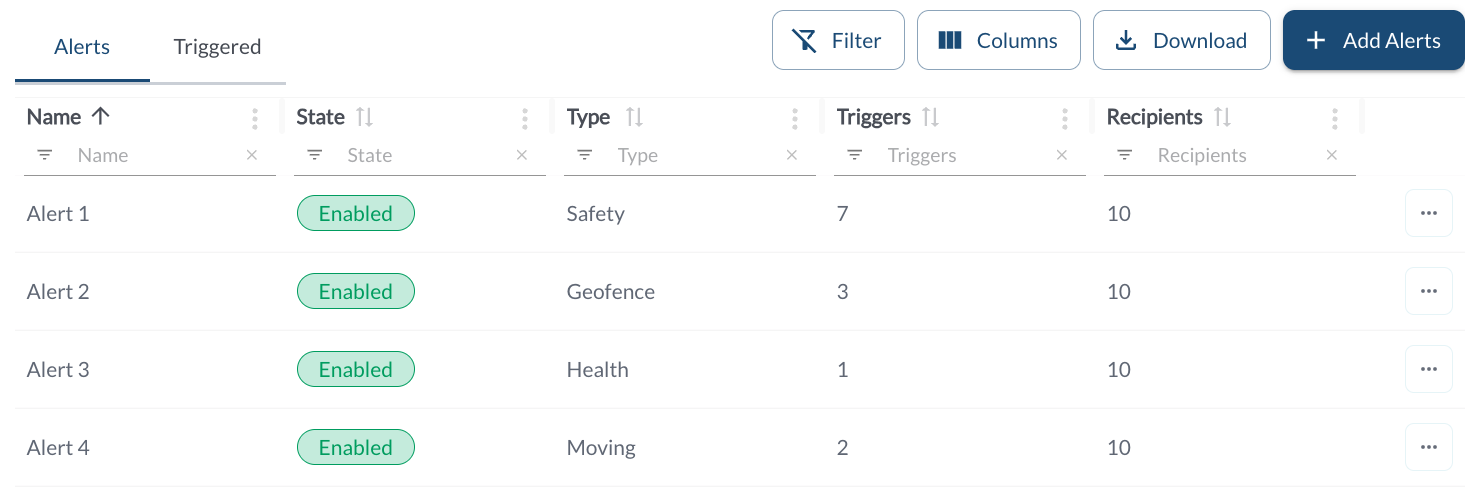
The Alerts tab is where you manage your alert rules. Each alert defines what event should trigger a notification, during which time frames, for which assets or tags, and who should be notified.
The table displays all the configured alerts, allowing you to efficiently organize and access the details. It supports downloading, sorting, filtering, resizing columns, and other customization options. For a complete guide, refer to the article How to Use Table Options.
The table includes the following columns, each providing specific configured alert information:
| Alert Name |
A custom name to help you identify the alert (e.g., “After-Hours Movement”) |
| State |
Indicates whether the alert is currently active (Enabled) or inactive (Disabled) |
| Type |
The category of alert that defines its purpose:
Safety – Risky driving like harsh driving, distracted driving, and collisions Geofence – When a vehicle enters or exits defined zones Fault Codes – DTCs and check engine light detection Movement – Vehicle starts moving or remains stopped for the configured time Idling – When a vehicle is idling Health – When a device becomes unhealthy
|
| Triggers |
Number of conditions that define when the alert should be activated |
| Recipients |
Number of users assigned to receive notifications for this alert |
Available actions:
-
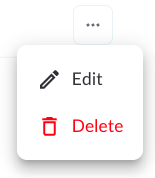
Edit an existing alert to update rules or assignments
-
Delete an alert that’s no longer needed
-
Create a new alert using the guided 4-step wizard, For a detailed walkthrough, see the article: How to add or Edit an Alert.
Triggered Tab – Track Alert Activity
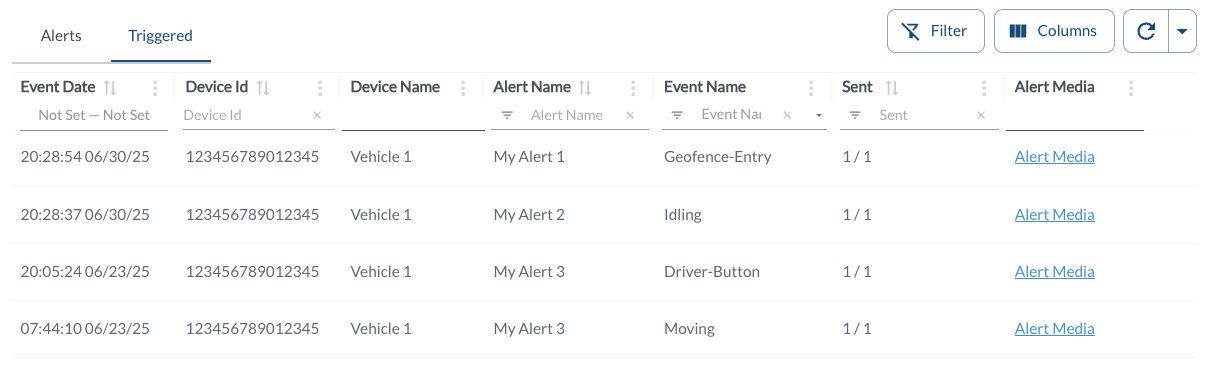
The Triggered tab serves as a log of all alerts that have been generated across your fleet. Use this view to monitor real-time events and investigate operational issues as they occur. It captures activity for all supported alert types.
The table displays all the configured alerts, allowing you to efficiently organize and access the details. It supports downloading, sorting, filtering, resizing columns, and other customization options. For a complete guide, refer to the article How to Use Table Options.
The table includes the following columns, each providing specific configured alert information:
| Event Date |
The date and time when the alert was generated |
| Device ID (IMEI) |
The unique IMEI identifier of the device that triggered the alert |
| Device Name (Vehicle) |
The vehicle name assigned in your fleet for easier identification |
| Alert Name |
The custom name you gave the alert rule (e.g., “After-Hours Movement”) |
| Event Name |
The specific event type that triggered the alert (e.g., geofence entry, harsh turning, idling). |
| Event Address |
The location where the event occurred, based on GPS data. |
| Sent |
Shows delivery status of alert notifications (e.g., 1/1 indicates successfully sent to all assigned recipients) |
| Media |
If media is attached to the alert, this column displays a Alert Media link. Clicking the link opens a dialog box with all images or video associated with the alert for easy review. |