Driver Check-In allows drivers to identify themselves by scanning a personal QR code. Once scanned, the system uses that driver for trip records, safety score calculation, and across the platform wherever driver information is shown.
Enabling and Accessing Driver QR Codes
Each driver is automatically assigned a unique QR code. Follow these steps to enable QR scanning and access the QR code for distribution.
Step 1: Enable QR Code Scanning for the Asset
QR Code Scanning can be enabled at both the fleet level and the asset level, depending on your preferred setup:
Step 2: Access the Driver’s QR Code
- Go to the Drivers page in the dashboard.
- Click the Quick Actions menu (⋯) next to the driver’s name.
- Select “QR Code.”
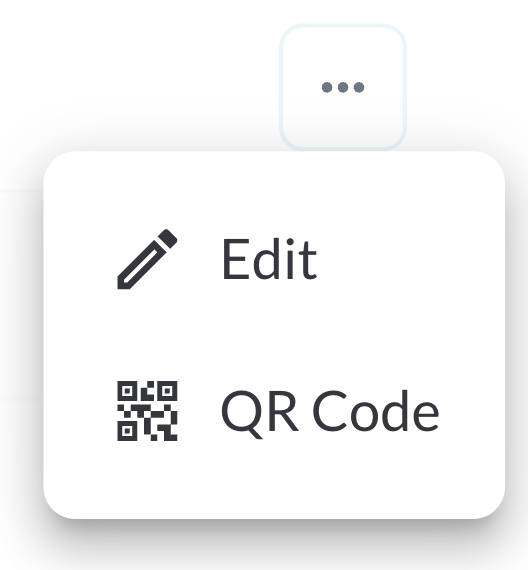
- A dialog box will open, displaying the driver’s unique QR code.
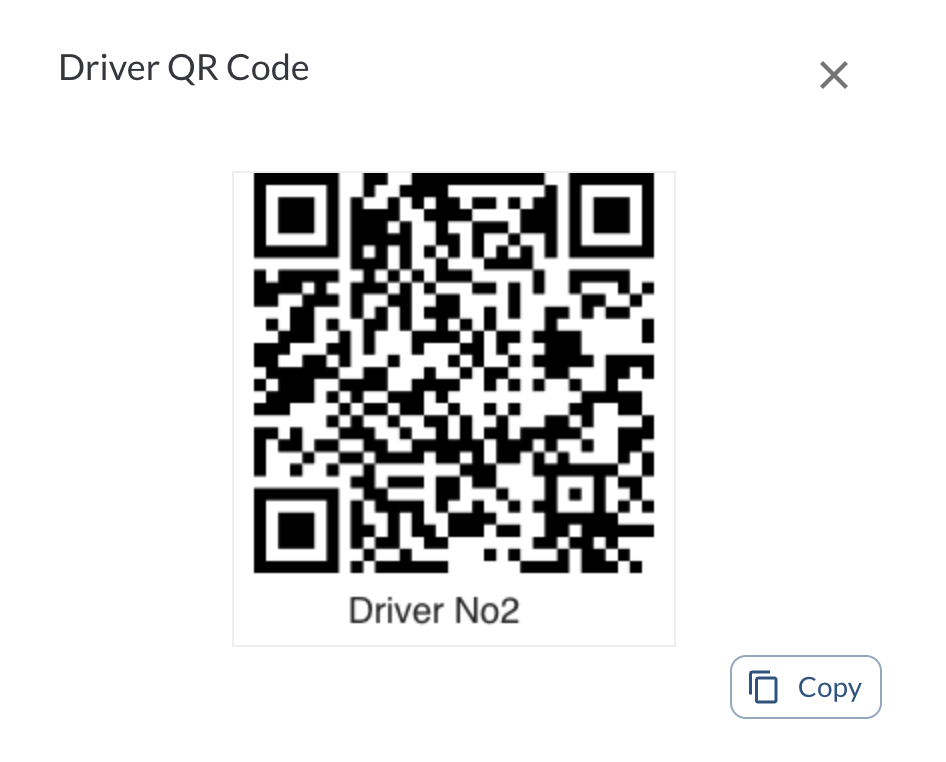
- Use the copy button to copy the QR code image.
Note
QR Code Check-In requires the in-cab camera lens to be enabled. Please
ensure that the lens is active and not disabled in the assets’s settings.
Tip
Paste the QR code into a document if you’d like to print it or send
it digitally
to the driver.
How It Works for the Driver
Scanning the QR Code to Check In
To check in, the driver simply scans their personal QR code using the in-cabin camera. Once the code is detected, a short confirmation tone will play, and the system will recognize the driver as checked in for the upcoming trip.
If the driver has not scanned their QR code by the time the vehicle ignition is turned on, the system will play an audio prompt saying, “Please sign in.”
Note
This prompt only plays once, at ignition, and never while the vehicle
is in motion.
Automatic Check-Out at Trip End
When the trip ends and the ignition is turned off, the system automatically clears the check-in. This means every trip starts with a fresh check-in, and driver identity stays accurately linked to each individual trip. To be recognized for the next trip, the driver must scan their QR code again.
Note
If a driver makes stops throughout the day, they will need to re-scan
their QR code each time they start the vehicle again.
How It Affects Fleet Data
When a driver successfully checks in using their QR code, that driver becomes the primary identity associated with the trip. This affects how the system attributes trips, calculates safety scores, and displays driver data across the platform.
If a check-in is detected before or during a trip, the platform will use the checked-in driver instead of the configured (assigned) driver for:
- Trip logs
- Safety Score calculation
- Driver-based reports and insights
Note
If no QR code is scanned, the system will fall back to using the
assigned
driver (if one exists).