The Fleet Settings tab focuses on configuring device settings and other fleet-wide settings, enabling optimized functionality.
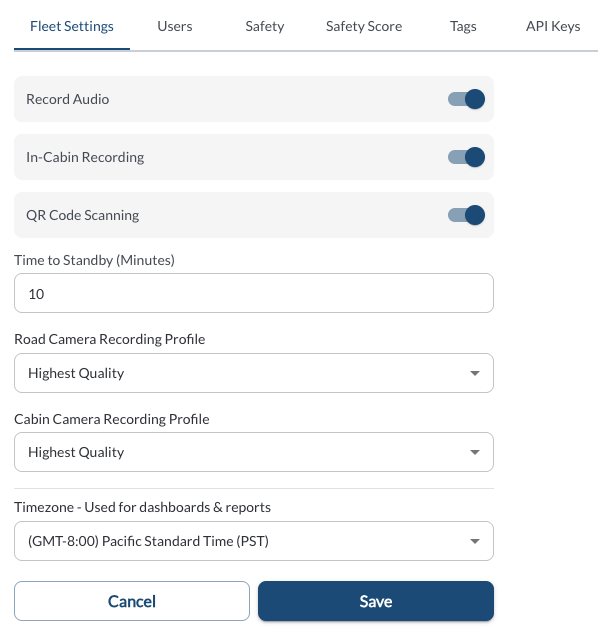
Available Settings
-
Road Camera Recording Profile / Cabin Camera Recording Profile – Select the recording quality for each camera. Available options:
Highest Quality – Prioritizes video clarity from both cameras. Best suited for situations where detail is critical, but results in the shortest storage time.
Standard Quality – A balanced option that offers good video resolution while extending recording time. Suitable for most day-to-day fleet operations.
Increased Storage – Slightly lowers video quality to significantly extend how long footage is retained. Ideal when longer recording history is more important than fine detail.
Extended Storage – Maximizes how much video can be stored by lowering resolution. Best for fleets needing the longest retention window, even if video clarity is reduced.
-
Auxiliary Camera Recording Profile – Select the maximum recording quality for all connected auxiliary cameras. A single profile applies across all auxiliary cameras on the vehicle. The actual recording quality for each camera will adjust automatically based on what that camera supports. Available options match the road and cabin camera profiles: Highest Quality, Standard Quality, Increased Storage, and Extended Storage.
Unpowered Asset Reporting Interval (Hours) – Defines how frequently an unpowered asset reports its location.
-
Trip Close Timeout – Defines how long a vehicle is allowed to continue driving at a speed below 8 km/h before the current trip is automatically closed. This helps ensure trips end correctly during slow movement such as traffic or yard operations.
- Minimum: 60 minutes
- Maximum: 0 minutes
- Default: 5 minutes
-
Idling Trigger Timeout – Determines how long a vehicle must remain stationary before it is considered idling. This setting is used for idling detection in reports and alerts.
- Minimum: 60 minutes
- Maximum: 0 minutes
- Default: 5 minutes
-
Timezone - Used for dashboards & reports: Select the timezone applied across the fleet to maintain consistency.
-
Unit System (BETA) – Select Imperial or Metric units for your fleet. This setting controls how values are displayed across the entire application, including distance (KM/MI), speed (KPH/MPH), and fuel volume (Liters/Gallons).
Note
This feature is in BETA and is available only upon request. If you do not see it in your Fleet App, please contact your reseller to have the feature enabled for your account.