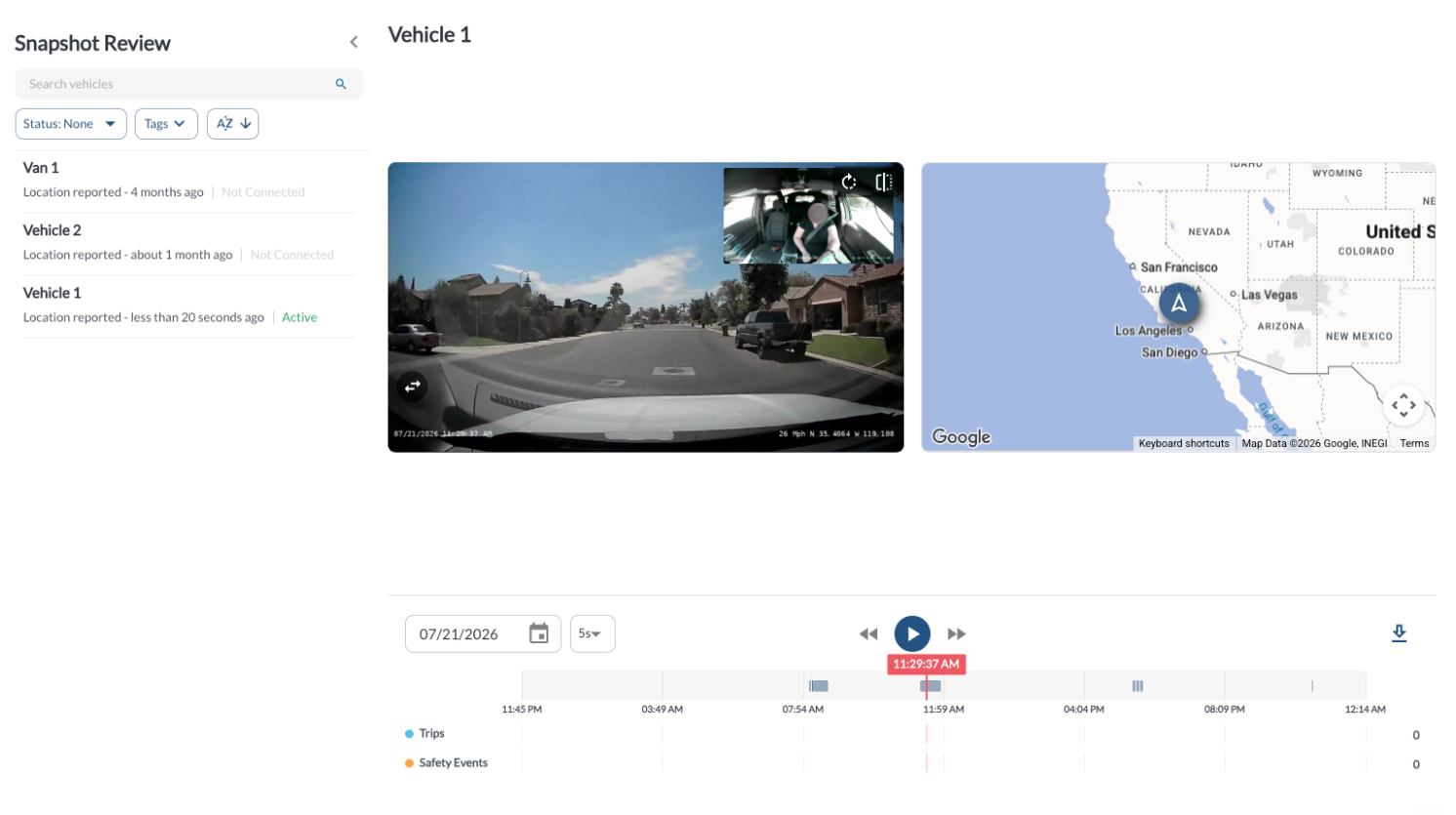
The Snapshot Review page lets you view live snapshots* from your fleet's devices, alongside their current location on the map.
Vehicles List Panel
The Vehicles List Panel allows you to locate and select devices to access their recordings.
1. Search Vehicles
Quickly locate specific vehicles using the Search bar at the top of the Vehicles List Panel. Enter a vehicle name, and the list will update dynamically to display matching results

2. Filter Vehicles
Use the Filter option at the top of the Vehicles List Panel to adjust the displayed vehicles and focus on specific groups.
-
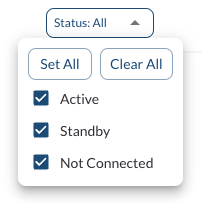
Filter by Status: Narrow down the Vehicle List Panel based on the status of devices (e.g., active, standby, or not connected). For more details, refer to the article Understanding Device Status.
-
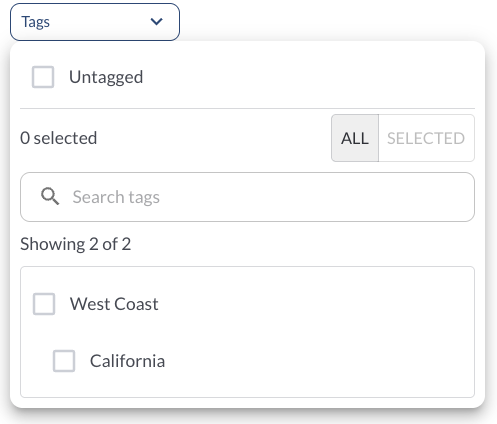
Filter by Tag: Display vehicles associated with specific tags for easier management. To learn more about setting up and using tags, see the article Tags Settings.
3. Sort Vehicles
Locate the Sort button above the Vehicles List Panel and click it to toggle between alphabetical (A-Z) and reverse alphabetical (Z-A) sorting options, with the list updating dynamically to reflect your selection.


4. Displayed Information
Each row in the device list includes:
| Name |
The name of the vehicle |
| Last Moved |
The last time the device recorded movement |
| Status |
The current status of the device (e.g., active, standby, not connected) |
Note
Devices marked Not Connected are not accessible for snapshot review.
Selecting a device in Standby sends a wake-up call to activate it before
displaying its snapshot.
Snapshot Viewer
Select a vehicle to view its most recent camera snapshot alongside a map showing its current location.
-
Camera View: Displays the primary camera snapshot, with a smaller picture-in-picture view of a second camera angle (e.g., cabin view) in the corner.
-
Rotate: Rotate the camera image in increments to correct for mounting angle.
-
Split View: Toggle between the combined picture-in-picture layout and viewing each camera separately.
-
Map: Shows the vehicle's current location, with a style selector (e.g., Standard) and a fullscreen option.
Timeline
Use the timeline to review snapshots from earlier points on the selected date.

-
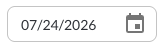
Date Picker: Click the date field to select a different day. Only one day can be viewed at a time.
-
Snapshot Interval: Choose how far apart each snapshot is spaced during playback (e.g., every 5 seconds, the view advances to the next available snapshot).

-
Navigation Controls: Use rewind, play, and fast-forward to step through the day's snapshots.

-
Trips and Safety Events: The timeline marks when trips and safety events occurred throughout the day, so you can jump directly to a specific moment.
-
Download: Click the download icon to open the Download Video dialog. This works the same way as downloading from the Recordings page - see How to Download Recordings for details.
