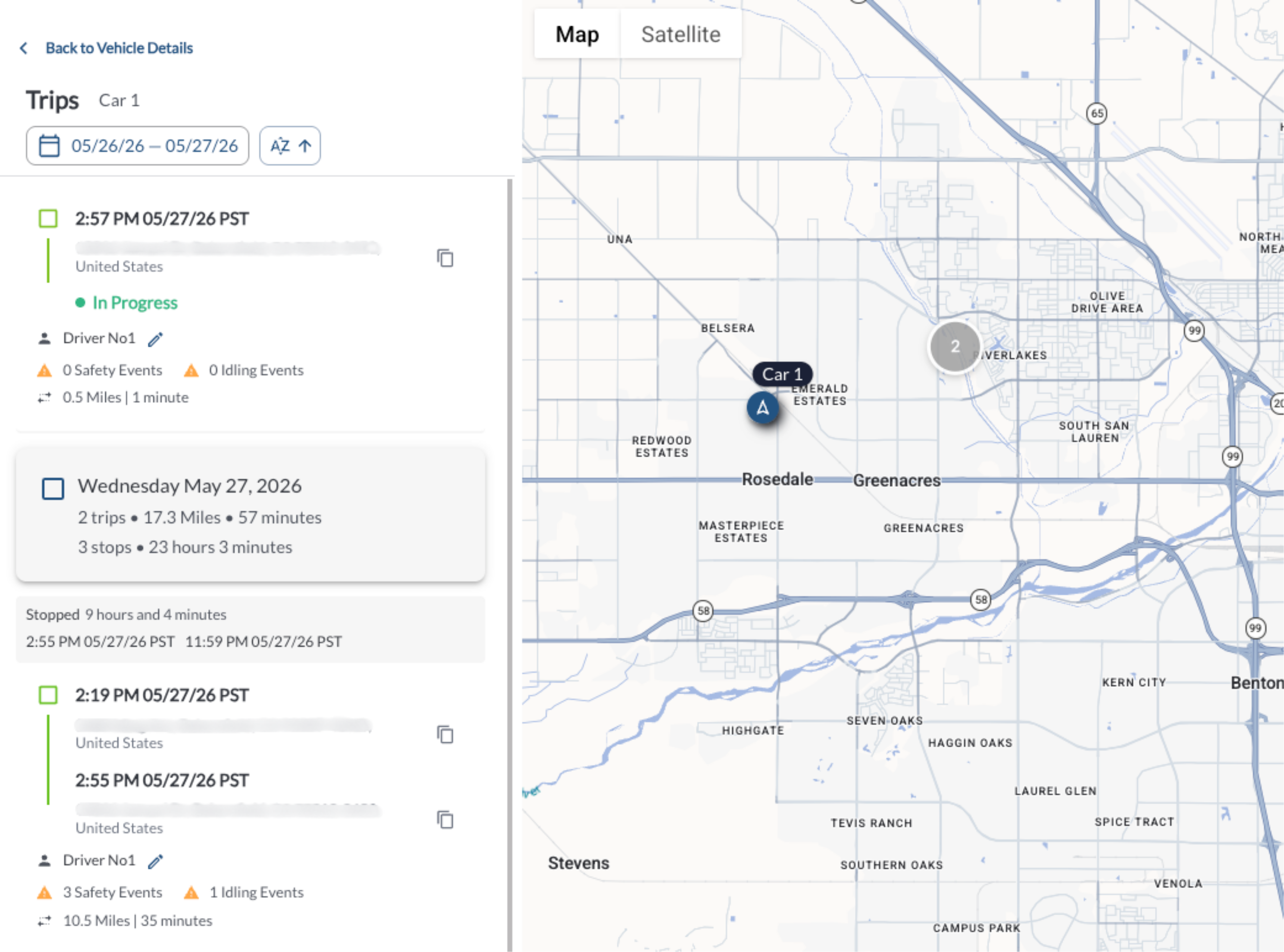
The Vehicle Trips Panel lets you explore detailed trip data and daily activity insights for any vehicle directly from Map View. Use the panel to view trip details, stop durations, daily summaries, and perform various actions related to trip analysis. To learn more about trip calculation, refer to Understanding Location Services.
Steps to View Vehicle Trips
- Go to the Map View and locate the vehicle in the Vehicle List Panel.
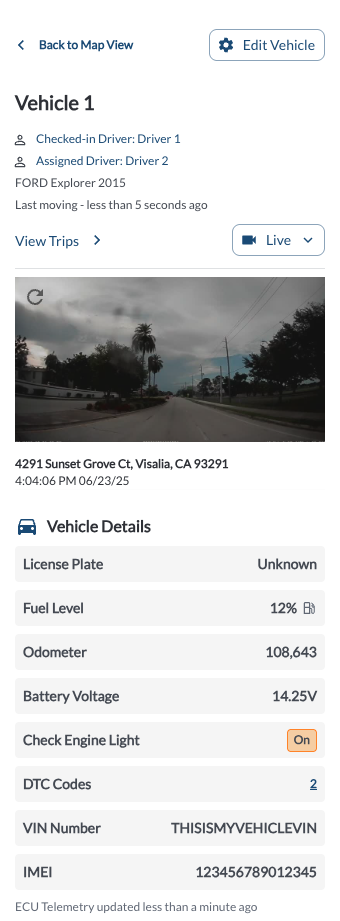
- Click on the vehicle name to open the Vehicle Details Panel.
- In the Vehicle Details Panel, select View Trips.
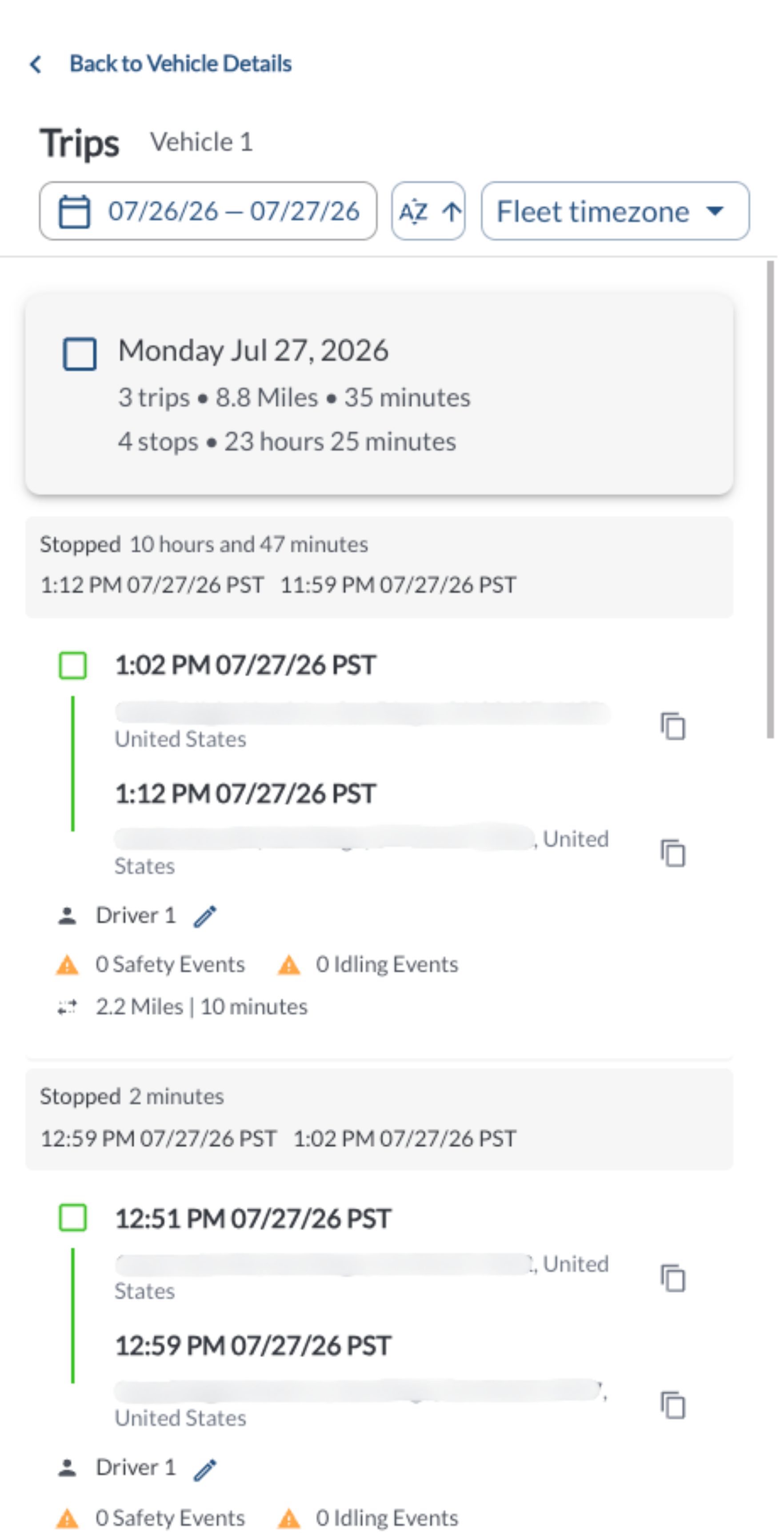
- The Vehicle Trips Panel will open, displaying a date picker, a sort button, a timezone selector, and a list of all trips for the selected vehicle. By default, the date range is set to today's date. For guidance on using the date picker, refer to the article How to Use the Date Picker.
Exploring the Vehicle Trips Panel
The Vehicle Trips Panel provides detailed information about each trip, offering insights into trip-specific data, activity patterns, and helpful daily summaries.
-
Date Picker: Select a date range to view trips within a specific period. For guidance on using the date picker, refer to the article [How to Use the Date Picker].
-
Sort: Click the sort button to toggle between start-to-end and end-to-start trip order. The arrow shows the current direction.
-
Timezone Selector: Choose between Fleet timezone and Local timezone to control how trip timestamps are displayed throughout the panel.
-
Daily Summary: Displays at the top of each day’s trip list, showing the total number of trips and their combined driving time, as well as the total number of stops between trips and their total duration.
-
Trips: Each trip includes the following details:
-
Stops Between Trips: Gray rows appear between trips to indicate full inactivity periods. Each stop entry includes the stop duration and the start and end times of the stop.
Note
Click the sort button (

)
at the top of the Trips panel to toggle between start-to-end and end-to-start
trip order. The arrow shows the current direction.
Interacting with Trip Details
Retrieve Recordings
Select any point along the trip path to retrieve a recording from that location. For detailed instructions, refer to the article How to View a Recording from a Point on the Trip.
View Event Details
Events, such as safety events or idling events, are pinpointed on the map along the trip path. Click on a safety event icon to display its details. For additional information, refer to the article How to View Event Details from the Map.
Hover Interactions
-
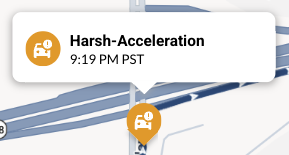
Safety Events: Hover over a safety event icon to view the event name and the time it occurred.
-
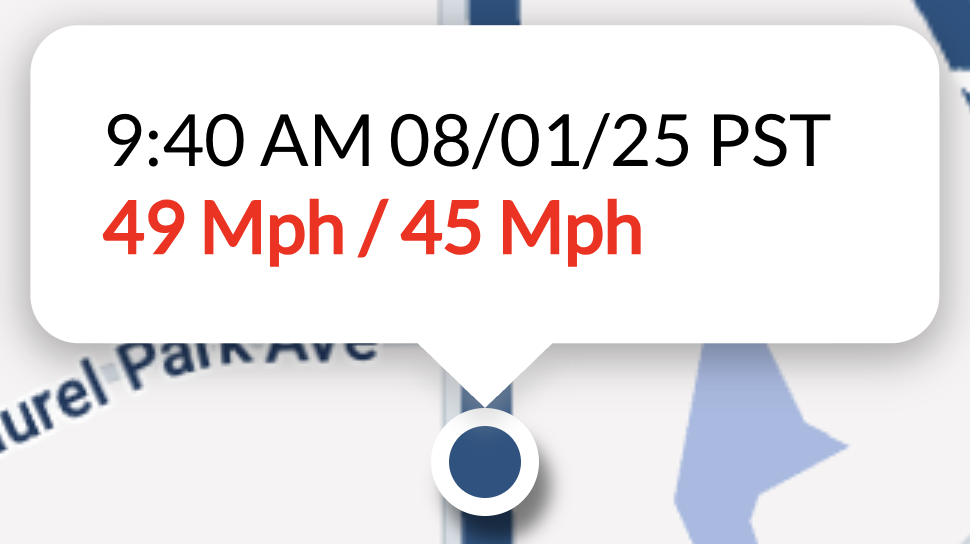
Trip Breadcrumb: Hover over the trip breadcrumb to show the time and date, the vehicle’s speed, and the posted speed at that moment. If the vehicle was speeding, the driven speed will appear in red.
-
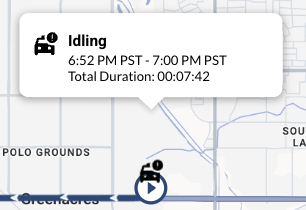
Idling Events: Hover over an idling event icon to see the event name, start and end times, and the total duration of the idling period.