Once the RZ1 device is installed and powered on, you’ll complete the setup using the Installation Wizard in the Roadeazy Fleet App. This process links the device to a specific vehicle, checks system health, and finalizes camera alignment.
1. Log In to the Installer Portal
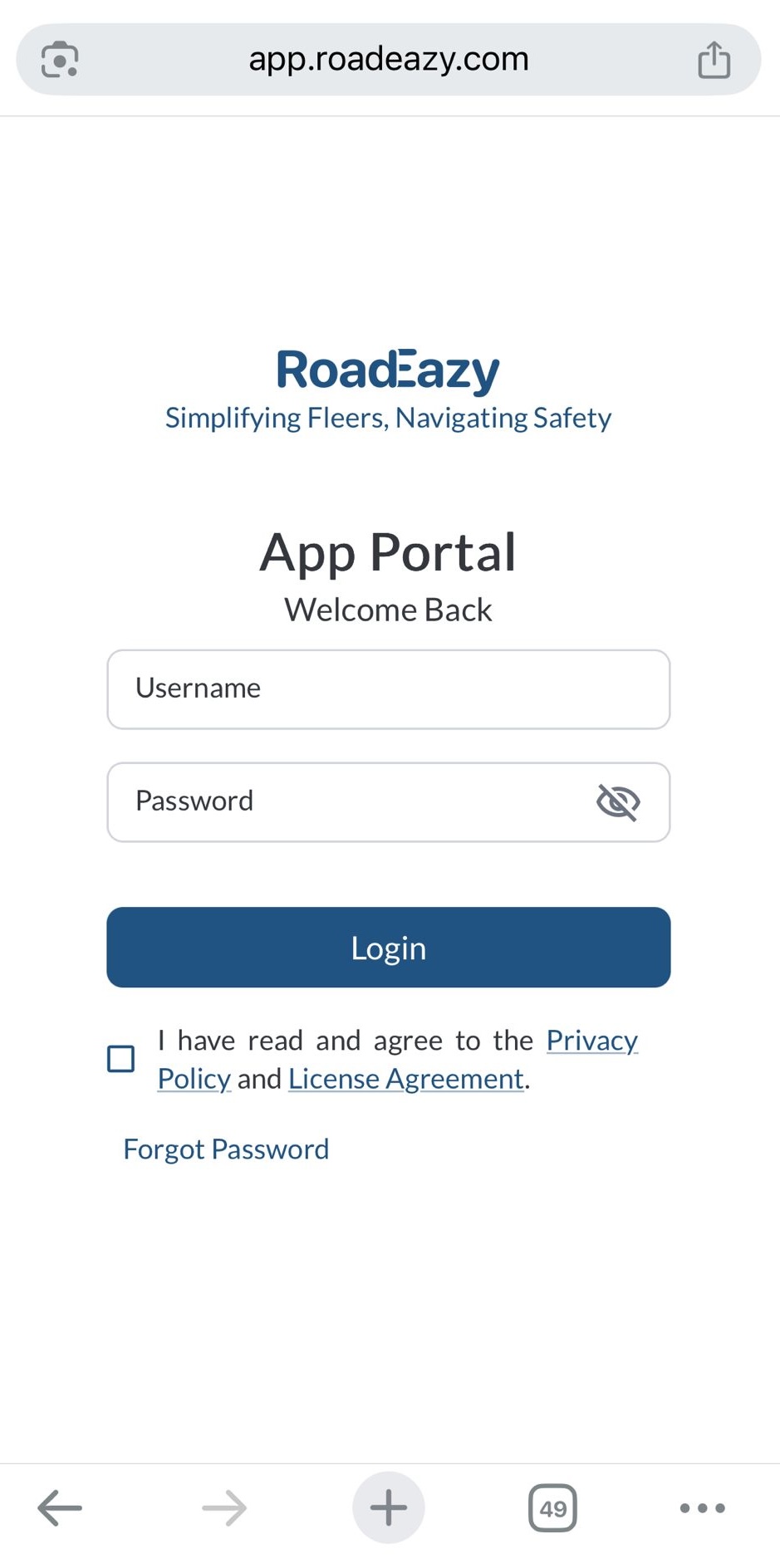
- Open the RoadEazy Fleet Portal.
- Enter your Username and Password, then tap Log In.
2. Select the fleet
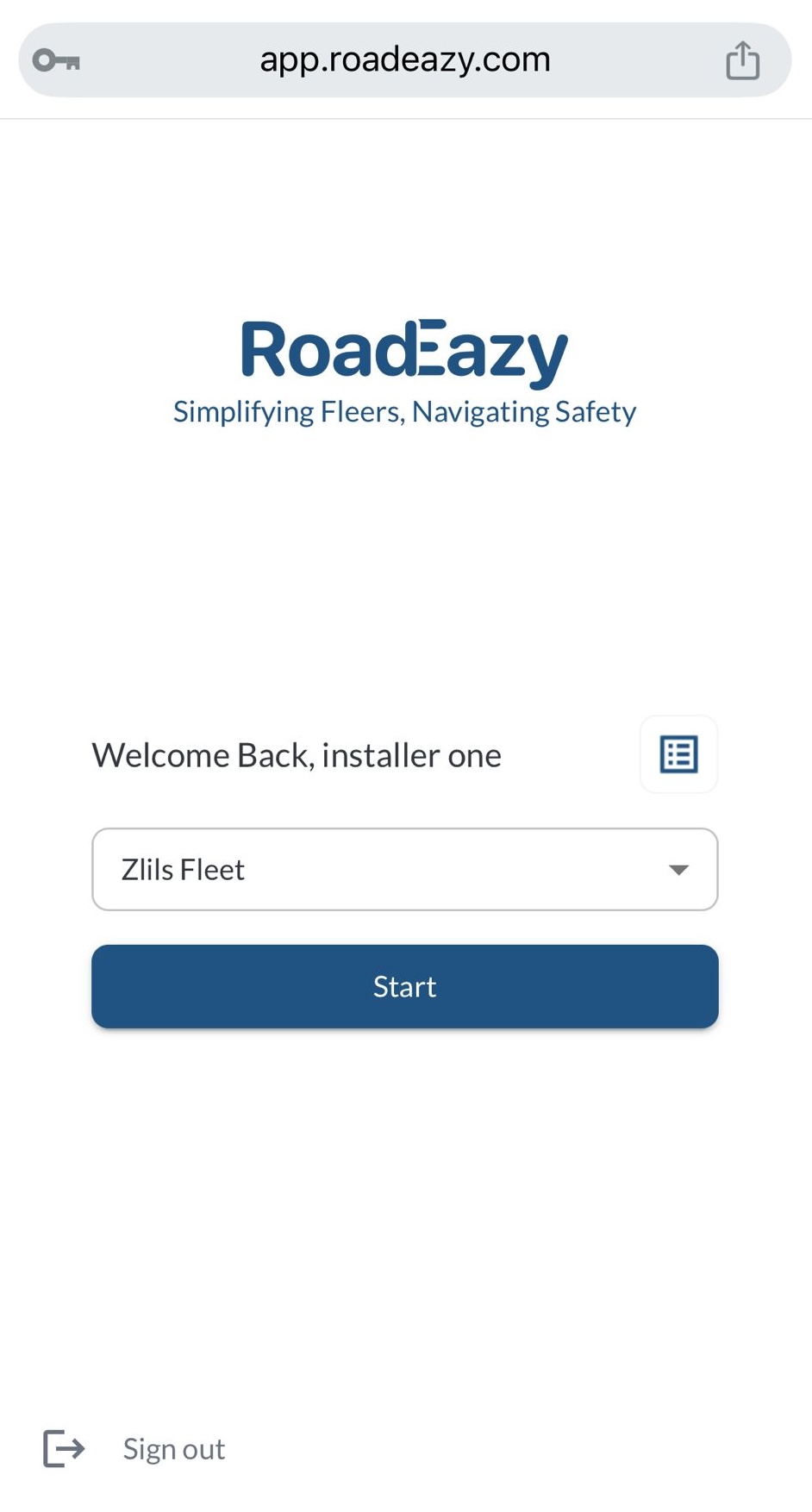
After logging in, you’ll be directed to a page where you can select your fleet from a list of all fleets associated with your account. You can also click the Reports button to view your full installation history.
3. Enter Vehicle Details & Verify Connections
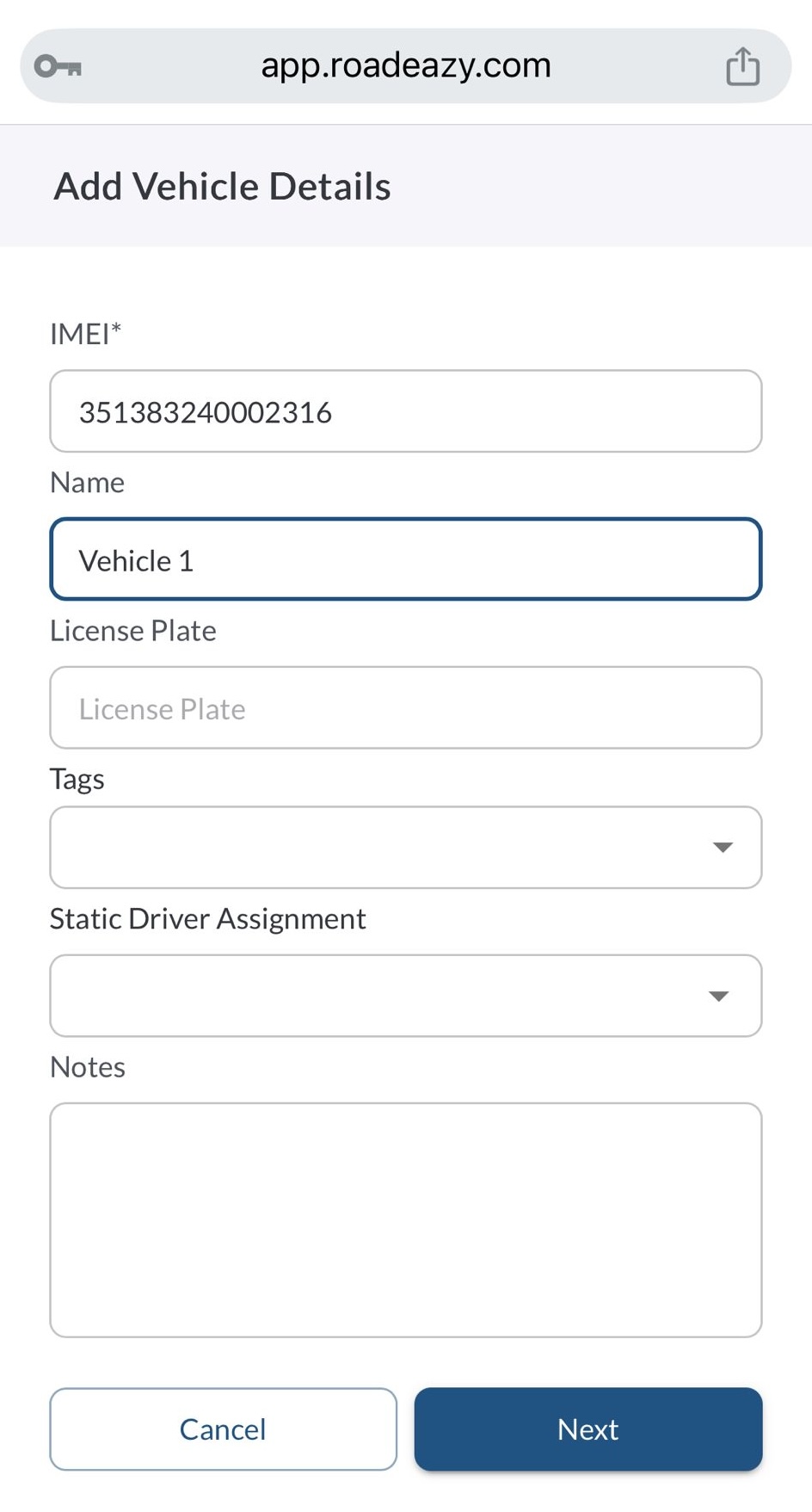
Enter the Vehicle details
-
IMEI - Pre-filled for existing vehicles (not editable). Required if adding a new vehicle.
-
Name - Pre-filled for existing vehicles. Required if adding a new vehicle.
-
License Plate - Optional, editable field for the vehicle’s plate number.
-
Tags - Optional, editable field for vehicle tags.
-
Driver - Optional, editable field for driver assignment.
-
Notes - Optional, editable field for additional details.

Note
Ensure required fields (IMEI & Name) are filled before proceeding.
Verify Connections
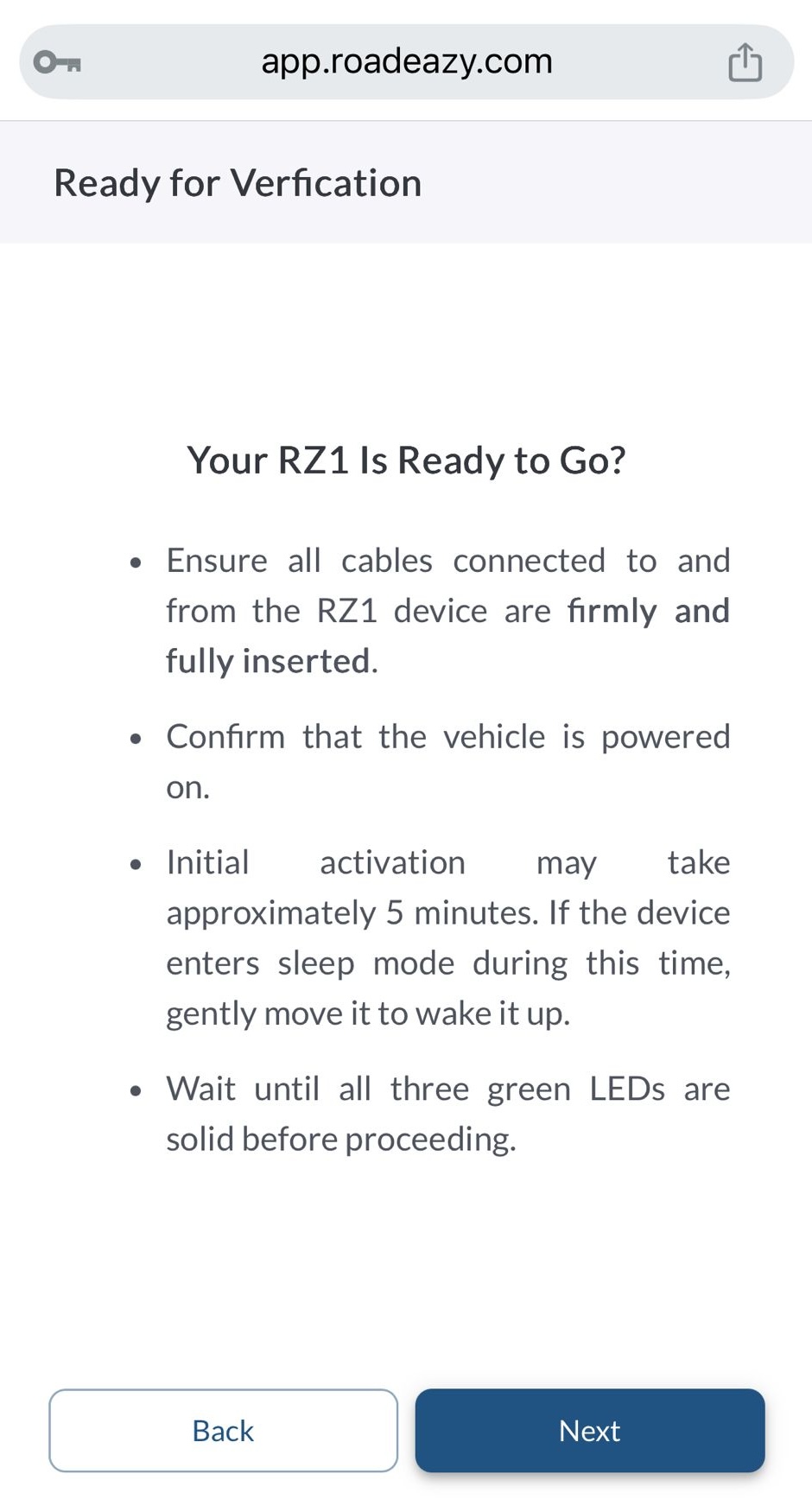
Make sure the RZ1 device is fully connected and ready:
-
Ensure all cables connected to and from the device are firmly and fully inserted.
-
Confirm the vehicle is powered on.
-
Initial activation may take up to 5 minutes. If the device enters sleep mode during this time, gently move it to wake it up.
-
Wait until all three green LEDs are solid before continuing.

Tip
The RZ1 must be plugged into the vehicle, and the engine must be running. Please wait a few minutes before proceeding to the next step.
4. Run Connectivity Verification Tests
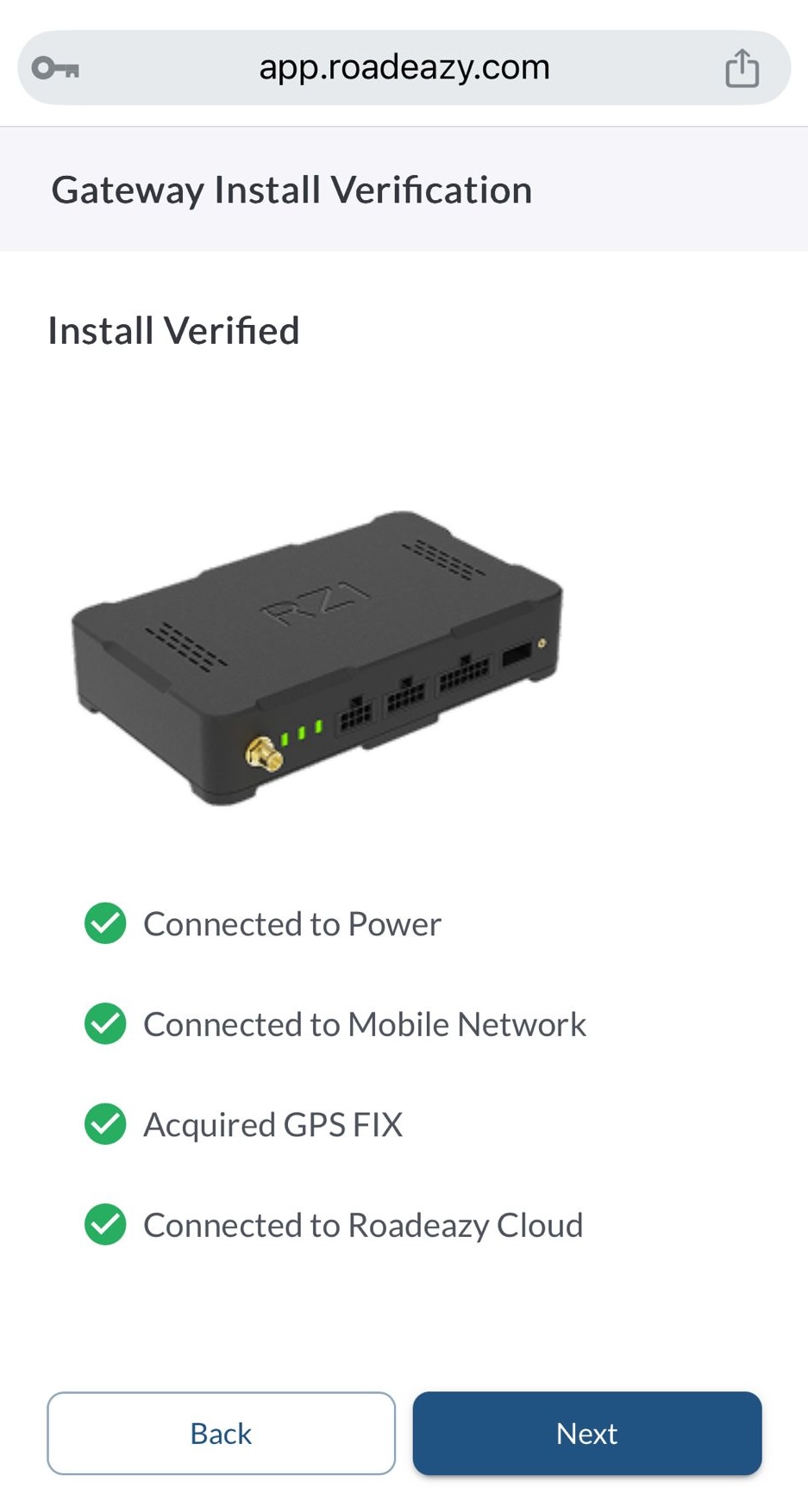
The system will now run four automated tests to check the device connection.
-
Power Connection – Ensures the device is receiving power.
-
Mobile Network – Confirms a stable cellular connection.
-
GPS Signal – Checks for proper satellite signal reception.
-
Cloud Connection – Ensures communication with Roadeazy cloud.
What to do if a test fails?
If a test fails, refer to the Installation Troubleshooting to diagnose and resolve the issue. Once the necessary checks and fixes are complete, use the Retry button to run the tests again.
Note
If the power and mobile connection tests fail, you will not be able to proceed.
Confirm Vehicle Details
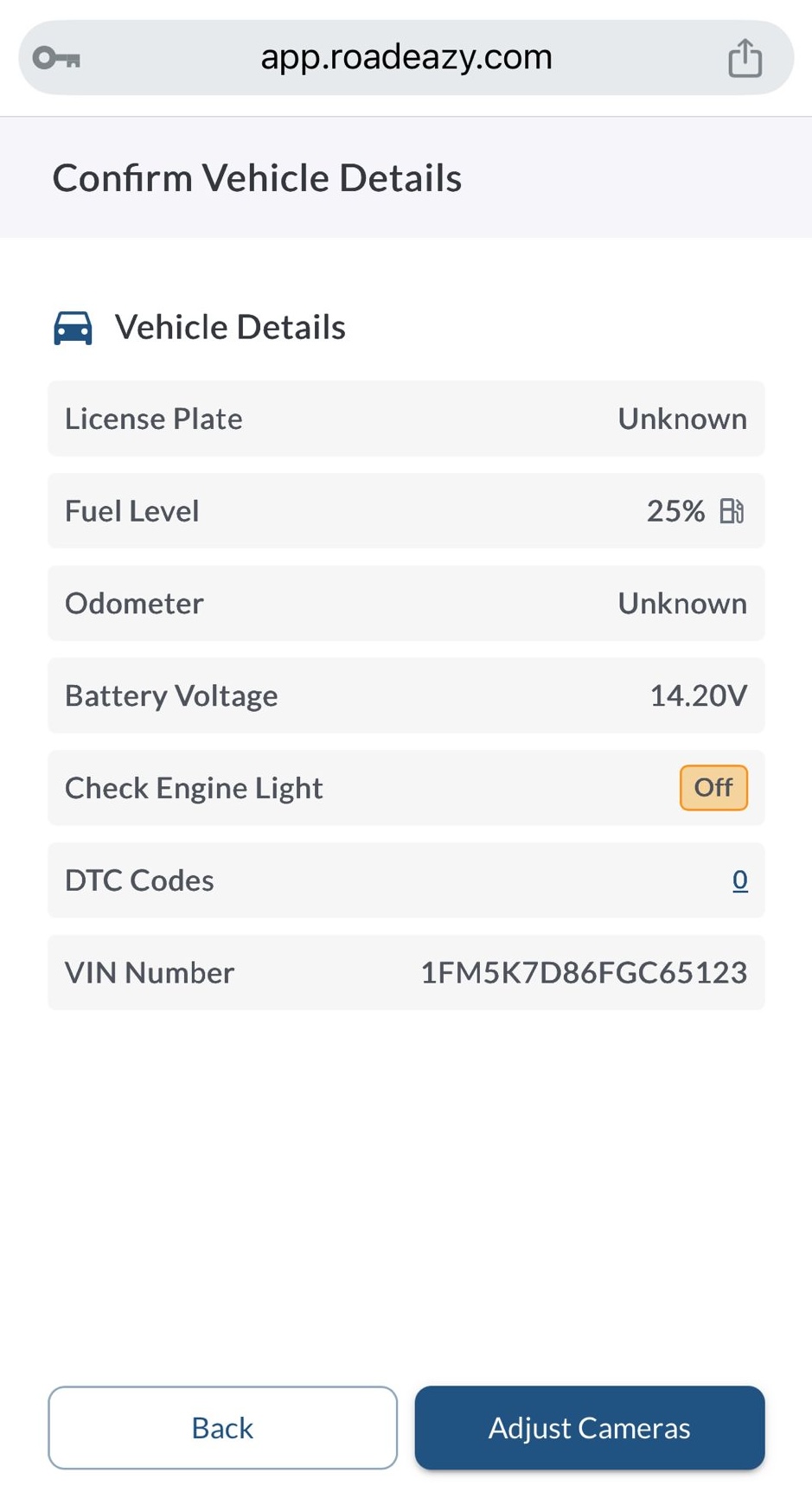
After the connectivity tests, verify the following vehicle details:
-
License Plate – Ensure the correct plate is entered.
-
Fuel Level – Check that the reported fuel level is accurate.
-
Odometer – Verify that the odometer reading matches the vehicle’s dashboard.
-
Battery Voltage – Ensure the battery voltage is within the acceptable range.
-
Check Engine Light – Confirm whether the check engine light is active.
-
DTC Codes – Review any Diagnostic Trouble Codes (DTCs) detected.
-
VIN Number – Ensure the correct Vehicle Identification Number (VIN) is displayed.
5. Adjust Cameras
Road-Facing Camera
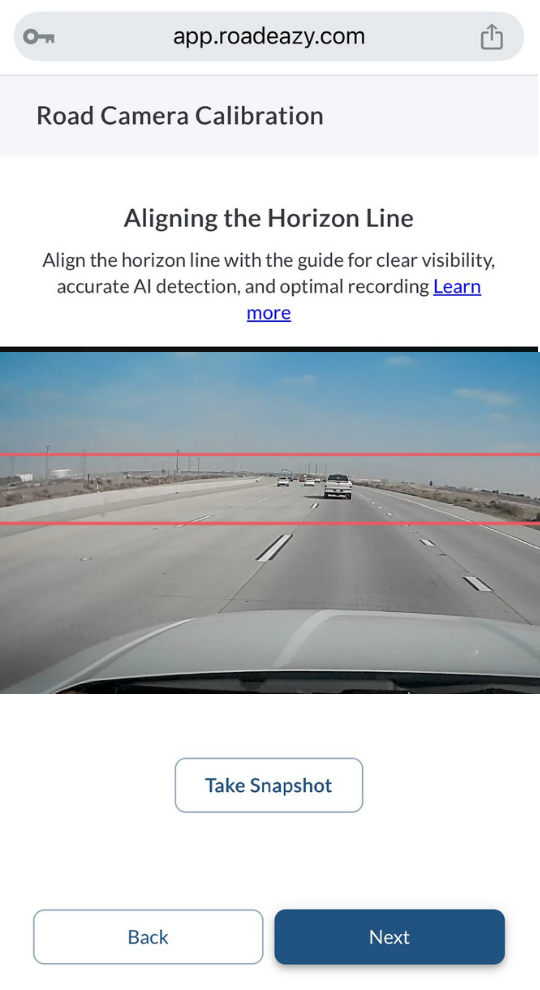
- Align the horizon line between the red guide lines displayed on the screen.
- Take a snapshot and review the image.
- If misaligned, physically adjust the camera position, then retake the snapshot.
- Repeat until the horizon line is correctly positioned.
In-Cabin Camera
Note
Make sure to remove all blue protective stickers from the camera lenses. Leaving the stickers on will impact video quality and may obstruct the camera’s view.
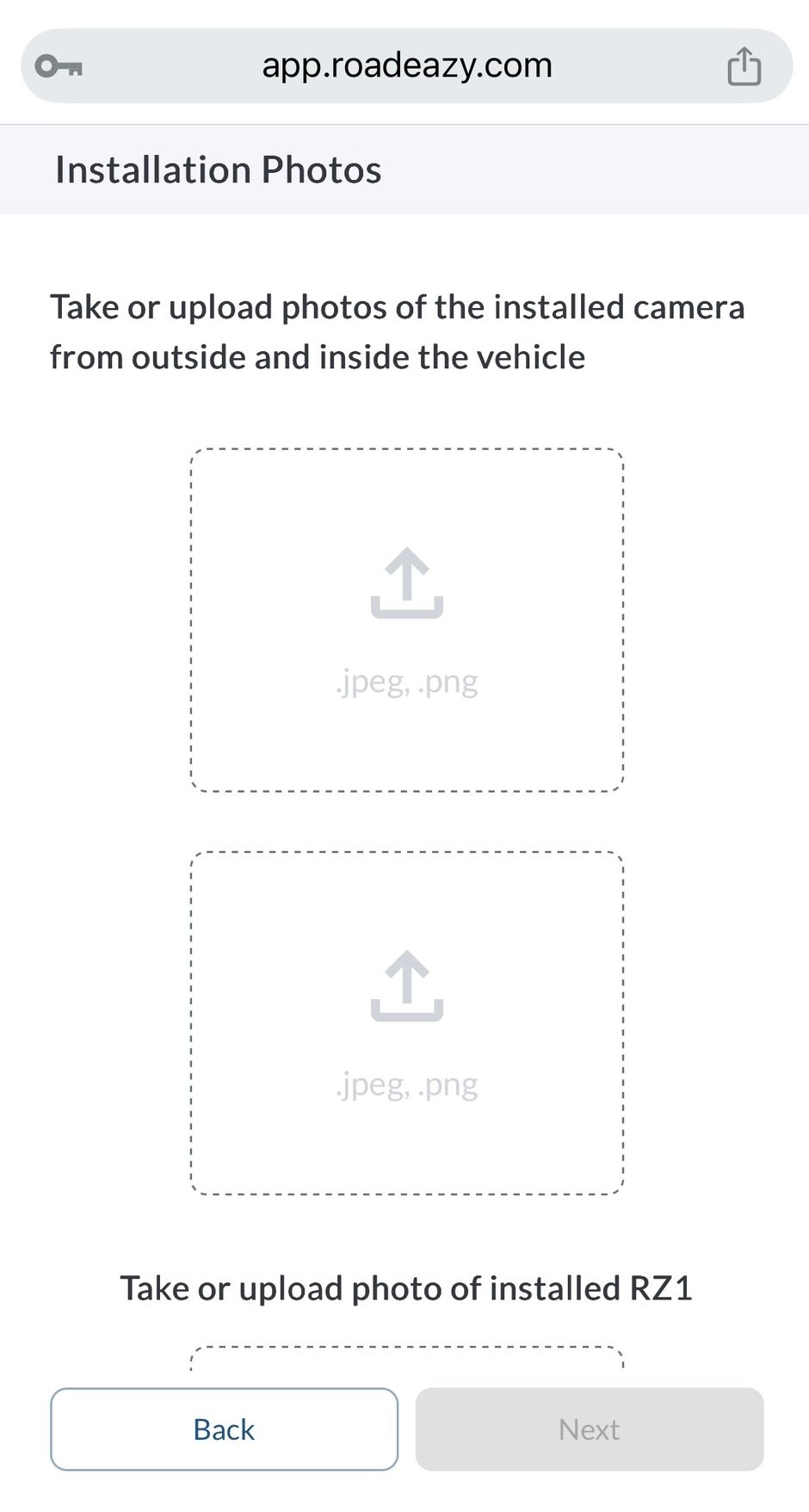
6. Upload Installation Images
To verify the installation, upload clear photos as described below:
-
Vehicle Exterior Installation Photo (Required) – Show how the RZ1 device and cameras are mounted from outside the vehicle.
-
Vehicle Interior Installation Photo (Required) – Show the internal setup, including camera positioning and device placement.
-
Installed RZ1 Device Photo (Required) – Close-up of the RZ1 device mounted in its final position.
-
Cable Connections Photo (Optional) – Capture how the cables are connected to the RZ1 device.
7. Complete the Installation
You’ll receive a Success Notification when the RZ1 is fully installed and assigned. From here, you can:
-
-
Tap History to review the installation history for this fleet.
-
Tap New Install to start the next installation.
-
Tap Done to log out and return to the login screen.
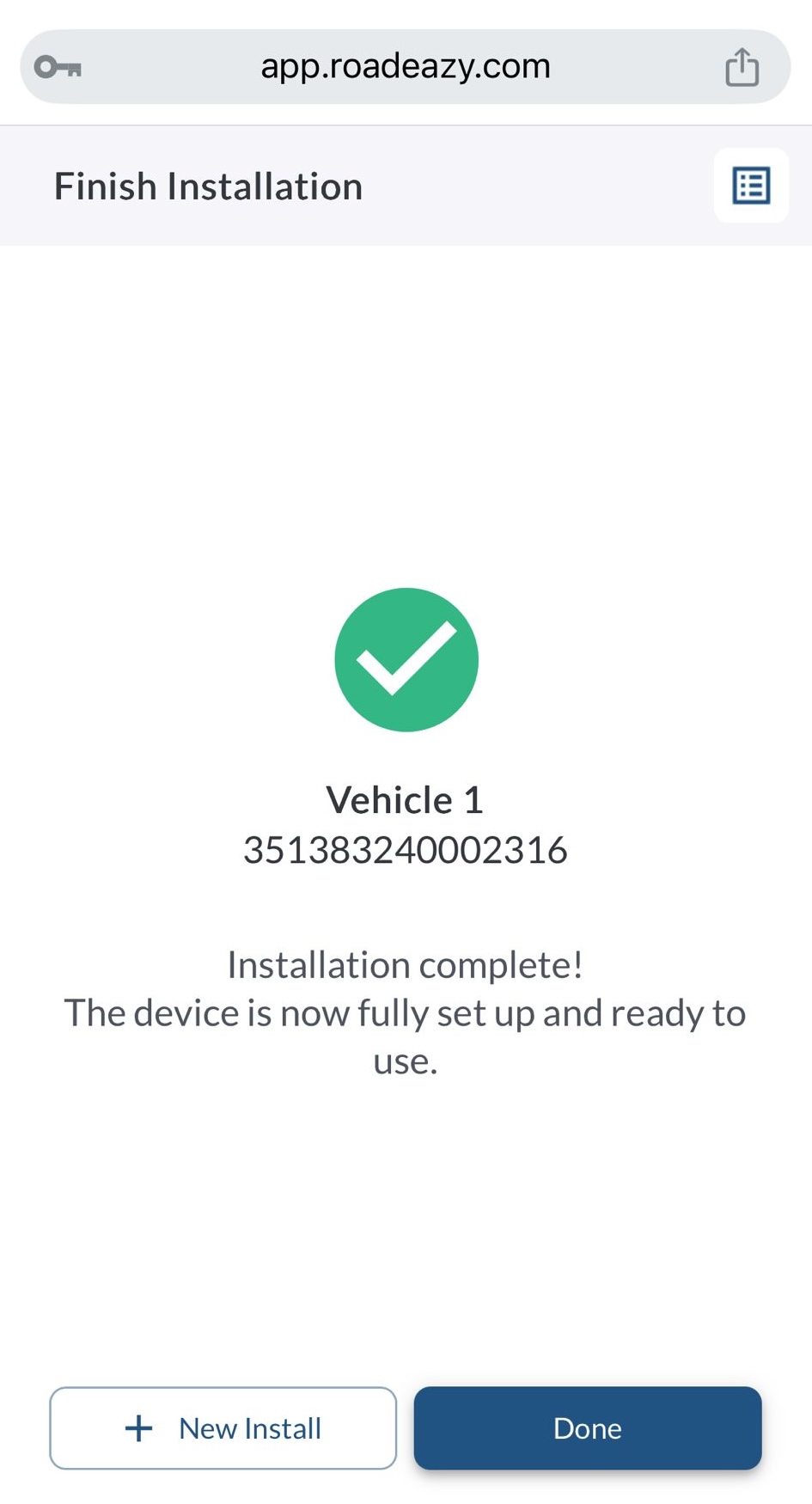
Congratulations! Your RZ1 device and cameras are now successfully installed and ready for use.
Note
Once the device is powered on and connected to the cloud, it will be automatically activated and begin reporting data to the system.

Warning
If at any point after an in-vehicle device is installed a warning lights up on the vehicle dash or the vehicle stalls or has a marked drop in performance, shut off the engine, remove the device, and contact your reseller. Continuing to operate a vehicle with these symptoms can cause loss of vehicle control, and serious injury.