You can launch the Installation Wizard directly from Fleet Portal. This article covers the two ways to start the wizard, whether you're adding a brand-new asset or installing a device on one that's already in your fleet. For a detailed explanation of the wizard steps, see: Installation Wizard: Step-by-Step Guide
Option 1: Add a New Asset and Install a Device
Use this flow when you’re installing a device in an asset that is not yet listed in your fleet.
Steps:
Navigate to the Assets page.
Click the “Add Asset & Install” button in the top-right corner.
The Installation Wizard will launch automatically.
Option 2: Install a Device on an Existing Asset
Use this flow when the asset is already added to your fleet, but a device hasn’t been installed yet — or you are replacing an old device.
Steps:
Navigate to the Assets page.
Locate the asset you want to install the device on.
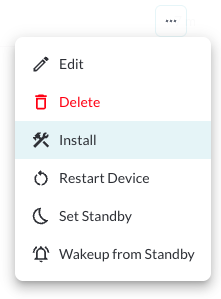
Click the (⋯) menu on the right side of the asset’s row.
Select “Install” from the dropdown menu.
The Installation Wizard will launch.
Note
Once the device is powered on and connected to the cloud, it will be
automatically
activated and begin reporting data to the system.