The Assets page is designed to help you oversee and control your fleet with ease. From viewing vehicle information to managing device settings, this page provides all the tools you need.

Assets Details
The table displays all the fleet's assets, allowing you to efficiently organize and access asset details. It supports downloading, sorting, filtering, resizing columns, and other customization options. For a complete guide, refer to the article How to Use Tables in the App.
The table includes the following columns, each providing specific asset details:
| Name |
The asset name |
| IMEI |
The 15-digit IMEI number of the assigned LytxOne Gateway (LX1-G) |
| Type |
The device type (e.g., LytxOne Gateway (LX1-G), AD21) |
| License Plate |
The vehicle's registered license plate number |
| Device Status |
Displays the current operational status of the device (e.g., Active, Standby, Not Connected) |
| Custom Settings |
Shows a Yes/No flag to indicate if an asset has settings that override the fleet defaults |
| Assigned Driver |
Shows the name of the driver currently assigned to the vehicle |
Checked-In Driver |
Displays the driver currently checked in to the vehicle |
| Last Seen |
Indicates the last time the device communicated with the system |
| VIN |
The vehicle's Identification Number. (M) indicates the VIN was manually assigned via the Set VIN option. |
| Odometer |
The current odometer reading of the vehicle as reported by the device. |
| Engine Hours |
The total engine hours recorded for the vehicle as reported by the device. |
| Firmware |
The firmware version of the assigned LytxOne Gateway (LX1-G) |
| Tags |
Custom tags that help categorize and group assets. Tags can be added and managed in the Settings Page. For more details on how to create and assign new tags, refer to the article Tags Settings. |
| Config Source |
Shows the origin of the asset's current configuration. Possible values are:
-
Fleet Default – The asset is using the fleet-wide default settings.
-
Tag Profile – The asset is using a Settings Profile assigned via a tag. For more details, refer to the article Settings Config Profiles.
-
Vehicle Override – The asset has settings configured at the individual vehicle level, overriding any fleet or profile defaults.
|
Adding New Assets
The Assets page offers an efficient way to grow your fleet by adding new assets. For a step-by-step guide on adding and configuring assets, refer to the article How to Add New Assets. You can also add an asset and initiate its installation, learn how in the article How to Initiate the Installation Process.
Quick Action Menu
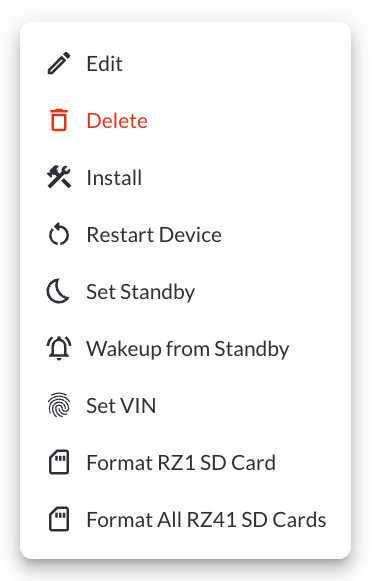
1. Edit an Asset
Opens an interface where you can configure the device and safety settings for the selected asset. For details, see the article Understanding Assets Configuration.
2. Delete an Asset
Permanently removes the selected asset from your fleet, once deleted, all associated data will no longer be accessible in the system.
Warning
Deleting an asset is a permanent action and cannot be undone.
3. Install
Opens the installation flow to begin installing the device. For more details, read the How to Initiate the Installation Process article.
4. Restart the Device
This option sends a command to reboot the associated device. Restarting the device can help resolve temporary communication or performance issues. This can help resolve issues without requiring manual intervention on-site.
5. Set Device to Standby
This feature allows you to place the device into a low-power standby mode.
6. Wake Up the Device
This option powers up a device that has been placed in standby mode. It sends a wake-up command.
7. Set VIN
Manually assign a 17-character Vehicle Identification Number (VIN) to the vehicle. Once a VIN is set, the device-reported VIN will be ignored. The platform decodes the VIN automatically and displays the vehicle Make and Year upon entry. If an invalid VIN is entered, the message "VIN check digit appears invalid - please double-check" will appear.
8. Format LytxOne Gateway (LX1-G) SD Card
This option allows you to remotely format the SD card inserted in the LytxOne Gateway. Formatting the SD card will erase all recorded footage and stored data — use this option to clear space or prepare the card for new recordings.
Warning
Formatting the SD card will erase all existing data. This action cannot
be
undone.
9. Format LytxOne Hub (LX1-H) SD Card
This option allows you to remotely format the SD card inserted in the LytxOne Hub. Formatting the SD card will erase all recorded footage and stored data — use this option to clear space or prepare the card for new recordings.
Warning
Formatting the SD card will erase all existing data. This action cannot
be
undone.
Custom Report Widget
Save time by using the Custom Report Widget to store report configurations with your selected filters, columns, sorting, and grouping. This allows you to quickly return to commonly used report setups and set a default configuration for easy access. For more information, read the article How to Use the Custom Report Widget.
Refresher Widget
Keep your data up to date by using the Refresher Widget. This allows you to reload the table data so you're always viewing the latest information. To learn more, read the article How to Set the Refresher Widget.