The Maintenance page is your hub for preventive maintenance - set service intervals, track what's due, and log completed services, all in one place.
Schedule Tab
The Schedule tab is where you set up maintenance rules - how often a service should occur, based on mileage, time, or engine hours.
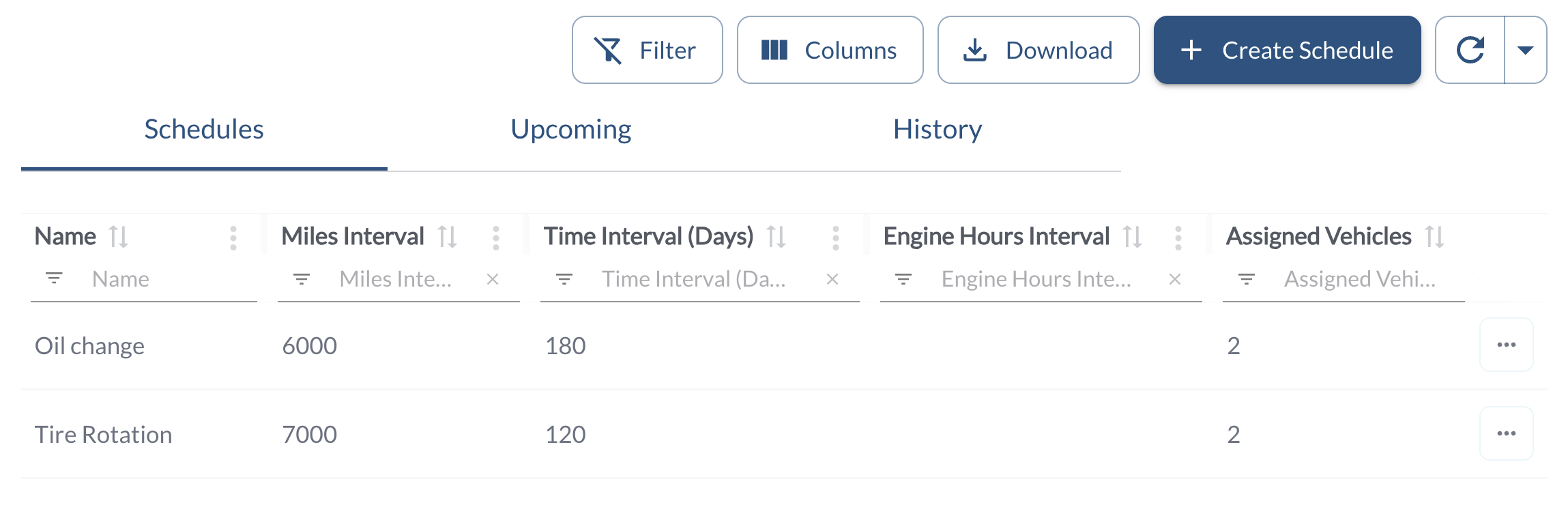
The table supports downloading, sorting, filtering, and other customization options - see How to Use Tables in the App for details.
The table includes the following columns, each providing specific schedule information:
| Schedule Name |
A descriptive name for the rule (e.g., “Oil Change”) |
| Mile Interval |
Service frequency based on mileage (e.g., every 5,000 miles) |
| Time Interval |
Service frequency based on time (e.g., every 90 days) |
| Engine Hours Interval |
Service frequency based on engine hours (e.g., every 250 hours) |
| Assigned Vehicles |
The number of vehicles currently assigned to the schedule |
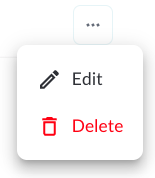
Available actions:
-
Edit an existing schedule to update rules or assignments
-
Delete a schedule that’s no longer needed
-
Create a new schedule using the guided 3-step wizard. For a detailed walkthrough, see the article: How to Add or Edit a Maintenance Schedule
Upcoming Tab
The Upcoming tab lists maintenance tasks in order of what's due next, with overdue services highlighted in red. Use the (⋯) menu on any row to mark it as serviced.
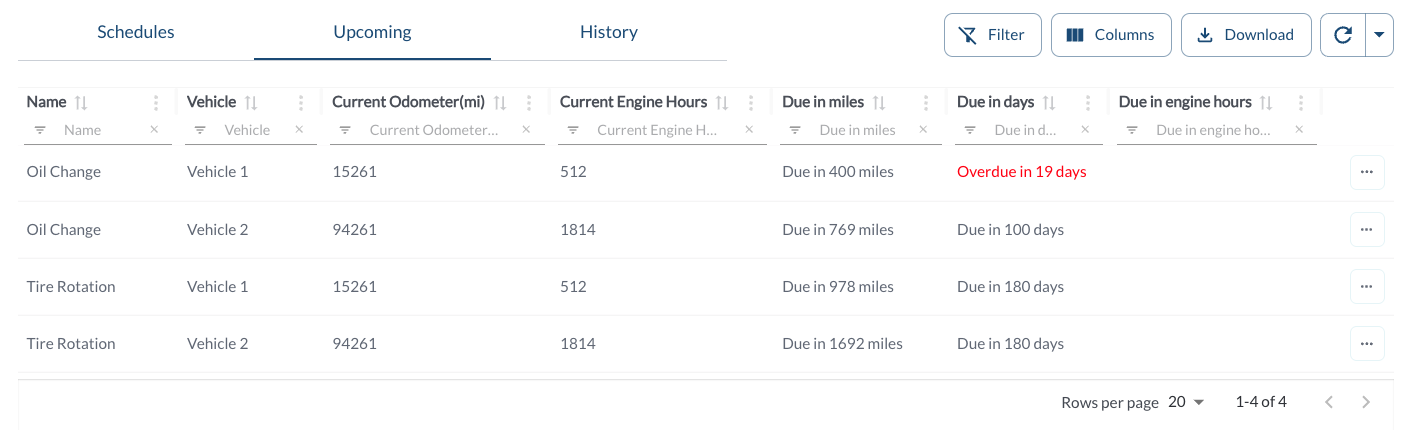
The table supports downloading, sorting, filtering, and other customization options - see How to Use Tables in the App for details.
The table includes the following columns, each providing specific upcoming service information:
| Service Name |
The name of the service (e.g., “Oil Change”) |
| Vehicle |
The vehicle name |
| Current Odometer |
The current odometer reading from the vehicle |
| Current Engine Hours |
The current engine hours reading from the vehicle |
| Due in Mile |
The number of miles remaining until the service is due. |
| Due in Days |
The number of days remaining until the service is due. |
| Due in Engine Hours |
The number of engine hours remaining until the service is due. |
Available actions:
History Tab
The History tab provides a complete record of services that have already been performed.
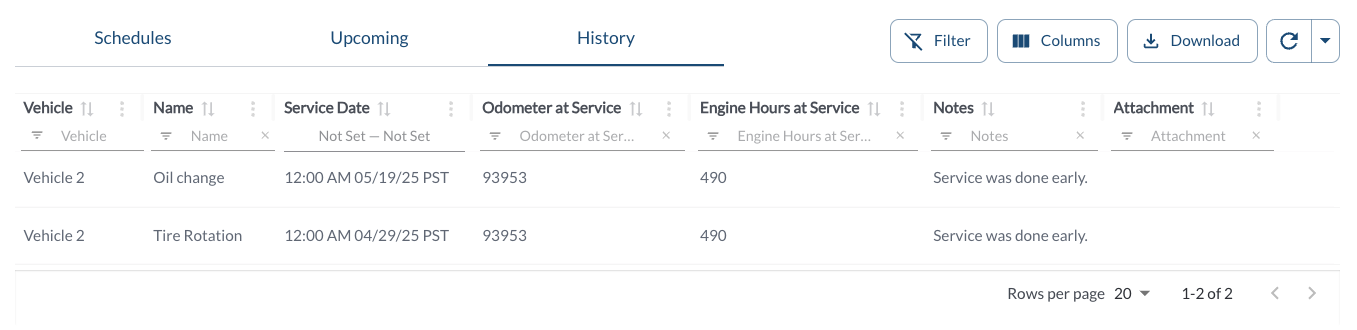
The table supports downloading, sorting, filtering, and other customization options - see How to Use Tables in the App for details.
The table includes the following columns, each providing specific completed service information:
| Service Name |
The name of the service (e.g., “Oil Change”) |
| Vehicle |
The vehicle name |
| Service Date |
The calendar date the maintenance was performed |
|
Mileage at Service |
The vehicle’s odometer reading at the time of service |
| Engine Hours at Service |
The total engine hours recorded when the service was completed |
| Notes |
Additional details or context about the completed maintenance task. |
| Attachments |
Uploaded files providing visual proof of service, such as receipts or inspection reports. |
Tip
Use Schedule to view service rules, Upcoming to track what’s due next,
and
History to review completed maintenance.