What is the IVMR?
The Individual Vehicle Mileage Report (IVMR) provides visibility into mileage and odometer data for each vehicle, broken down by jurisdiction. It is designed for fleets that need to support IFTA fuel tax filings and mileage-based compliance reporting at the individual vehicle level.
This report calculates start and end odometer readings, jurisdiction distance, and GPS distance for each vehicle within a selected date range.
IVMR Details
The table displays all IVMR records. It supports downloading, sorting, filtering, resizing columns, and other customization options. For a complete guide, read the article How to Use Table Options.
The table includes the following columns, each providing specific mileage details:
| Vehicle |
The vehicle associated with the mileage record |
| Jurisdiction |
The state or province the vehicle traveled through |
| Date |
The date the mileage was recorded |
| Start Odometer |
The vehicle's odometer reading at the start of the period in the jurisdiction |
| End Odometer |
The vehicle's odometer reading at the end of the period in the jurisdiction |
| Jurisdiction Distance |
The distance traveled within the jurisdiction, calculated from odometer readings |
| GPS Distance |
The distance traveled within the jurisdiction, calculated from GPS data |
| Tags |
The tags associated with the vehicle. Tags can be added and managed in the Settings Page. For more details on how to create and assign new tags, refer to the article Tags Settings. |
Filtering
Refresher Widget
Keep your data up to date by using the Refresher Widget. This allows you to reload the table data and ensure you're viewing the latest information. For more information, read the article How to Use the Refresher Widget.
Custom Report Widget
Save time by using the Custom Report Widget to store report configurations with your selected filters, columns, sorting, and grouping. This allows you to quickly return to commonly used report setups and set a default view for easy access. For more information, read the article How to Use the Custom Report Widget.
Downloading the Report
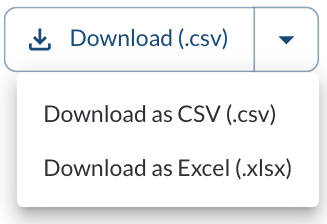
Click Download and select the desired file format (CSV or Excel).