The API Key Settings tab allows users to manage API keys used for integrating external applications with the fleet management system. This tab provides tools to create, edit, and manage API keys securely while maintaining precise control over their usage.
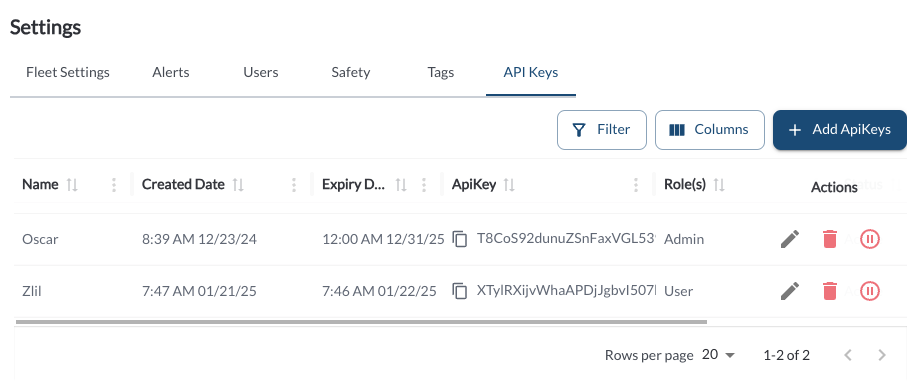
API Key Table
The table displays all the API keys created for the system, allowing you to efficiently organize and access API key details. It supports downloading, sorting, filtering, resizing columns, and other customization options. For a complete guide, refer to the article How to Use Table Options.
The table includes the following columns, each providing specific API key information:
| Name |
The unique name for the API key, set by the user |
| Created Date |
The date when the API key was generated |
| Expiration Date |
The date the API key will expire |
| API Key |
The generated key used for authentication in API calls |
| Role |
The level of access granted by the API key (e.g., Admin, User) |
| Status |
Indicates whether the API key is active, paused, or expired |
| Actions |
Includes options to Edit, Delete, or Pause the API key |
Add or Edit an API Key
The Add or Edit API Key functionality allows you to create new API Keys or update existing
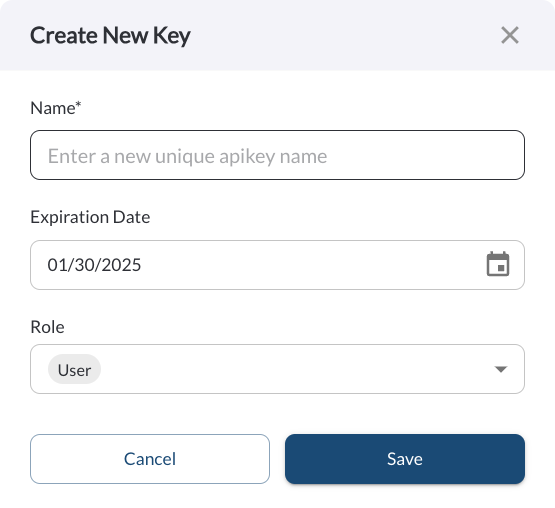
Adding or editing an API Key uses the same form interface, accessible through two different actions:
-
Add API Key Button: Used for creating a new API Key in the system.

-
Edit API Key Option: Allows you to update the details of an existing API Key

The form interface is designed for simplicity and includes the following fields:
| Name |
The unique name for the API key |
| Expiration Date |
The date the API key will expire |
| Role |
The level of access granted by the API key (e.g., Admin, User) |
Additional Actions