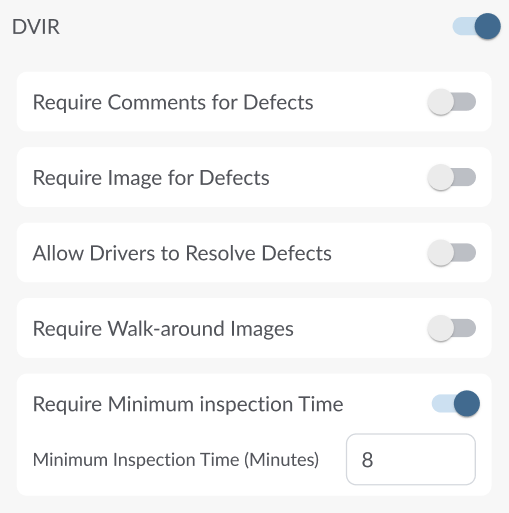
Use the Fleet Portal settings to enable DVIR and adjust configuration settings. These options control how drivers complete inspections, including whether comments, images, walk-around photos, or minimum inspection times are required.
Note
DVIR is in BETA and is available only upon request. If you do not see
DVIR in your Fleet App, please contact your reseller to have the feature
enabled for your account.
Enabling DVIR
- In the Fleet Portal, go to Fleet Settings → Driver App → DVIR.
- Toggle DVIR to On.
- Click Save to apply changes.
After saving, a DVIR section appears in the Fleet Portal side menu, the DVIR option becomes available in the Driver App for all linked drivers, and the additional DVIR configuration options are unlocked.
Configuring DVIR Settings
After enabling DVIR, you can configure additional settings to match your compliance and operational needs:
- Require Comments for Defects - Ensures drivers enter a text explanation whenever they mark a defect.
- Require Image for Defects - Requires drivers to capture and upload a photo for each reported defect.
- Allow Drivers to Resolve Defects - Lets drivers mark a defect as resolved directly in the app once the issue has been addressed.
- Require Walk-around Images - Requires drivers to submit images during a vehicle walk-around inspection for verification.
- Require Minimum Inspection Time Sets a minimum duration (in minutes) for an inspection to be valid. Enter the desired value in the field provided, the default is 8 minutes.
Saving Settings
Click Save to apply DVIR setting changes. After saving, a new DVIR section appears in the Fleet Portal side menu, and drivers will see the DVIR option in the Driver App.