
Each DVIR template must be assigned to vehicles in order for inspections to apply to them. Assignments can be done by selecting entire tags (groups of vehicles) or by choosing specific vehicles individually.
Accessing the Assignment Tab
- In the Fleet Portal, go to Maintenance → DVIR Templates.
- Select the Assignment tab.
- You will see a list of all available templates, along with the number of vehicles and tags already assigned.
Assignments Table
The table displays all DVIR templates assignments, allowing you to efficiently organize and access the details. It supports downloading, sorting, filtering, resizing columns, and other customization options. For a complete guide, refer to the article How to Use Table Options.
The table includes the following columns, each providing specific assignments information:
| Name |
The DVIR template name |
| Assigned Vehicles |
The number of assigned vehicles to this template |
| Assigned Tags |
The number of assigned tags to this template |
Assigning Vehicles or Tags
- Locate the template you want to assign.
- Click the three-dot menu at the end of the row and select Assign.

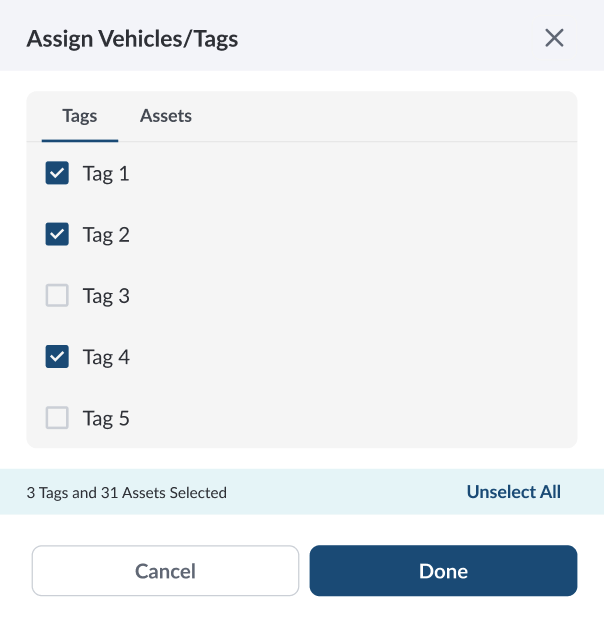
- A dialog box will open, allowing you to:
-
Select Tags – Apply the template to all vehicles grouped under a tag.
-
Select Individual Vehicles – Assign the template to specific vehicles.

Note
Use tags to quickly assign templates to groups of vehicles, then add or remove individual vehicles as needed for more precise control.
Saving the Assignment
Once your selection is complete, click Done. The assignment will be updated and displayed in the Assignment tab.