The DVIR page in the Fleet Portal lets you review all submitted inspection reports, track reported defects, and verify pre-trip sign-offs. You can view inspection details, check status, and download records for compliance and audits.
Accessing DVIR Reports
- In the Fleet Portal, go to the Maintenance section.
- Select DVIR.
- The page has three tabs:
DVIRs Table
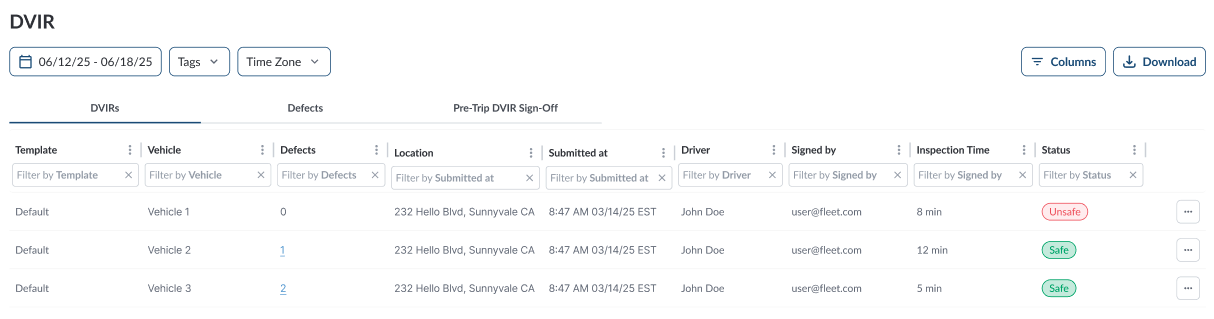
The table displays all reported DVIRs, allowing you to efficiently organize and access the details. It supports downloading, sorting, filtering, resizing columns, and other customization options. For a complete guide, refer to the article How to Use Table Options.
The table includes the following columns, each providing specific DVIR report information:
| Template |
The DVIR template used |
| Vehicle |
The vehicle inspected |
| Defects |
Number of defects reported during the inspection (click to view defect details) |
| Location |
The address where the inspection was submitted |
| Submitted At |
Date and time of submission |
| Driver |
Driver who completed the inspection |
| Signed By |
User who signed the DVIR record |
| Inspection Time |
Duration of the inspection |
| Status |
Final inspection status, which can be either Safe or Unsafe:
-
Safe – No defects were reported, or defects were reported but later reviewed and marked as safe by the manager.
-
Unsafe – At least one defect was reported that makes the vehicle unsafe to drive until repaired.
|
Available action:
-
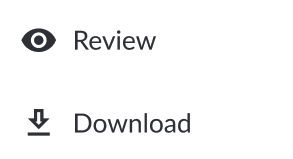
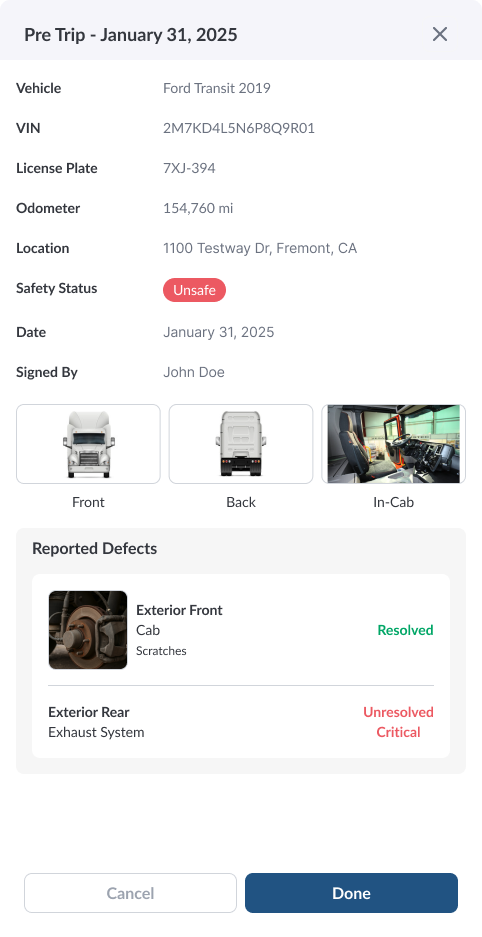
Review – Click the three-dot menu at the end of a row and select Review to open the full inspection details, including reported defects, notes, and images.
-
Download – Click the three-dot menu and select Download to export the DVIR as a PDF for audits, compliance, or record-keeping.
Filtering the Table