Defects reported in a DVIR can only be updated during the process of creating a new inspection, and only if your fleet manager has enabled this option. This ensures updates are tied to a valid inspection record and follow your fleet’s policies.
Steps to Update a Defect
- Start a New DVIR Inspection from the DVIR tab.
- All open defects for the vehicle will automatically appear in your inspection.
- Locate the defect you want to update and tap Update.
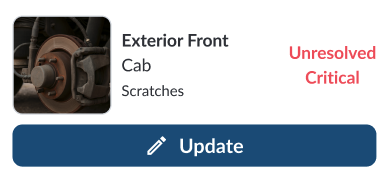
-
Review the defect details, including vehicle info, description, image, and who reported it.
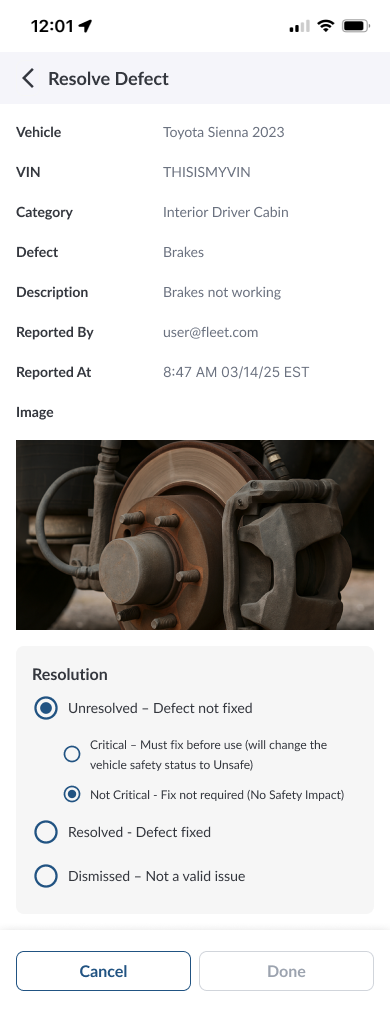
- Select the appropriate resolution status:
- Unresolved – The defect is still not fixed.
- Critical – The defect impacts safety and must be fixed before operating the vehicle.
- Not Critical – The defect does not affect safety and doesn’t require an immediate fix.
- Resolved – The defect has been fixed.
- Dismissed – The issue is not valid or no longer applies.
- If marking as Resolved, you will need to:
- Tap Done to save the update.
- The defect will now show with its new status in your inspection report.
Note
Drivers can only update defects during a new DVIR inspection if the fleet
manager has enabled this feature.
Note
If a defect is marked Critical, the vehicle will automatically be flagged
as Unsafe until it is resolved.