When completing a DVIR, you can record any vehicle defects directly in the Driver App. Adding defects ensures your fleet manager is aware of issues and can resolve them before the vehicle is operated again.
Steps to Report a Defect
-
During a New DVIR Inspection, tap Report New Defect.

-
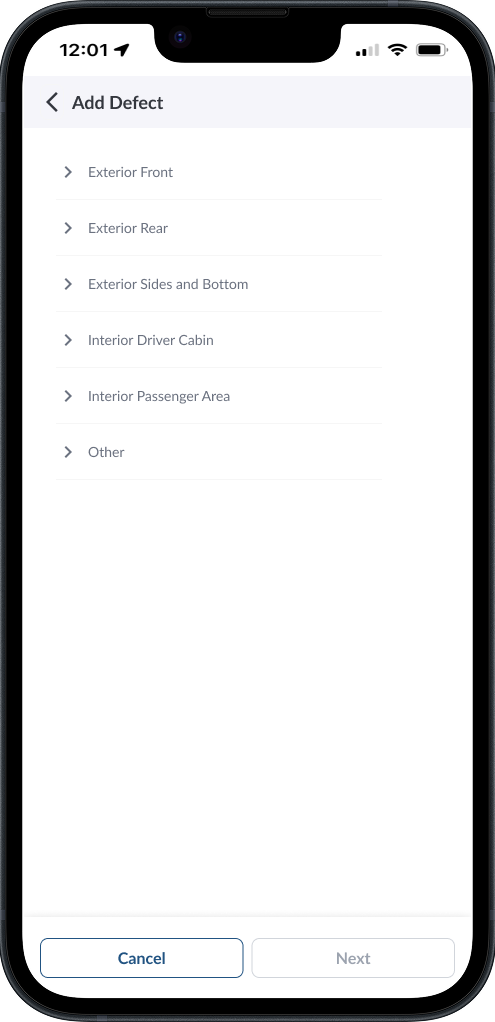
Select the area of the vehicle where the defect is located (e.g., Exterior Front, Interior Driver Cabin, Passenger Area, Other).
-
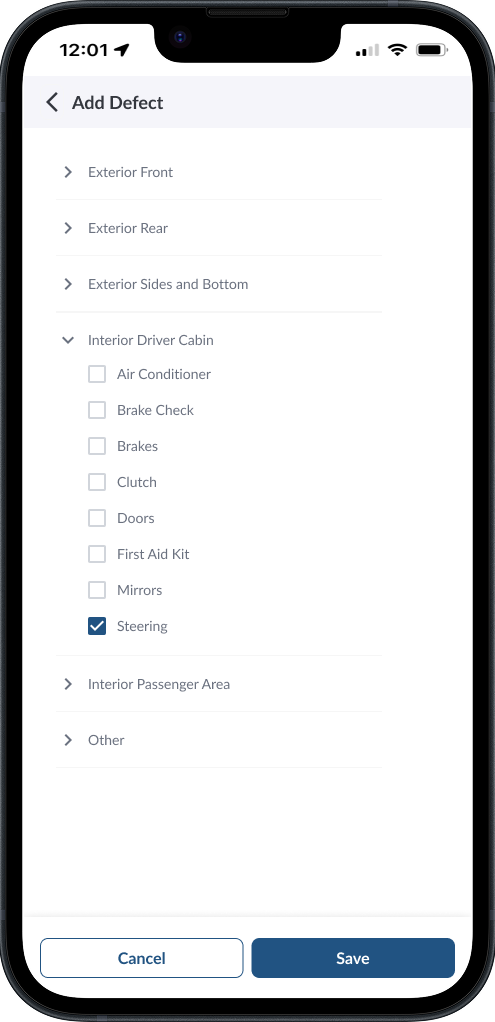
Choose the specific defect type from the list (for example, Mirrors, Brakes, Steering).
-
If required by your fleet manager, you may need to provide extra information about the defect. This can include uploading a photo of the issue and adding a short description to help clarify the problem.
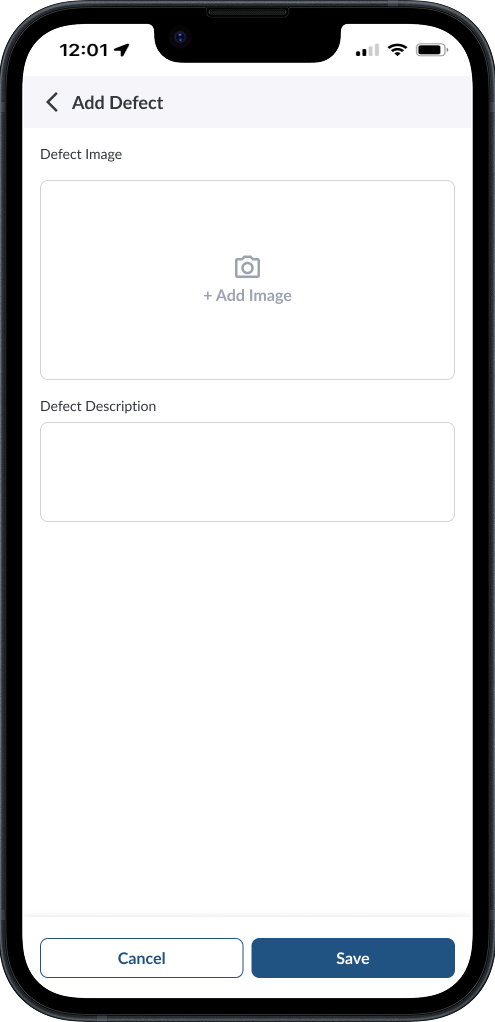
- Tap Save to add the defect to your inspection.
- The defect will now appear in the Reported Defects list of your DVIR with its current status.
Note
Reported defects are automatically sent to your fleet manager for
review and resolution.
Note
All newly reported defects are created with the default status Unresolved
– Not Critical. You or your fleet manager can later update this status
if the defect is critical, resolved, or dismissed.
Note
You can add multiple defects during a single inspection.