The Time on Site Report provides visibility into how long vehicles or drivers spend at specific locations. It is designed for fleets that need to track job duration, customer visit times, service efficiency, and dwell time at known or unknown addresses.
This report calculates arrival time, departure time, total time on site, and idling time for each stop, and can be grouped by address, vehicle or driver.
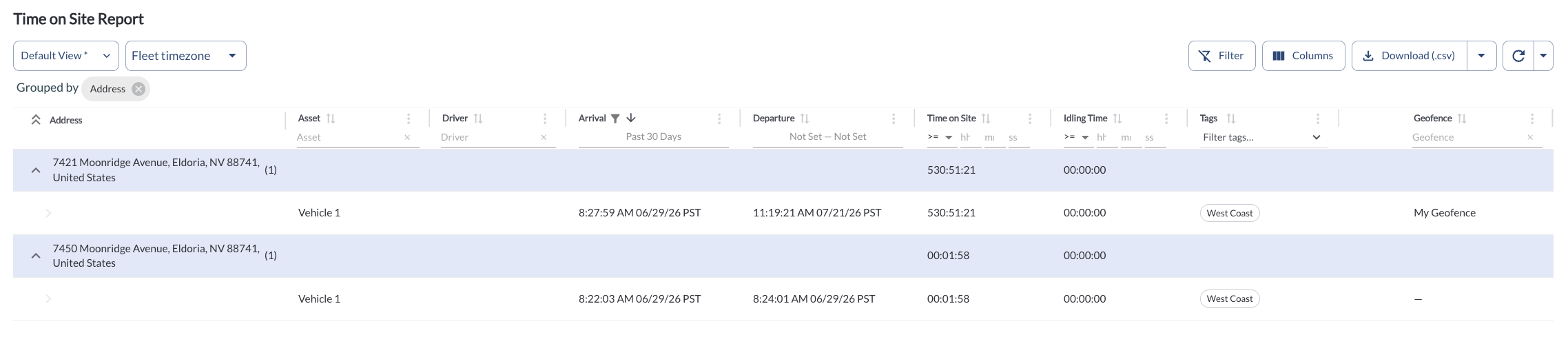
Sites Details
The table displays all sites records. It supports downloading, sorting, filtering, resizing columns, and other customization options. For a complete guide, read the article How to Use Tables in the App.
The table includes the following columns, each providing specific site details:
| Address |
The detected location where the vehicle stopped |
| Asset |
Vehicle associated with the stop |
| Driver |
Driver assigned during the stop |
| Arrival Time |
When the vehicle arrived at the location |
| Departure Time |
When the vehicle left the location |
| Time on Site |
Total duration spent at the location |
| Idling Time |
Engine-on idle time during the stop |
| Tags |
The tags associated with the vehicle. Tags can be added and managed in the Settings Page. For more details on how to create and assign new tags, refer to the article Tags Settings. |
| Geofence |
The name of the geofence associated with this location, if the location falls within one. |
Filtering
Refresher Widget
Keep your data up to date by using the Refresher Widget. This allows you to reload the table data so you're always viewing the latest information. To learn more, read the article How to Set the Refresher Widget.
Grouping the Table
By default, the Time on Site Report table is grouped by Address, allowing you to see aggregated time on site and idling time for each location. For more information, read the article How to Use the Tables in the App.
Custom Report Widget
Save time by using the Custom Report Widget to store report configurations with your selected filters, columns, sorting, and grouping. This allows you to quickly return to commonly used report setups and set a default configuration for easy access. For more information, read the article How to Use the Custom Report Widget.