The Multiple Trips view allows you to select and display several trips simultaneously on the map. This makes it easy to compare routes, review safety events across trips, and play back multiple trips on a shared timeline, all in one view.
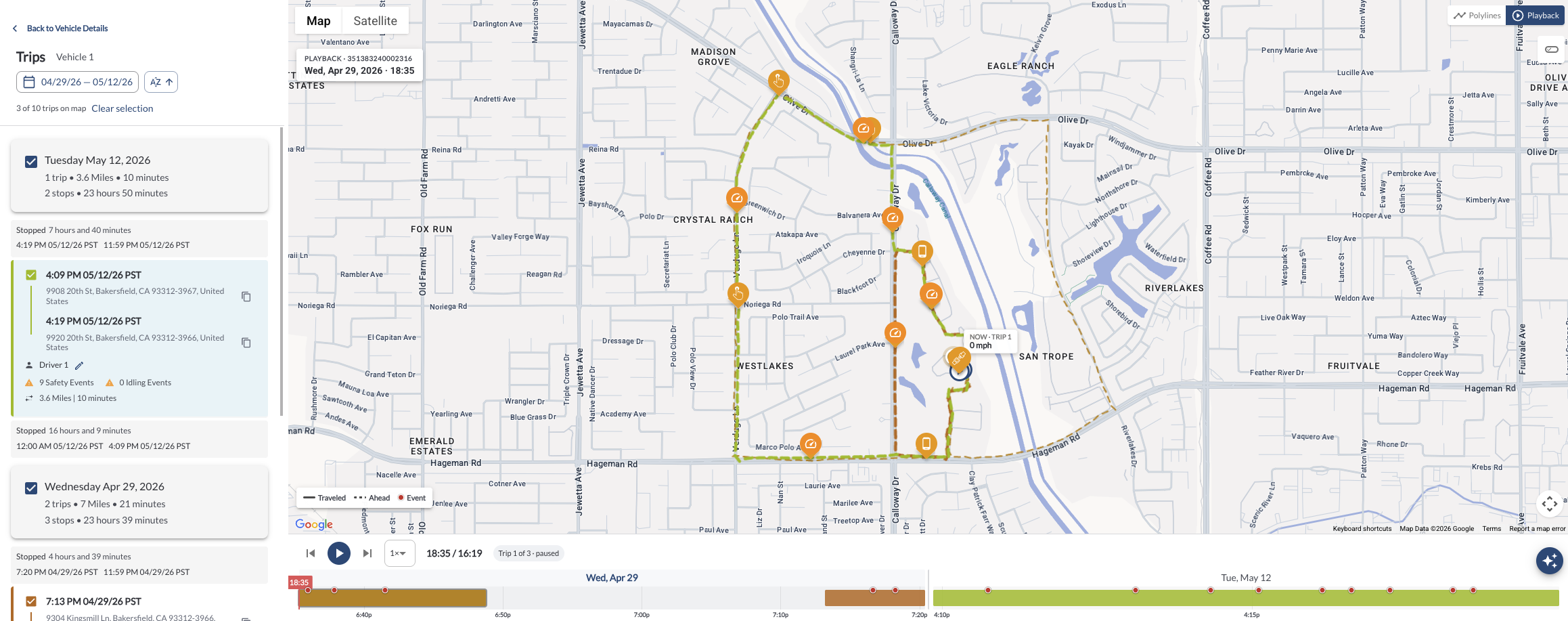
How to Select Multiple Trips
- Navigate to Maps in the Fleet Portal.
- Click on a vehicle to open its details panel.
- Click Trips to open the trips list for that vehicle.
- Use the date range selector to filter trips by the desired period.
- Select multiple trips by checking their checkboxes.
- All selected trips will be displayed on the map simultaneously, each highlighted in a different color for easy identification.
Note
The total number of selected trips and a Clear selection link are displayed
at the top of the trips list. Click Clear selection to deselect all trips
at once.
Understanding the Multiple Trips View
Selected Trips List
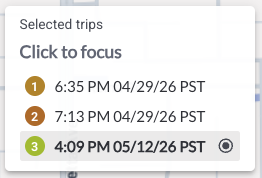
When multiple trips are selected, a Selected trips panel appears on the map showing a numbered list of all selected trips, each identified by its start time. Each trip is assigned a color-coded number that matches its route on the map. Click any entry in the list to focus the map on that specific trip.
Trip Summary Panel
The right side of the map displays a summary of statistics across all selected trips, including:
- Trips - Total number of selected trips
- Distance - Total distance covered across all selected trips
- Drive Time - Total drive time across all selected trips
- Safety Events - Total number of safety events recorded across all selected trips
- Idling Events - Total number of idling events recorded across all selected trips
- Idling Time - Total idling time accumulated across all selected trips

Viewing Modes
Use the toggle in the top-right corner of the map to switch between two viewing modes.
Polylines
Displays all selected trip routes on the map at once. Each trip is shown in a different color. Hover over a trip on the map to see a tooltip showing the trip's start time — click to focus on that trip.
Playback
Opens a timeline at the bottom of the map, allowing you to play back all selected trips simultaneously. The following controls are available:
- Play/Pause – Start or pause the playback.
- Previous/Next – Navigate between trips in the playback sequence.
- Playback Speed – Adjust the speed of the playback (e.g., 1x, 2x, 8x, 60x).
- Timeline – Click any point on the timeline to jump to that moment. Red dots on the timeline indicate safety events — hover over them to see the event type and time.

Note
In Playback mode, each trip is displayed on the timeline in sequence. The current trip number and total trip count are shown in the playback controls (e.g., Trip 1 of 2).
The map uses the following indicators during playback:
- Traveled - A solid line showing the portion of the route already covered during playback
- Ahead - A dashed line showing the remaining portion of the route yet to be played back
- Event - A red dot marking the location of a safety event along the route