The Settings Profile tab allows administrators to create Config Profiles, which group a set of Safety and Settings configurations that can be assigned to a tag. Assets carrying that tag automatically inherit the profile's settings, making it easier to manage configuration requirements across vehicle groups, regions, or departments without configuring each asset individually.

Config Profiles Table
The table displays all Config Profiles created for your fleet. It supports downloading, sorting, filtering, resizing columns, and other customization options. For a complete guide, refer to the article How to Use Table Options.
The table includes the following columns:
| Profile Name |
The name of the Config Profile |
| Description |
The optional description entered when the profile was created |
| Last Modified |
The date and time the profile was last updated |
Add or Edit a Config Profile
-
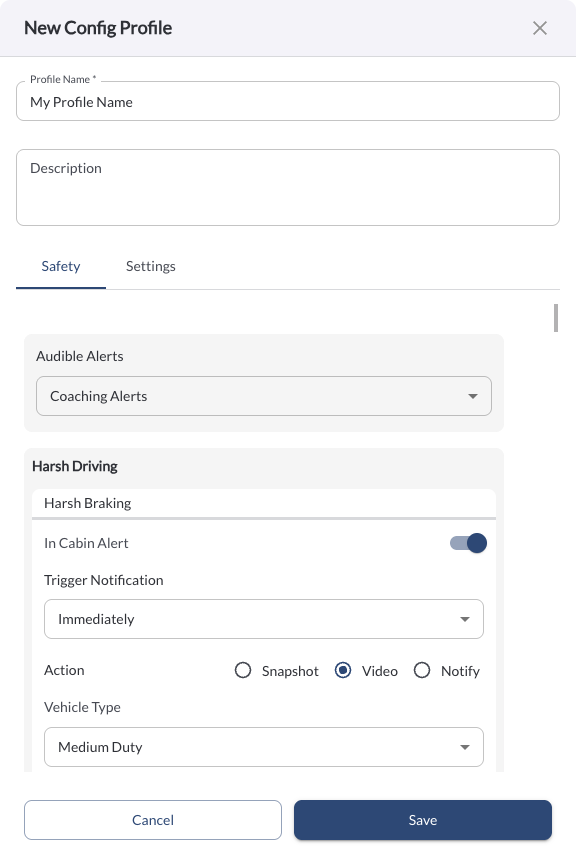
Add Config Profile – Click the + Add Config Profile button at the top right of the page to create a new profile. The form includes the following fields:
-
Profile Name – A unique name to identify the Config Profile. (Required)
-
Description – An optional description to help identify the profile's purpose.
-
Safety – Configure the Safety settings to be applied to assets assigned this profile.
-
Settings – Configure the Settings options to be applied to assets assigned this profile.
-
Edit Config Profile – Click the (⋯) menu next to an existing profile and select Edit to update its configuration. The form includes the following fields:
-
Profile Name – Update the name of the Config Profile. (Required)
-
Description – Update the profile's description.
-
Safety and Settings – Update the configurations applied to assets assigned this profile.
Quick Action Menu
Click the (⋯) menu next to a Config Profile to access the following actions:
1. Edit a Profile
Opens the profile configuration form where you can update the name, description, and Safety and Settings configurations.
2. Delete a Profile
Permanently removes the Config Profile from the system. Assets previously inheriting settings from this profile will revert to the Fleet Default settings, unless a Vehicle Override is in place.
3. Assign a Profile
Opens the tag selector, allowing you to assign the profile to one or more tags. All assets carrying an assigned tag will automatically inherit the profile's settings.
Warning
Deleting a Config Profile is a permanent action and cannot be undone.
Note
If an asset has a Vehicle Override configured, it takes precedence over any Config Profile assigned via a tag. To check which configuration source is currently applied to an asset, refer to the Config Source column in the Assets table.