The Roles & Permissions tab allows administrators to manage access levels across the Fleet Portal. It provides a set of built-in roles for common use cases, as well as the ability to create custom roles with granular permissions tailored to your organization's needs.

Built-in Roles
The Fleet Portal includes four built-in roles that cannot be edited or deleted. Each role comes with a predefined set of permissions:
| Admin |
Full system access across all areas of the Fleet Portal. |
| Manager |
Broad access to fleet data and operations. |
| User |
Limited access for day-to-day fleet monitoring tasks. |
| Installer |
Access limited to device installation and configuration tasks only. |
Custom Roles Table
The table displays all custom roles created for your fleet. It supports downloading, sorting, filtering, resizing columns, and other customization options. For a complete guide, refer to the article How to Use Table Options.
The table includes the following columns:
| Role |
The name of the custom role |
| Permissions |
The total number of permissions assigned to the role |
Add or Edit a Custom Role
-
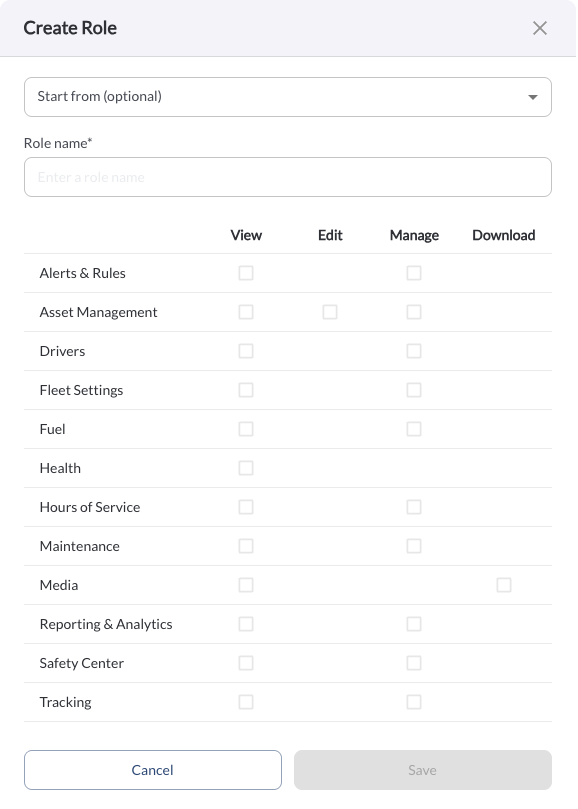
Add Role – Click the + Add Role button at the top right of the page to create a new custom role. The form includes the following fields:
-
Start From (optional) – Select an existing built-in or custom role to use as a starting point. The permissions of the selected role will be pre-filled and can be adjusted.
-
Role Name – A unique name to identify the custom role. (Required)
-
Permissions – Select the permissions to assign to the role across the areas of the fleet app. Each area supports one or more of the following permission types:
-
View – Read-only access to the area
-
Edit – Ability to modify data within the area
-
Manage – Full control including creating and deleting records
-
Download – Ability to export data from the area
-
Edit Role – Click the (⋯) menu next to an existing custom role and select Edit to update its configuration. The form includes the following fields:
-
Role Name – Update the name of the custom role. (Required)
-
Permissions – Update the permissions assigned to the role across all available areas.
Quick Action Menu
Click the (⋯) menu next to a custom role to access the following actions:
1. Edit a Role
Opens the role configuration form where you can update the role name and permissions.
2. Delete a Role
Permanently removes the custom role from the system. Users currently assigned this role will need to be reassigned a new role.
Warning
Deleting a role is a permanent action and cannot be undone.
Note
Built-in roles (Admin, Manager, User, and Installer) cannot be edited
or deleted.