Library > Coaching History lists every completed coaching session across the fleet. Where the Coaching History tab on a driver profile covers one driver, this page covers the whole organization – useful for reviewing recent coaching activity, auditing what was recorded, or exporting a period for reporting.
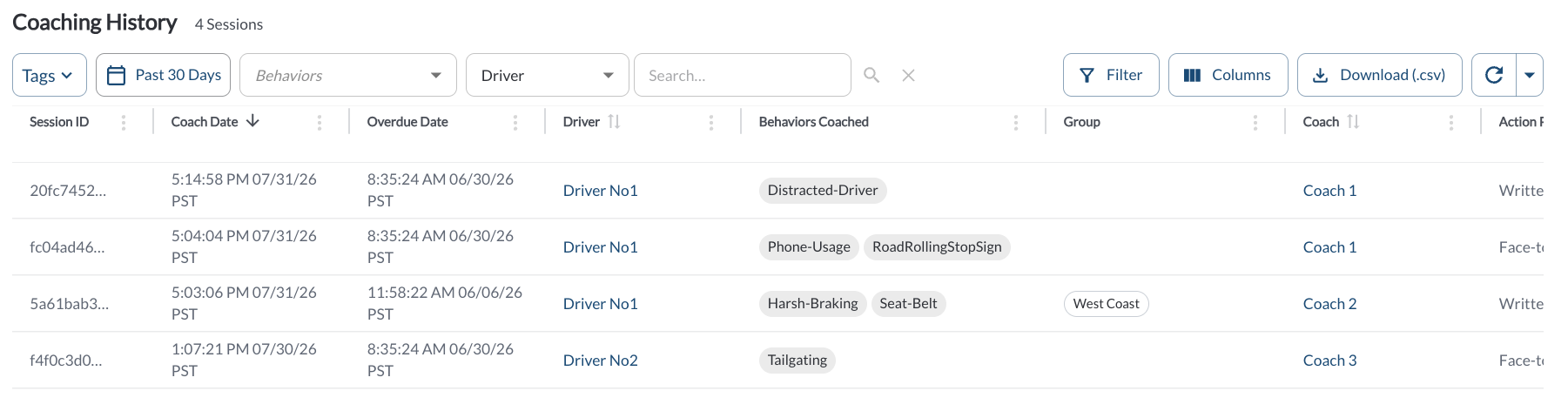
Coaching History Details
The table supports downloading, sorting, filtering, resizing columns, and other customization options. For a complete guide, read the article How to Use Tables in the App.
| Session ID |
The unique identifier for the session. |
| Coach Date |
When the session was completed. Sorted newest first by default. |
| Overdue Date |
The date the task became overdue. Empty when the task was completed on time. |
| Driver |
The driver's name and ID. Click it to open the driver profile. |
| Behaviors Coached |
The behaviors covered in the session, shown as chips. An overflow chip shows the remaining count. |
| Group |
The groups the driver belongs to. |
| Coach |
The user who completed the session. Click it to open the coach profile. |
| Action Plan |
The follow-up recorded at the end of the session. |
| Notes |
The session notes, truncated. Hover over the cell to read the full text. |
Filtering
-
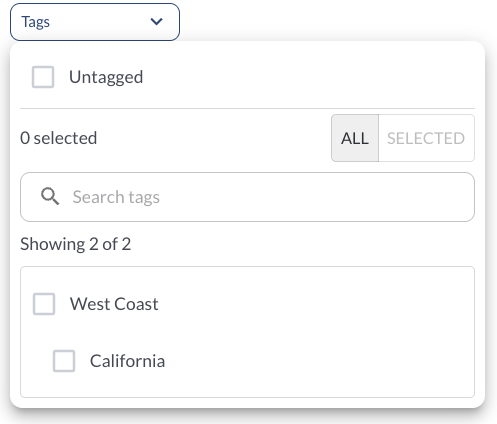
Use the Tag Filter to narrow down the table to display only trips associated with specific tags.
-
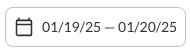
Use the Date Picker to select a different date range. The default date range is Today. For more details on using the Date Picker, read the article How to Use the Date Picker.
-
Use the Behaviors filter to show sessions in which any of the selected event types were coached – for example Harsh Braking or Phone Usage.
Refresher Widget
Keep your data up to date by using the Refresher Widget. This allows you to reload the table data so you're always viewing the latest information. To learn more, read the article How to Set the Refresher Widget.