Library > Recognition History lists every recognition issued across the fleet. Use it to see how recognition is being used over time, and which drivers and groups are receiving it.

Recognition History Details
The table supports downloading, sorting, filtering, resizing columns, and other customization options. For a complete guide, read the article How to Use Tables in the App.
| Type |
The kind of recognition. See the table below. |
| Driver |
The driver who received it. Click it to open the driver profile. |
| Group |
The groups the driver belongs to. Shows Restricted when the driver carries a group your user cannot see. |
| Event ID |
The linked event, when the recognition relates to a specific event. Shows a dash for driver-level recognitions. |
| Issued By |
The user who issued it, or the workflow source for automatic recognitions. |
| Issued Date |
When it was issued. Sorted newest first by default. |
| Recognition Reason |
The reason entered by the user, or the behavior for automatic recognitions. |
Recognition Types
| Driver Recognition |
Issued manually for a driver, without a linked event – for example from the driver profile header or a task card. |
| Event Recognition |
Linked to a specific event. Includes recognitions issued automatically by a Coaching Workflow rule set to Positive Recognition. |
| Safe Driving Recognition |
Issued from the quarterly review queue on the Safe Driving Report. |
Filtering
-
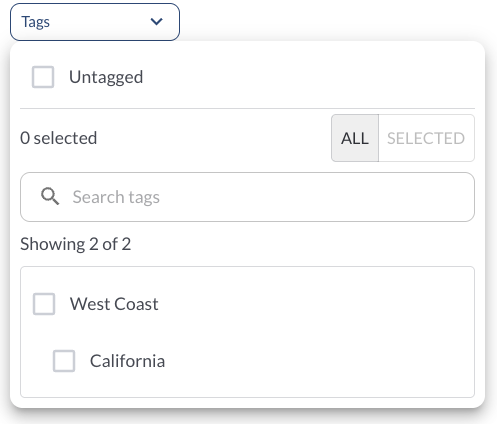
Use the Tag Filter to narrow down the table to display only trips associated with specific tags.
-
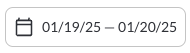
Use the Date Picker to select a different date range. The default date range is Today. For more details on using the Date Picker, read the article How to Use the Date Picker.
-
Use the Behaviors filter to show sessions in which any of the selected event types were coached – for example Harsh Braking or Phone Usage.
Refresher Widget
Keep your data up to date by using the Refresher Widget. This allows you to reload the table data so you're always viewing the latest information. To learn more, read the article How to Set the Refresher Widget.