Library > Events lists the events recorded across your fleet. Where the Insights reports answer "how is the fleet doing", the Library answers "show me what actually happened".
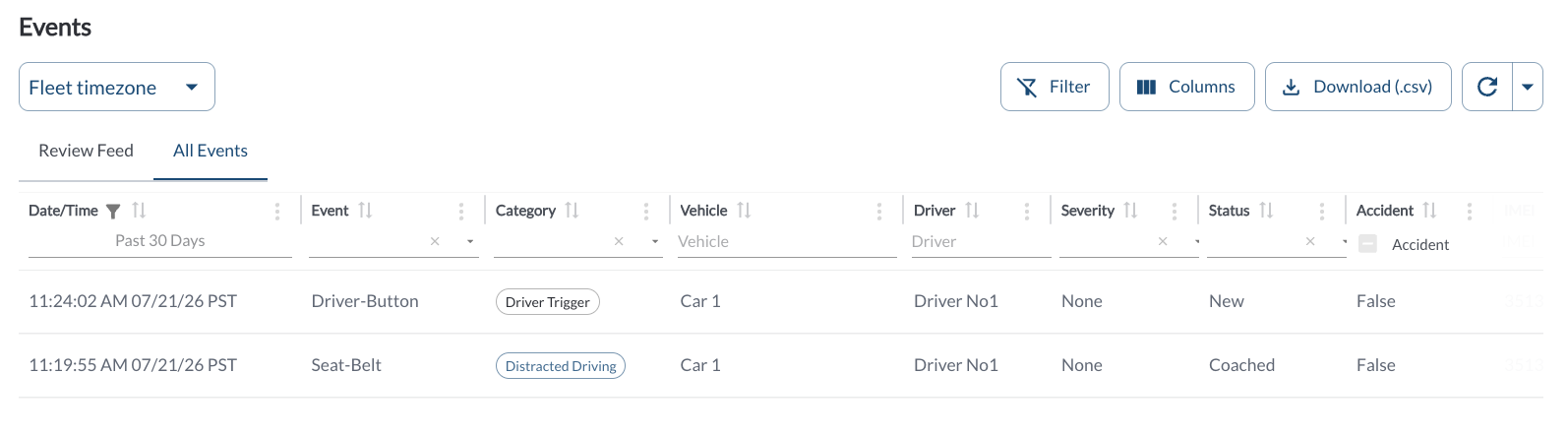
Review Feed and All Events
The page has two tabs:
| Review Feed |
Safety-related events only. Operational device events – Driver-Button, Power-Disconnect, Digital-In-1, and Digital-In-3 – are excluded, so the feed stays focused on behavior worth reviewing. |
| All Events |
Every event recorded, including the operational and device events that never enter the coaching workflow. |
Both tabs use the same columns and filters. Read the article Understanding Coachable Behaviors for which event types are coachable and which are not.
Events Details
The table supports downloading, sorting, filtering, resizing columns, and other customization options. For a complete guide, read the article How to Use Tables in the App.
| ID |
The unique identifier for the event. Use it when referring to a specific event in a conversation or a ticket. |
| Date/Time |
When the event was recorded, in the selected time zone. |
| Event |
The event type – for example Seat-Belt or Driver-Button. |
| Category |
The category the event type belongs to, shown as a chip – for example Distracted Driving or Driver Trigger. |
| Vehicle |
The vehicle the event was recorded on. |
| Driver |
The driver assigned to the event. Empty when no driver is assigned. |
| Severity |
None, Minor, or Major. |
| Status |
The current review status of the event. See the table below. |
| Accident |
True or False, indicating whether the event was recorded as an accident. |
| AI Verification |
Shown only when AI verification is enabled for your account. The result of an automated check of the event against its recorded video, indicating whether the behavior the device reported was confirmed in the footage. |
| IMEI |
The unique identifier of the device that recorded the event. Useful when working with a specific unit, for example while troubleshooting an install. |
| Tags |
The groups associated with the driver or vehicle. |
Warning
AI Verification is an aid to reviewing events, not a decision. AI-generated
results may be incomplete or inaccurate – always watch the footage before
acting on safety or operational decisions, and never coach or dismiss
an event on the strength of this column alone.
Opening an Event
Click an event in the list to open the Event Details Panel, which shows the full detail for that event alongside its recorded footage.*
For a complete guide to the panel and every field on it, read the article Understanding the Event Details Panel.
Note
Opening an event here is for reviewing it. To coach a
driver, work from
Due for Coaching instead – a coaching session
covers all of a driver's open events together and records the notes and Action
Plan against them. Read the article
How to Complete a Coaching Session.
Filtering
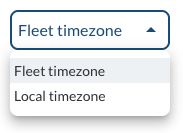
- Use the Timezone Filter to select how timestamps are displayed and how data is fetched based on the selected timezone.
Refresher Widget
Keep your data up to date by using the Refresher Widget. This allows you to reload the table data so you're always viewing the latest information. To learn more, read the article How to Set the Refresher Widget.