The Audit Log page provides a record of user activity within Fleet Portal, including who performed an action, what was changed, and when.
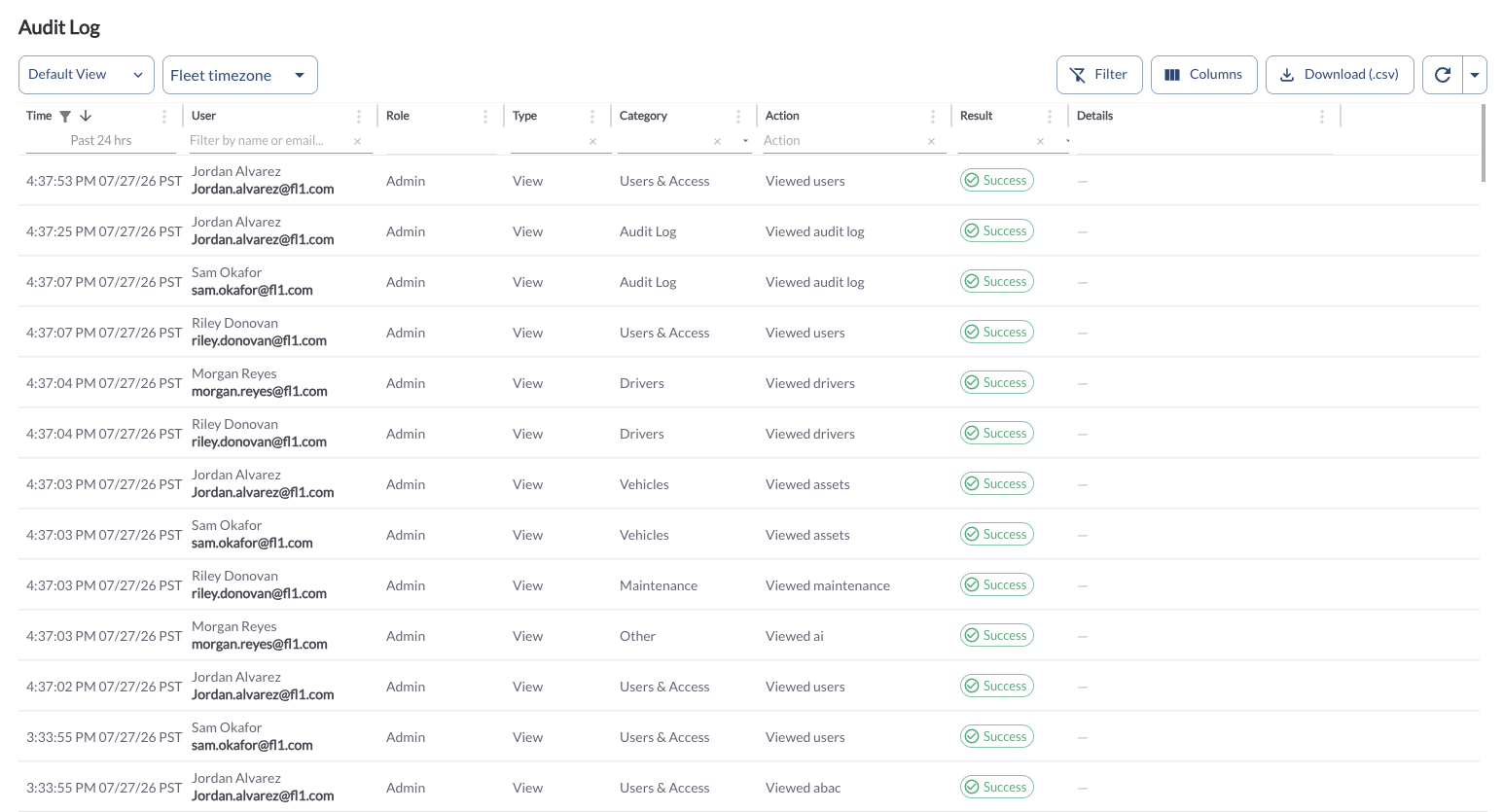
Audit Log Details
The table displays all user activity recorded in the Audit Log, allowing you to efficiently organize and access the details. It supports downloading, sorting, filtering, resizing columns, and other customization options. For a complete guide, read the article How to Use Tables in the App.
The table includes the following columns, each providing specific audit log information:
| Time |
The date and time the action occurred. |
| User |
The name and email of the user who performed the action. |
| Role |
The role assigned to the user at the time of the action. |
| Type |
The type of action performed (e.g., View, Modify). |
| Category |
The area of the system the action relates to (e.g., Users & Access, Audit Log). |
| Action |
A description of the specific action taken. |
| Result |
Indicates whether the action completed successfully. |
| Details |
Additional information about the action, if applicable. |
Filtering
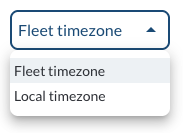
- Use the Timezone Filter to select how timestamps are displayed and how data is fetched based on the selected timezone.
Refresher Widget
Keep your data up to date by using the Refresher Widget. This allows you to reload the table data so you're always viewing the latest information. To learn more, read the article How to Set the Refresher Widget.
Custom Report Widget
Save time by using the Custom Report Widget to store report configurations with your selected filters, columns, sorting, and grouping. This allows you to quickly return to commonly used report setups and set a default configuration for easy access. For more information, read the article How to Use the Custom Report Widget.