The Edit Vehicle interface allows users to configure detailed Device, Safety, and Settings options for individual vehicles. This guide explains the available options in each tab, how they relate to fleet-level defaults, and how to customize them to meet specific operational needs.
Device Tab
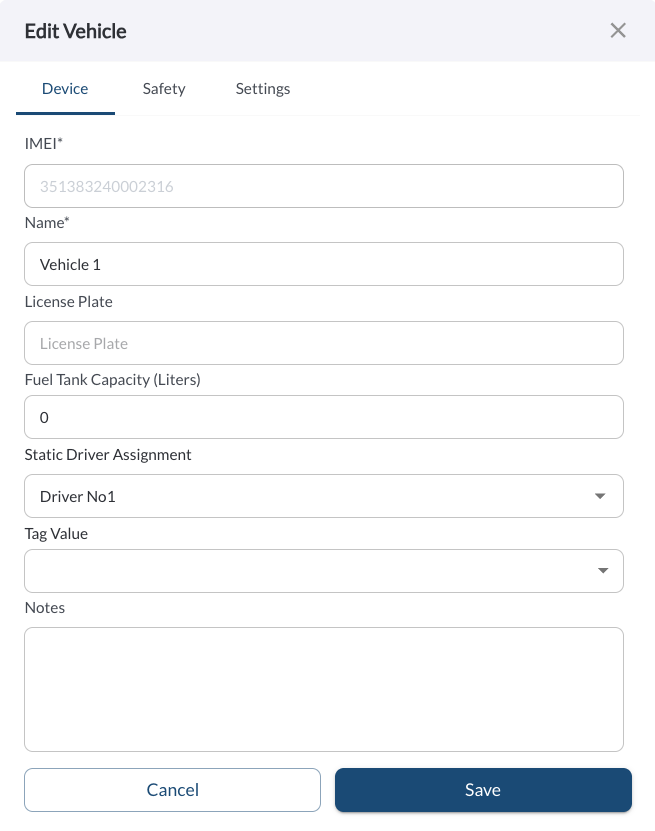
The Device Tab provides configuration options for the device associated with the selected vehicle.
Safety Tab
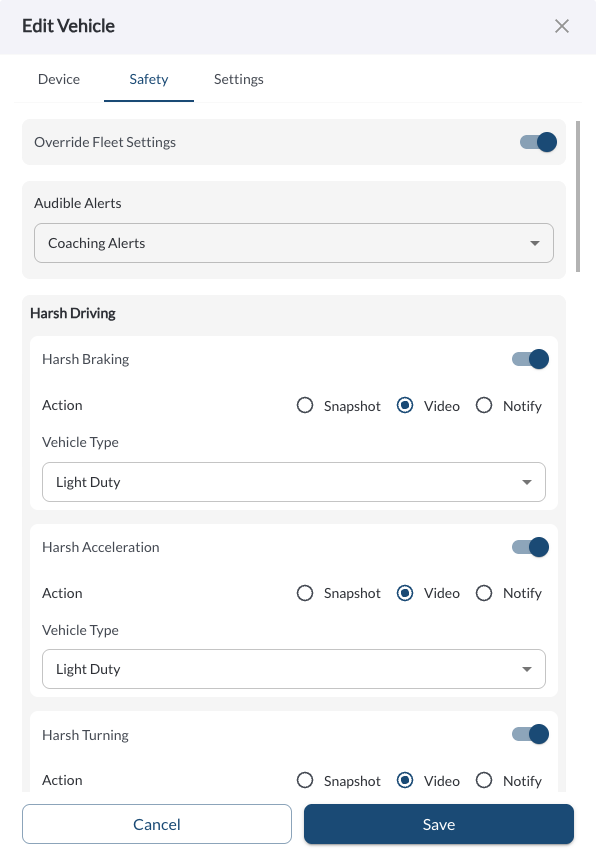
Safety Configurations let you control how safety events are detected, recorded, and communicated for each vehicle. These settings include options like audible alerts, event sensitivity, media capture, and notification behavior. When configured per vehicle, these values override the default fleet-level settings defined in the Safety Settings tab.
To explore all available safety event types, trigger logic, and configuration options, see Understanding Safety Events.
Settings Tab
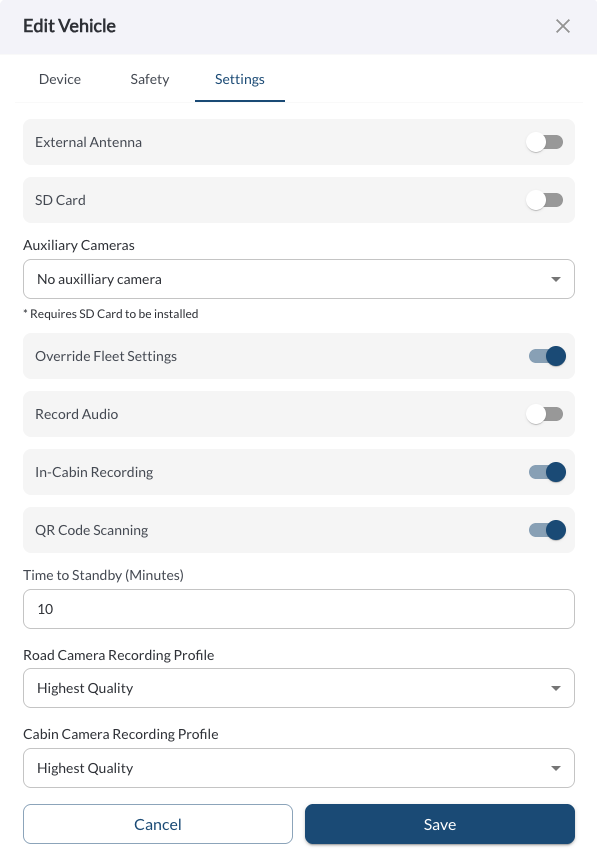
The Settings tab includes hardware-related options and allows you to override selected fleet-level behaviors.
External Antenna – Toggle to indicate whether an external antenna is used.
SD Card –Toggle to enable or disable use of the SD card; to learn more, see Using an SD Card with the RZ1 Hub.
-
Auxiliary Cameras – Select how many auxiliary cameras are connected to the device. Options include: No auxiliary camera, 1, 2, 3, or 4. To learn more, see How to Enable Auxiliary Cameras.
Note
Auxiliary camera functionality requires the SD card to be enabled.
-
Override Fleet Settings - By toggling the "Override Fleet Settings" button, you can customize settings specific to the vehicle that are otherwise applied at the fleet level:
-
Record Audio: Enable or disable audio recording from the device.
Note
Audio recordings are only recorded on the in-cabin video.
-
Cabin Recordings: Allow or restrict video recording from the cabin camera.
-
QR Code Scanning: Allows drivers to check in using the in-cab camera and their QR code.
-
Time to Standby: Adjust the duration (in minutes) after which the device enters standby mode.
- Minimum: 5 minutes
- Maximum: no limit
- Default: 10 minutes
Note
The device remains active as long as the vehicle battery voltage is above 11.5V. If the voltage drops below this threshold, the device transitions to standby mode
-
Road Camera Recording Profile / Cabin Camera Recording Profile – Select the recording quality for each camera. Available options:
Highest Quality – Prioritizes video clarity from both cameras. Best suited for situations where detail is critical, but results in the shortest storage time.
Standard Quality – A balanced option that offers good video resolution while extending recording time. Suitable for most day-to-day fleet operations.
Increased Storage – Slightly lowers video quality to significantly extend how long footage is retained. Ideal when longer recording history is more important than fine detail.
Extended Storage – Maximizes how much video can be stored by lowering resolution. Best for fleets needing the longest retention window, even if video clarity is reduced.
-
Notes: Add additional notes or comments about the vehicle for future reference.