A recognition is a positive record against a driver. Recording one takes a few seconds and gives your coaching program something to point at other than events that went wrong.
Recognitions can be added by hand, and they can also be issued automatically by a Coaching Workflow rule. This article covers adding one by hand.
Where You Can Add One
| A task card |
Three-dot menu > Add Recognition. Available on every task queue. |
| The driver profile |
Add Recognition in the page header. |
| A coaching session |
Add Recognition in the event detail panel, below the video player. This links the recognition to the event that is currently loaded. |
| The Safe Driving Report |
Recognize on a row in the quarterly review queue. This is a separate workflow – read the article Safe Driving Report
|
How to Add a Recognition
- Open Add Recognition from any of the places listed above. The driver is filled in for you.
- Enter the reason. Write something specific enough to be meaningful when it is read back months later.
- Click Save.
The recognition appears immediately on the Recognitions tab of the driver profile and in Library > Recognition History.
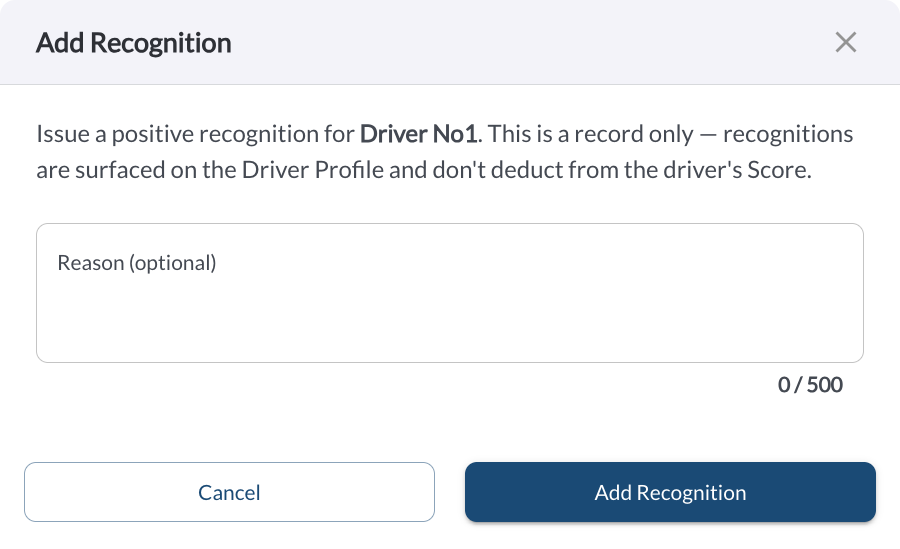
Driver Recognition and Event Recognition
| Driver Recognition |
Added from a task card or the driver profile. Not tied to a specific event, so the Event ID column in Recognition History shows a dash. |
| Event Recognition |
Added from the event detail panel in a coaching session, and linked to that event. |
Effect on the Safety Score
A recognition you add by hand is a record of positive performance and does not change the driver's Safety Score.
A recognition issued automatically, by a behavior whose Coaching Status is set to Positive Recognition, applies that behavior's score as a credit and raises the driver's Safety Score. Read the article Understanding the Driver Safety Score.
Note
Adding a recognition from a task card does not close the task or remove the events on it. The task still needs coaching, or moving to FYI, or dismissing.