The Assign Drivers queue lists safety events that have no driver assigned. An event without a driver cannot be coached or scored, so assigning a driver is the first step in getting those events into the coaching workflow.
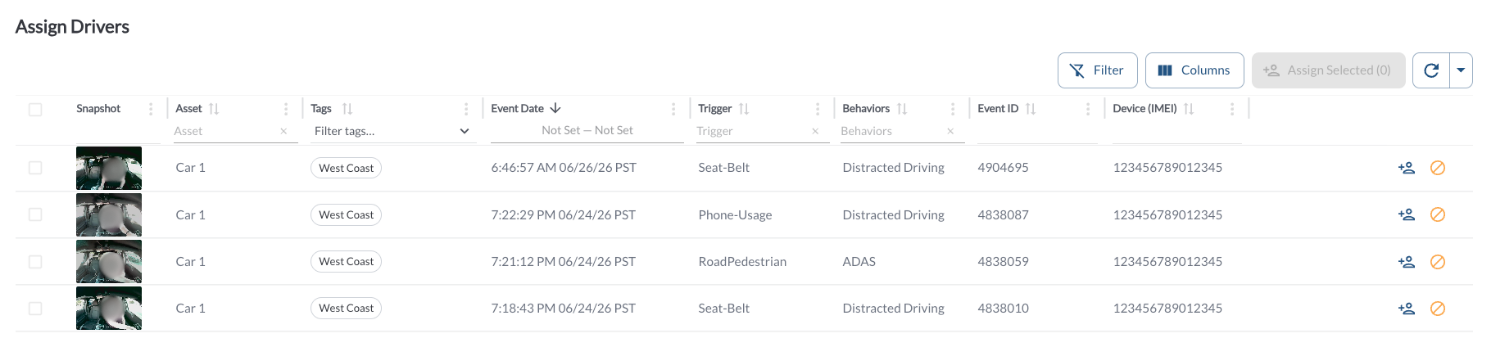
Assign Drivers Details
The table supports downloading, sorting, filtering, resizing columns, and other customization options. For a complete guide, read the article How to Use Tables in the App.
| Snapshot |
The event video. Click Preview to open the video.* |
| Asset |
The vehicle the event was recorded on. |
| Tags |
Groups associated with the asset or driver. |
| Event Date |
When the event occurred. |
| Event ID |
The unique identifier for the event. |
| Trigger |
The event type that created the event – for example Harsh Braking or Phone Usage. |
| Behaviors |
The category the trigger belongs to – for example Harsh Driving or Distracted Driving. |
| Device (IMEI) |
The unique identifier of the device installed in the vehicle. |
| Assign |
Assigns a driver to that single event. |
| Dismiss |
Dismiss the event. |
Assigning Several Events at Once
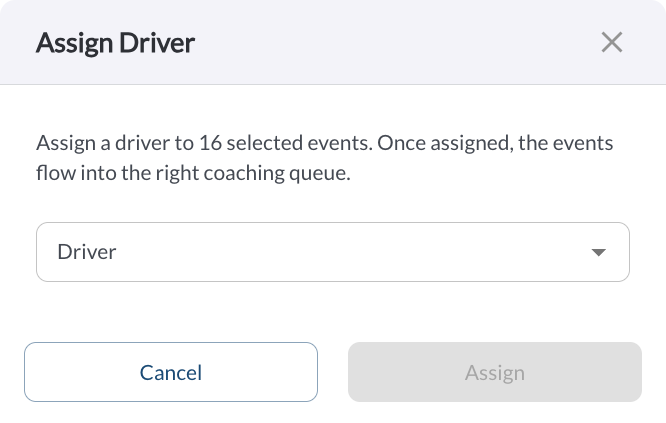
Alongside the per-row Assign action, the page can assign a group of events to one driver in a single step. This is the fastest way to clear the queue when a run of events belongs to the same person – typically one driver's shift on one vehicle. For the full procedure, read the article How to Assign Drivers to Safety Events.
Note
Check the selection before assigning. Every event assigned to a driver joins their coaching task and begins affecting their Safety Score, and a bulk assignment applies the same driver to every selected row.
Why Events Arrive Without a Driver
An event has no driver when the platform could not link the vehicle to a driver at the time of the event. Common reasons are:
- No driver was assigned to the vehicle for that period.
- The driver did not check in before the trip. Read the article Driver QR Code Check-In: How It Works.
- The vehicle is shared between drivers.
Keeping driver assignments current helps reduce the size of this queue. Read the article How to Add or Edit Drivers.
Note
The percentage of events without a driver is reported per group as Unassigned
Drivers on the Program Status Report, and is highlighted in red when it exceeds
20%.
What Happens After Assignment
Once a driver is assigned, the event is routed by its Coaching Status: added to the driver's coaching task in Due for Coaching, or sent to Collisions or FYI Notify. The event also begins contributing to that driver's Safety Score.
Read the article How to Assign Drivers to Safety Events.
Refresher Widget
Keep your data up to date by using the Refresher Widget. This allows you to reload the table data so you're always viewing the latest information. To learn more, read the article How to Set the Refresher Widget.
* Subject to available cellular network connectivity.