The Driver Coaching Session page is where a coach reviews a driver's open events and records the outcome. It is the most detailed page in the Driver Safety Program, and it is laid out top to bottom in the order a coach works through it.
This article describes what every section and control does. For the steps to run a session from start to finish, read the article How to Complete a Coaching Session.
How to Open the Page
-
Coach X Events on a task card in Due for Coaching or Collisions.
-
View Details in the three-dot menu on a task card.
-
Coach X Events in the header of a driver profile.
Use the back arrow next to the page title to return to where you came from.
1. Driver Header
The driver's name, Driver ID, and Email.
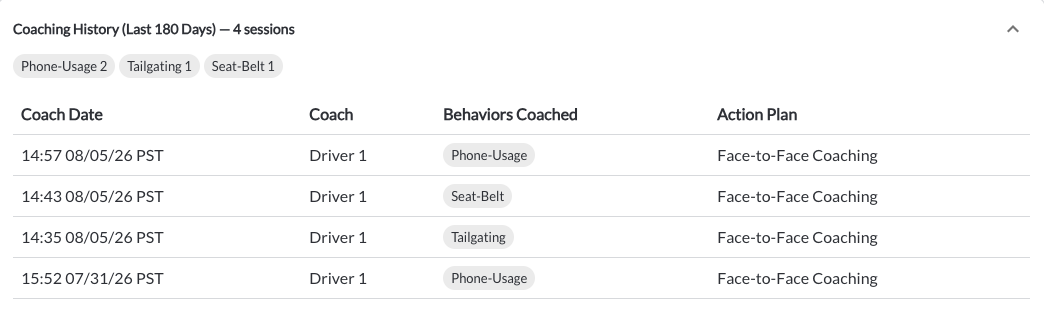
2. Coaching History (Last 180 Days)
What this driver has already been coached on in the last 180 days, shown as one chip per behavior with a count – for example Phone-Usage 14. Click View Details to expand a table of the individual sessions:
| Coach Date |
When the session was completed. |
| Coach |
Who ran the session. |
| Behaviors Coached |
The behaviors covered in that session. |
| Action Plan |
The follow-up recorded at the end of that session. |
When the driver has not been coached in that period, the card reads No coaching sessions in the last 180 days.
3. Coach Assist
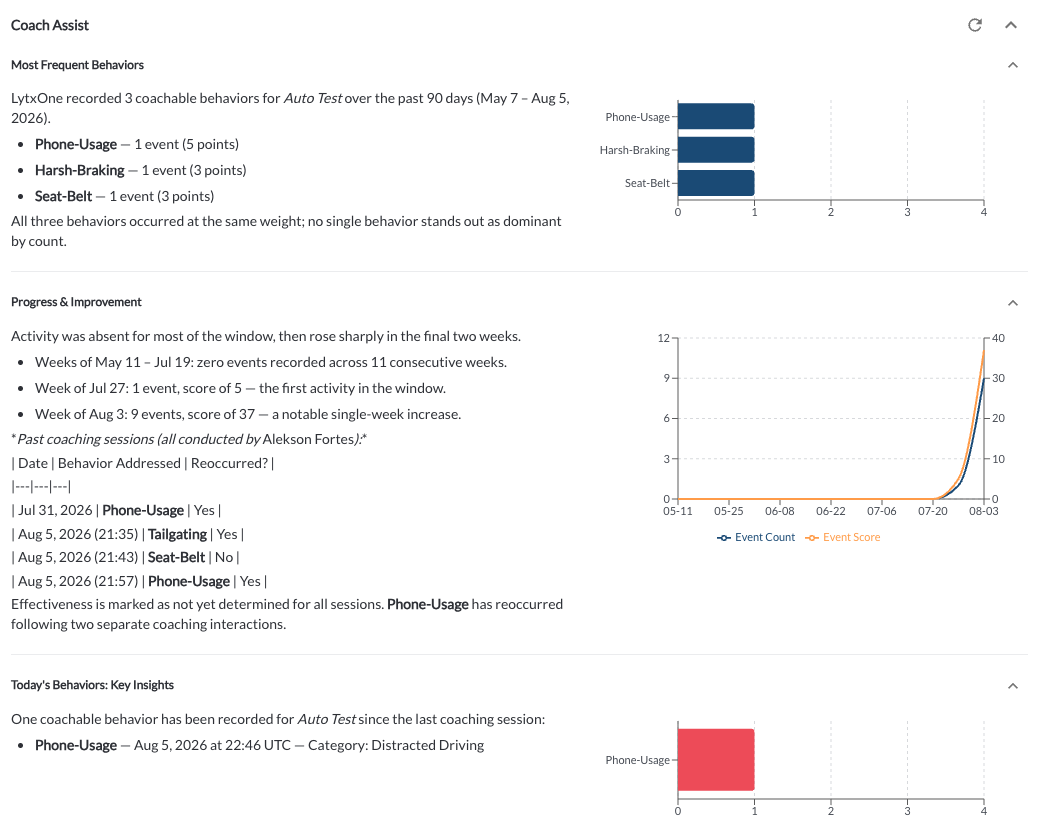
An AI-generated briefing on the driver, shown above the event videos so you can read it before starting the conversation. Coach Assist is enabled separately from the Driver Safety Program – if the card does not appear on your session page, it is not enabled for your account.
For what each section contains and how to use the follow-up box, read the article Understanding Coach Assist.
Warning
Coach Assist content is generated by AI and may be incomplete or inaccurate. Always verify it against the event videos and the driver's record before acting on safety or operational decisions, and do not use it as the basis for an employment-related decision without appropriate human supervision.
4. Event Videos
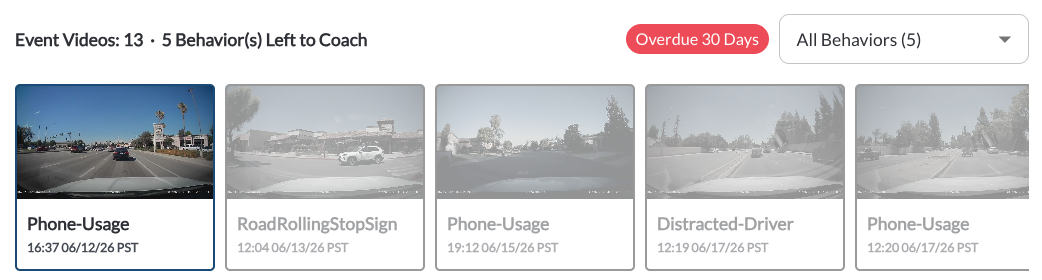
The section heading shows how many events are on the task and how many behaviors are still left to coach – for example Event Videos: 1 · 1 Behavior(s) Left to Coach.
| Overdue badge |
A red badge at the top right showing how many days the task is overdue. Shown only when the task is past its due date. |
| Behavior filter |
A dropdown at the top right, showing the number of events in the current selection – for example All Behaviors (1). Use it to narrow the thumbnail strip to one behavior. |
| Thumbnail strip |
One still per event on the task, labelled with the behavior name and the event time and date. Click a thumbnail to load that event in the player. The selected thumbnail is outlined. |
5. Video Player
The player shows the footage for the selected event.* The road-facing view fills the player, and the in-cab view is overlaid as a small inset in the corner.
| Swap views |
Use the swap control at the bottom left of the player to make the in-cab view the main pane and the road-facing view the inset. |
| Play / Pause |
Starts and stops playback. The elapsed and total time are shown next to the progress bar. |
| Volume |
Adjusts or mutes the audio. |
| Full screen |
Expands the player. |
The footage carries an overlay showing the date and time, the device identifier, the speed, and the GPS coordinates at each moment of the clip.
When only one camera recorded, that view fills the player and no inset is shown. For a complete guide to the player, read the article How to Use the Video Player.
6. Event Actions
Two buttons sit directly below the player and act on the event currently loaded:
| Add Recognition |
Records a positive recognition for this driver, linked to this event. Read the article How to Add a Recognition. |
| Dismiss this event |
Marks the event as recorded incorrectly, so it stops affecting the driver's Safety Score. Read the article How to Dismiss an Event. |

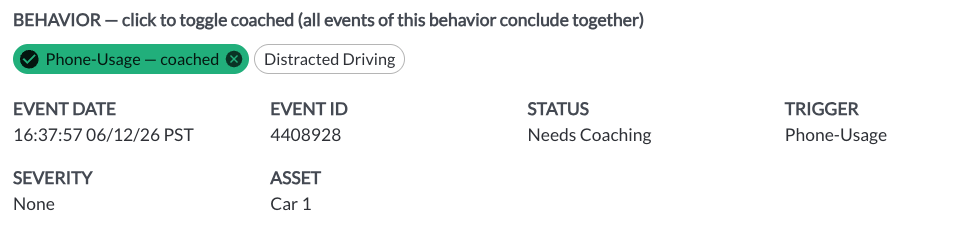
8. Event Details
| Event Date |
When the event occurred, including the time zone. |
| Event ID |
The unique identifier for the event. |
| Status |
The current event status – for example Needs Coaching. |
| Trigger |
The event type that created the event. |
| Severity |
None, Minor, or Major. |
| Asset |
The vehicle the event was recorded on. |
| Location |
The location of the event. |
9. Notes
| Event Note (optional) |
Notes about the event currently loaded in the player. |
| Session Notes |
Notes about the session as a whole. |
Both fields save with the session when you complete it. There is no separate save step.
Note
An event note attaches to the event that is loaded in the player. Select the event first, then write the note.
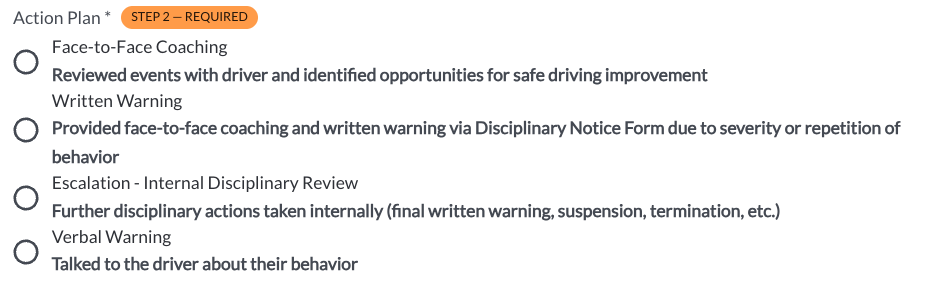
10. Action Plan
A required single-select list of the follow-up applied to the driver. Each option shows its name and a description of what it means. The list contains the four standard action plans plus any your organization has added. Read the article Action Plan Settings.
11. Completion Bar
A bar fixed to the bottom of the page. It states what is still outstanding – Select at least one behavior to coach and an Action Plan to complete – and the Complete Coaching Session button becomes available once both are done.
On completion, a coaching session record is created, the task is closed and leaves the queue, and the events covered are set to Coached.
Warning
Completing a session closes the task and cannot be undone. Review the events, the behaviors you have selected, and the Action Plan before clicking Complete Coaching Session.

*Subject to available cellular network connectivity.