Share lets you pass a coaching task to someone else – for example bringing a safety manager in on a collision, or handing a task to a colleague to pick up.
How to Share a Task
- Go to Driver Safety > Due for Coaching, or to the Collisions or FYI Notify queue.
- Find the task you want to share.
- Click the three-dot menu at the top right of the card, then click Share.
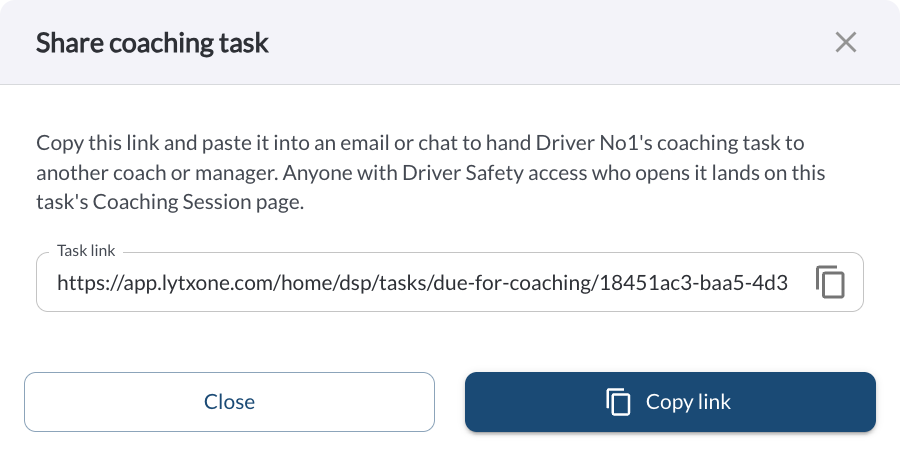
- The Share coaching task dialog opens with the link already generated in the Task link field.
- Click Copy link, or the copy icon inside the field.
- Click Close, then paste the link into your email or chat message.
Note
Sharing does not send anything. It gives you a link to copy, and you choose how to send it.
What the Recipient Sees
Anyone with Driver Safety access who opens the link lands directly on that task's Coaching Session page, ready to review the events.
The link does not grant access. The person opening it still signs in as themselves, and their own role and tags apply:
- A user whose role does not include the Driver Safety Program cannot open the task.
- A user whose tags do not cover that driver cannot open the task.
If a colleague reports that the link does not work for them, check their role and tags rather than resending it. Read the articles Roles & Permissions Settings and Tag-based Access Restriction.
Sharing Is Not Reassigning
| Share |
Gives you a link. The task stays in the same coach's queue, and nothing about it changes. Use it to bring someone in on a task, or to point a manager at something specific. |
| Reassign Coach |
Moves the task. It leaves the current coach's queue and appears in the new coach's, so the work is visibly theirs and does not sit forgotten. Use it when you are handing the task over for good. Read the article How to Reassign a Coach. |
If you are handing work over rather than asking a question about it, reassign the task as well as sharing the link.