Events with no driver assigned cannot be coached or scored. This article describes how to assign them, one at a time or in bulk, from the Assign Drivers queue.
How to Assign a Single Event
- Go to Driver Safety > Assign Drivers.
- Locate the event. Use the column filters – for example Asset, Event Date, or Tags – to narrow the list.
- Click Preview on the snapshot to confirm who was driving.*
- Click Assign on that row.
- Select the driver from the dropdown and confirm.
Note
Reviewing the clip before assigning helps make sure the event is attributed to the right driver, particularly on vehicles shared between drivers.
How to Assign Several Events at Once
Use this when a group of events belongs to the same driver – for example a full shift on one vehicle.
- Go to Driver Safety > Assign Drivers.
- Click Filter in the toolbar and filter the list so that only the events for that driver remain. Filtering by Asset and Event Date is usually the quickest way.
- Select the checkbox on each row you want to assign, or use the header checkbox to select the whole page.
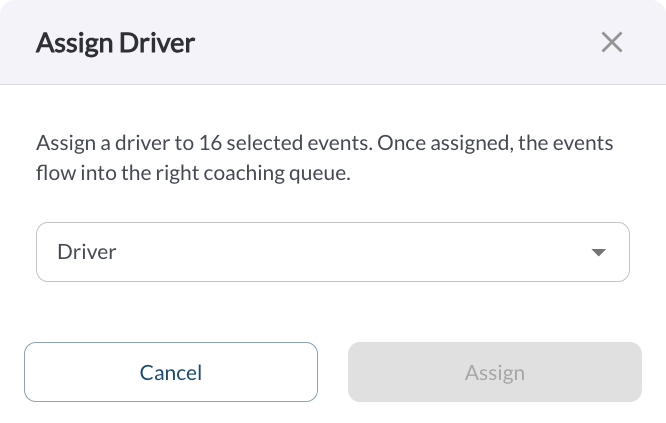
- Click Assign Selected in the toolbar.
- Select the driver and confirm.
Note
Assigning a driver adds the event to that driver's coaching task and begins affecting their Safety Score. Confirm your selection before assigning in bulk.
Reducing the Size of This Queue
Assigning events one by one treats the symptom. Events arrive here because the platform could not tell who was driving, so the lasting fix is upstream:
| Assign the driver on the trip |
On the Trips page, use Assign a Driver in a trip's quick action menu. Read the article Trips Overview. |
| Set a standing assignment for a vehicle |
In the same dialog, select the option to assign the driver to all future and unassigned trips for that vehicle. This suits vehicles with one regular driver, and stops the queue refilling every week. |
| Have drivers check in |
Best for shared vehicles, where the driver changes shift to shift. Read the article Driver QR Code Check-In: How It Works. |
| Keep driver records current |
A driver who is not registered cannot be selected anywhere. Read the article How to Add or Edit Drivers. |
*Subject to available cellular network connectivity.