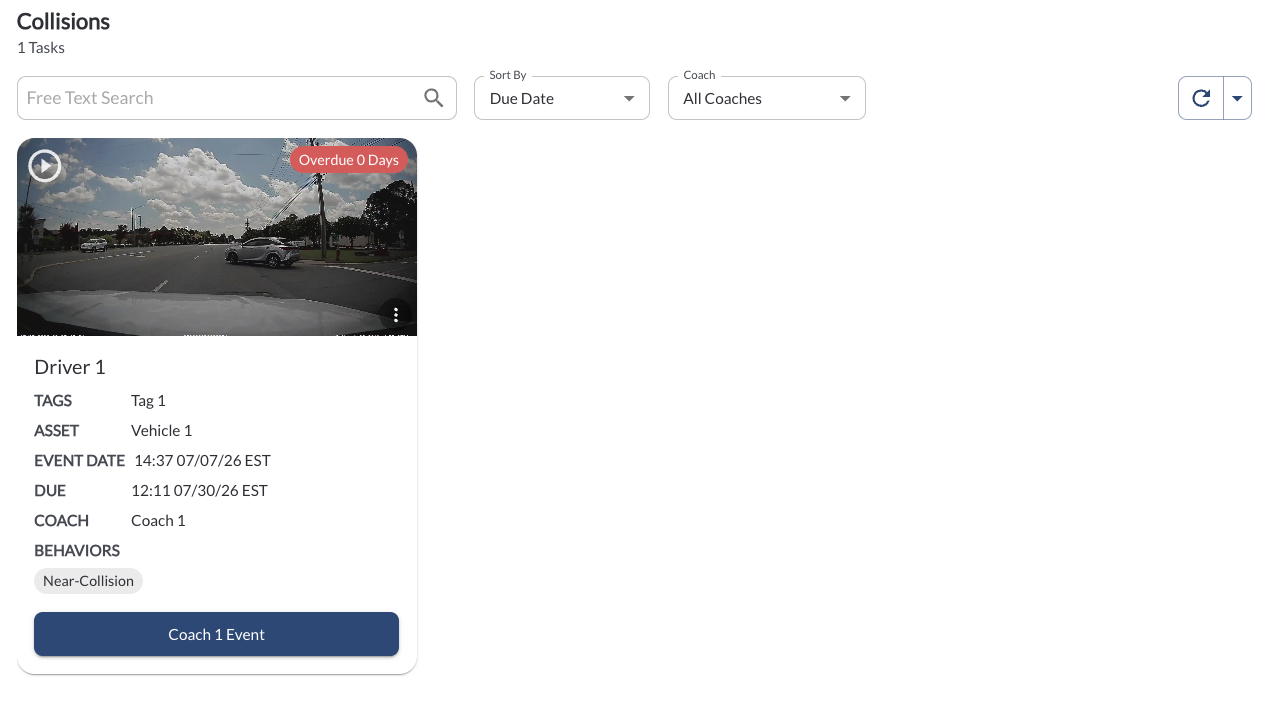
The Collisions queue is a dedicated work queue for events in the Incidents category and for any event flagged as a collision. It is separated from Due for Coaching so that these events can be reviewed first, on their own due-date schedule.
On many fleets this queue is empty. A badge appears next to the menu item only when there are open collision tasks.
What Reaches This Queue
- Events in the Incidents category – for example Collision and Near Collision.
- Any event flagged by the device as a collision.
- Any behavior you have set to the Collision coaching status in Settings > Coaching Workflow.
A collision creates an event from a single detection. There is no detection window and no snooze period, so nothing is grouped or suppressed. Read the article Understanding Detections and Coachable Events.
Filtering
The count of open tasks is displayed above the filter bar as {N} Tasks. The following filters are available:
| Filter by Coach |
Defaults to Assigned to Me. Switch to All Coaches, Unassigned, or a specific user. |
| Search by Free Text |
Searches by free text. |
| Sort By |
Due Date (default), Driver Name, or Recently Created. |
Note
Because Filter by Coach defaults to Assigned to Me, the
page appears
empty if no tasks are assigned to you. Switch to All Coaches to see the
full queue.
Task Card Details
Cards use the same layout as Due for Coaching – thumbnail, overdue badge, driver name, groups, asset, event date and time, overdue date, assigned coach, and behavior chips. The button at the bottom of the card is Coach X Events, which opens the coaching session.
Read the articles Due for Coaching Overview and How to Complete a Coaching Session.
Quick Action Menu
Click the three-dot menu at the top right of a card to open the available actions:
What Reaches This Queue
- Events in the Incidents category – for example Collision and Near Collision.
- Any event flagged by the device as a collision.
- Any behavior you have set to the Collision coaching status in Settings > Coaching Workflow.
A collision creates an event from a single detection. There is no detection window and no snooze period, so nothing is grouped or suppressed. Read the article Understanding Detections and Coachable Events.
Due Days for Collisions
Collision tasks have their own due-day window, set to 3 days by default. To change it, read the article Safety Due Days Settings.